

SEO titles and meta descriptions for WordPress pages help shape how your pages appear in Google search results. A strong SEO title can make the result clearer, more relevant and more clickable, while a strong meta description can explain why the searcher should visit your page instead of another result.
Many WordPress websites lose clicks because their title tags are too vague, too long, duplicated, keyword-stuffed or disconnected from the real page content. Meta descriptions are often missing, automatically generated, too generic or written like a summary instead of a reason to click.
In this guide, you will learn how to write SEO titles and meta descriptions for WordPress pages, service pages, blog posts, WooCommerce products and category pages. You will also learn how to match search intent, use keywords naturally, improve CTR, avoid duplicate snippets and use Google Search Console data to update weak pages. If you are improving the full SEO foundation first, start with our WordPress SEO checklist for small business websites.
Table of Contents
- What Are SEO Titles and Meta Descriptions in WordPress?
- Why SEO Titles and Meta Descriptions Matter for CTR
- SEO Titles and Meta Descriptions for WordPress Pages Checklist
- 1. Match the SEO Title With Search Intent
- 2. Include the Primary Keyword Naturally
- 3. Keep SEO Titles Clear and Clickable
- 4. Write Meta Descriptions That Sell the Click
- 5. Use Different Snippets for Service Pages, Blog Posts and Products
- 6. Avoid Duplicate SEO Titles and Meta Descriptions
- 7. Improve Existing Snippets With Google Search Console Data
- 8. Write Better Snippets for WordPress Service Pages
- 9. Optimize Blog Post Titles Without Clickbait
- 10. Optimize WooCommerce Product and Category Snippets
- 11. Test How Snippets Look Before Publishing
- 12. Keep SEO Titles and Meta Descriptions Updated
- SEO Title and Meta Description Best Practices
- Common SEO Title and Meta Description Mistakes
- SEO Titles and Meta Descriptions WordPress FAQ
- Conclusion
- Related Website Growth Guides
What Are SEO Titles and Meta Descriptions in WordPress?
SEO titles and meta descriptions in WordPress are page-level metadata fields that help describe a page for search results. The SEO title is usually used as the title link in Google results, while the meta description can be used as the snippet text under the title when Google decides it is relevant to the search.
The SEO title is different from the visible H1 in WordPress, although they should usually be closely connected. The H1 is the main on-page heading users see after opening the page. The SEO title is written for search results and should match the same topic, keyword and intent. A mismatch between the H1 and SEO title can make the page feel confusing.
The meta description is not a place to stuff keywords. It should summarize the page’s value and give the searcher a reason to click. A good meta description often explains the problem, the benefit and the type of page the user will find after clicking.
- H1: the main visible page heading inside the WordPress page or post.
- SEO title: the title tag search engines may use as the clickable result title.
- Meta description: the snippet text search engines may show below the result title.
- Slug: the URL part that should support the page topic and primary keyword.
- Search intent: the reason someone searches and what they expect to find.
- CTR: click-through rate, or how often searchers click your result after seeing it.
For maximum SEO clarity, the WordPress page title, H1, SEO title, meta description, slug and main headings should all support the same primary topic. They do not need to be identical, but they should not target different keywords or different search intent.
Why SEO Titles and Meta Descriptions Matter for CTR
SEO titles and meta descriptions matter because they influence how your page looks before the user clicks. A page can rank well but still receive weak traffic if the title is unclear, the snippet does not match intent, or the result looks less useful than competing pages.
CTR is important because search traffic depends on both visibility and clicks. If many people see your result but few click it, the page may need a clearer title, more relevant meta description, stronger value proposition or better alignment with the keyword.
Search intent
The title and description should show that the page matches what the searcher wants.
Keyword clarity
A natural primary keyword helps users understand the page topic before clicking.
Click value
The snippet should explain why this result is useful, specific or better than a generic page.
Page consistency
The search result should match the H1, content, headings and real page promise.
Google may rewrite title links and snippets when it thinks another version better matches the query. This means you cannot fully control every search result, but you can still write strong titles, meta descriptions and page content that make the preferred snippet more likely to be useful. You can also review Google’s official documentation about title links and snippets.
Use Google Search Console to find pages with impressions but weak clicks. Those pages may already have visibility, but their SEO title, meta description, search intent match or content promise may need improvement.
SEO Titles and Meta Descriptions for WordPress Pages Checklist
This SEO titles and meta descriptions for WordPress pages checklist is designed for service pages, blog posts, WooCommerce products, categories, local pages and landing pages. Use it to make every important page clearer in search results and better aligned with its real content.
The checklist covers the most important snippet optimization areas: search intent, primary keyword placement, clear SEO titles, click-focused meta descriptions, page-type differences, duplicate snippets, Search Console data, service pages, blog posts, WooCommerce snippets, snippet previews and ongoing updates.
12 areas to review for WordPress titles and meta descriptions
Use this checklist to improve title tags, meta descriptions, Google snippets, CTR and keyword alignment on important WordPress pages.
Before writing any SEO title or meta description, define the page’s primary keyword, search intent and page type. A service page, blog post, ecommerce product and category page should not use the same snippet formula, because searchers expect different outcomes from each page type.
1. Match the SEO Title With Search Intent
The SEO title should match the search intent behind the keyword. A searcher looking for a checklist expects a checklist. A searcher looking for a guide expects a complete guide. A searcher looking for a service expects a service page. If the SEO title promises the wrong page type, the result may get fewer clicks or disappoint visitors after they land on the page.
Before writing an SEO title, decide what the searcher wants to do. Do they want to learn, compare, buy, hire, fix a problem, choose a product, request a quote or check a local business? The title should make the page type and value clear before the click.
Write the SEO title for the page the searcher expects
Strong WordPress SEO titles match the keyword, the page type and the user’s next step.
Use words like guide, checklist, tutorial, examples or steps when the page teaches something.
Make the service, outcome and business value clear when the page targets leads.
Use product type, feature, category, brand, size or buying detail when the page targets shoppers.
Add local relevance only when the page is actually about a location, area or local service.
Use compare, best, alternatives, vs or choosing language when the searcher is evaluating options.
Use fix, improve, optimize or solve when the page helps users repair or improve something.
For example, a page targeting “WordPress service page SEO” should not use a generic title like “Our Web Design Services”. The searcher wants a guide about optimizing service pages, so the SEO title should clearly say that. For service page structure, use the WordPress service page SEO guide.
- Identify whether the page is informational, commercial, local, product-focused or comparison-focused.
- Make the page type clear in the SEO title.
- Do not promise a checklist if the page is not a checklist.
- Do not use a service-style title for an educational blog post.
- Match the SEO title with the H1 and main page content.
- Check Google Search Console later to see whether the title attracts clicks.
2. Include the Primary Keyword Naturally
The primary keyword should usually appear naturally in the SEO title, especially for important WordPress pages. It should also be supported by the H1, slug, meta description, intro, H2 sections and page content. This creates a clear topic signal without keyword stuffing.
The goal is not to repeat the exact keyword everywhere. The goal is to make the main topic obvious. If the primary keyword is “SEO titles and meta descriptions WordPress”, the H1 can use a natural version such as “SEO Titles and Meta Descriptions for WordPress Pages”. The meaning is clear and readable.
Connect the keyword with the title, H1, slug and headings
Maximum SEO clarity comes from using the same topic across the search snippet and the page structure.
Use the main keyword or a close natural phrase near the start when possible.
Keep the visible post title closely aligned with the SEO title and keyword.
Use a short URL that supports the keyword without unnecessary words.
Include the topic naturally and explain why the page is worth clicking.
Use related terms that support the keyword cluster and search intent.
Write complete content that proves the page actually satisfies the keyword.
Keyword alignment is especially important in a content series. If one post targets “WordPress SEO checklist”, another targets “WordPress internal linking strategy” and another targets “SEO titles and meta descriptions WordPress”, each post should have a separate H1, SEO title, meta description and search intent. This helps avoid keyword cannibalization.
- Use the primary keyword or a close phrase in the SEO title.
- Make the H1 clearly match the same topic.
- Keep the slug short and keyword-relevant.
- Use related keywords in H2 and H3 headings.
- Do not stuff the exact keyword into every heading.
- Make sure the page content fully satisfies the keyword promise.
3. Keep SEO Titles Clear and Clickable
A good SEO title should be clear before it is clever. Searchers scan results quickly, so the title must explain the topic, page type and value in a few words. If the title is vague, too branded, too clever or too long, users may skip it even if the page ranks.
For WordPress pages, a clickable SEO title often combines the keyword, the page type and a useful benefit. It should not sound like spam. It should not promise something the page does not deliver. It should make the page feel like the right result for the query.
Home, Services, Blog Post, Best Guide Ever, Click Here, Everything You Need to Know.
SEO Titles and Meta Descriptions for WordPress Pages – Snippets, CTR & Keywords.
Long titles can be cut off in search results. Instead of writing every keyword into the title, prioritize the main keyword and the main reason to click. Supporting keywords can appear in the H2/H3 structure, intro and body content.
- Place the main topic near the start of the SEO title.
- Make the page type obvious: guide, checklist, examples, service, product or category.
- Use a benefit only if the page actually delivers it.
- Avoid vague titles such as “Services” or “Blog”.
- Avoid keyword stuffing and repeated phrases.
- Keep the SEO title readable when shown in search results.
Titles and descriptions shape the snippet. Schema helps define the page context.
EntitySchema Pro helps you add entity-based structured data to WordPress, including page, FAQ, breadcrumb, organization and product context where it matches the visible content.
4. Write Meta Descriptions That Sell the Click
A meta description should sell the click without misleading the searcher. It should explain what the page offers, who it helps and why it is useful. A strong meta description is not just a summary. It is a short search result pitch that connects the user’s problem with the page’s answer.
Google may rewrite meta descriptions based on the query, but writing a good description is still useful. It gives search engines and users a clear page summary, and it can appear in search results when it matches the user’s search intent.
Explain the value of the page before the click
A useful meta description connects the keyword, the searcher’s problem and the reason to visit the page.
Show that the page understands what the searcher is trying to solve.
Explain what the reader will learn, get, compare, fix or understand.
Make clear whether it is a guide, checklist, service page, product or category.
Use the main topic naturally so the snippet feels relevant.
Mention concrete elements like snippets, CTR, titles, descriptions, products or services.
Use a natural action phrase when it fits, such as learn, compare, optimize or improve.
A good meta description should be specific enough to stand out. For example, “Learn SEO tips for WordPress” is too generic. A stronger description says what the page covers: SEO titles, meta descriptions, snippets, CTR, keywords, service pages, blog posts and WooCommerce products.
- Write a unique meta description for every important page.
- Include the main topic naturally without keyword stuffing.
- Explain the page value in a clear sentence or two.
- Use specific terms that match the page content.
- Avoid generic descriptions that could fit any page.
- Do not promise something the page does not deliver.
5. Use Different Snippets for Service Pages, Blog Posts and Products
Different WordPress page types need different snippet strategies. A service page should build trust and lead intent. A blog post should explain the question or guide value. A WooCommerce product page should make the product, buying details and differentiators clear. A category page should help shoppers understand the product group.
Using the same title and meta description style across all pages can make the website look generic in search results. Snippets should match the job of the page and the reason someone would click it.
Write snippets based on what the page needs to achieve
Service pages, blog posts, products and categories should not use the same SEO title formula.
Focus on the service, problem, result, trust and conversion action.
Focus on the question, guide value, checklist, examples or learning outcome.
Focus on product type, model, feature, use case, price or buying detail.
Focus on product group, selection, comparison and shopping intent.
Focus on service area, local relevance, trust and contact action.
Focus on the broad topic, complete coverage and links to deeper sections.
For example, a service page snippet should not read like a blog guide. It should explain the service and conversion value. A WooCommerce product snippet should not read like a general article. It should help the shopper understand the product or category. For ecommerce snippets, use the WooCommerce ecommerce SEO guide.
- Use a different snippet strategy for service pages, blog posts and products.
- Make service page snippets lead-focused and trust-focused.
- Make blog post snippets educational and specific.
- Make product snippets clear for buying intent.
- Make category snippets useful for product group searches.
- Do not use the same generic meta description template everywhere.
6. Avoid Duplicate SEO Titles and Meta Descriptions
Duplicate SEO titles and meta descriptions make it harder for users and search engines to understand how pages differ. If many WordPress pages use the same title or description, search results can look repetitive and unclear. Duplicate snippets are especially common on service pages, product pages, category pages and paginated archives.
Every important page should have a unique SEO title and meta description. Similar pages can use a consistent structure, but the keyword, page type, benefit and content promise should be different enough to match the actual page.
Make every important page snippet unique and specific
Duplicate SEO titles and meta descriptions can weaken search clarity and make similar pages compete with each other.
Each service page needs a unique service keyword, result and conversion promise.
Each post needs a unique title that matches its exact guide topic and search intent.
Each important product should have a title and description that identify the product clearly.
Each category should target a specific product group or shopping intent.
Each local page needs real location value, not only the same snippet with a city name changed.
Low-value archives, tags or filtered pages should not create uncontrolled duplicate snippets.
Duplicate snippets can also increase cannibalization risk when similar pages target similar keywords. If two pages have almost the same SEO title, meta description, H1 and content intent, decide which page should be the main page and adjust the other page’s role. For internal page relationships, review the WordPress internal linking strategy.
- Write unique SEO titles for all important WordPress pages.
- Write unique meta descriptions for service pages, products, categories and pillar posts.
- Do not reuse the same description template across many pages without real variation.
- Check similar pages for overlapping keywords and search intent.
- Avoid creating many location or product pages with only one word changed.
- Update duplicate snippets during content audits.
7. Improve Existing Snippets With Google Search Console Data
Google Search Console can help you find WordPress pages that already appear in search but do not get enough clicks. These pages may have impressions, but the SEO title, meta description, search intent match or snippet promise may not be strong enough to attract the click.
This is one of the best ways to improve SEO titles and meta descriptions because you are not guessing. You can see which queries already show your pages, which pages get impressions, which pages have weak CTR and where the snippet may need a better keyword, clearer value or stronger page promise.
Find pages with impressions but weak clicks
Use real query and page data to improve WordPress SEO titles, meta descriptions and snippet relevance.
Find pages that appear often in search but do not receive enough clicks.
Review pages where the search result may not look useful, specific or clickable enough.
Check whether the page is showing for queries that do not match the current title.
Rewrite titles that are too generic, too long or disconnected from search intent.
Improve descriptions that only summarize the page instead of giving a reason to click.
If the query shows missing intent, update the page content before rewriting the snippet.
Open Google Search Console, review the Performance report, filter by page and compare queries, impressions, clicks and CTR. If the page appears for a keyword that is not reflected in the title or description, rewrite the snippet only if the page content also satisfies that search intent.
- Find pages with high impressions and low CTR.
- Check which queries trigger each page.
- Compare the query intent with the current SEO title and H1.
- Rewrite titles that do not clearly match the searcher’s intent.
- Rewrite meta descriptions that do not explain the page value.
- Update the page content when the query reveals a missing section.
8. Write Better Snippets for WordPress Service Pages
WordPress service pages need SEO titles and meta descriptions that clearly explain the service, the target customer, the result and the reason to contact the business. A service page snippet should not sound like a blog post. It should help the searcher understand what service is offered and why the business is relevant.
A strong service page SEO title usually includes the service keyword and a clear value angle. The meta description should explain the problem solved, the service outcome and the next action. For deeper service page structure, use the WordPress service page SEO guide.
Make the service, outcome and next step clear
Service page snippets should attract users who need help, not readers looking only for a general article.
Use the main service phrase naturally in the title or close to the start.
Make it clear who the service is for when that improves relevance.
Explain what the service helps the customer achieve or improve.
Use experience, specialization, process or proof where it fits naturally.
Add local terms only when the page truly targets a location or service area.
Use contact, quote, consultation or booking language when the page is lead-focused.
For example, “Website Design Services” is too broad. A stronger SEO title could clarify the audience and value, such as “WordPress Website Design Services for Small Businesses”. The meta description can then explain the service, outcome and quote request action.
- Use the service keyword naturally in the SEO title.
- Make the title sound like a service page, not a blog post.
- Explain the result, problem or business value in the meta description.
- Add local relevance only when the page is truly local.
- Use a natural conversion phrase when appropriate.
- Keep the H1, SEO title and service page content aligned.
9. Optimize Blog Post Titles Without Clickbait
Blog post SEO titles should attract clicks, but they should not use clickbait that the content does not deliver. A strong blog post title should make the topic, format and value clear. If the post is a checklist, say checklist. If it is a guide, say guide. If it includes examples, say examples.
Clickbait can create short-term curiosity, but it can damage trust when the page does not match the promise. For SEO content, the better strategy is specific value: what the reader will learn, what problem the guide solves and what page type they will get.
This One SEO Trick Will Change Everything About Your WordPress Website.
SEO Titles and Meta Descriptions for WordPress Pages – Snippets, CTR & Keywords.
Blog titles should also avoid competing with other posts in the same series. If one post targets “WordPress SEO checklist”, another should not use almost the same title unless it has a different search intent. For a clean series structure, connect blog posts with a strong WordPress internal linking strategy.
- Make the blog post format clear in the SEO title.
- Use the primary keyword naturally without stuffing.
- Avoid exaggerated clickbait that the content does not support.
- Use specific value instead of vague curiosity.
- Keep the SEO title and H1 closely aligned.
- Make sure the blog title does not compete with another post’s keyword.
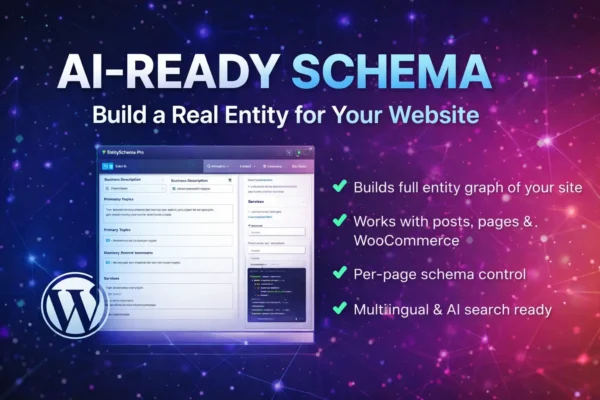
Support your snippets with structured page context
EntitySchema Pro helps you add entity-based structured data to WordPress, including page, FAQ, breadcrumb, organization, product and service context where it matches visible content.
10. Optimize WooCommerce Product and Category Snippets
WooCommerce product and category snippets should match shopping intent. A product page title should help shoppers identify the product clearly. A category page title should help shoppers understand the product group, selection or buying context.
For product pages, include useful product identifiers such as product type, model, size, material, brand, feature or use case when relevant. For category pages, focus on the product group and buying intent. Do not make every product title look identical if the products target different searches.
Make product and category search results useful for shoppers
Ecommerce snippets should help users understand the product, category, buying detail and next step before clicking.
Include the product type so shoppers immediately understand what the page is.
Add model, material, size, color, compatibility or feature where it affects search intent.
Use category titles for broader product group searches and shopping comparison.
Mention delivery, selection, price range or availability only when useful and accurate.
Use accurate structured data when product details are visible and true.
Make important products and categories specific enough to avoid duplicate snippet problems.
WooCommerce snippets should connect with product page content, category SEO, image SEO and Product schema. For a deeper ecommerce workflow, use the WooCommerce ecommerce SEO guide.
- Use specific product titles for important product pages.
- Use category titles for broader product group searches.
- Add product identifiers when they help shoppers search and choose.
- Write unique descriptions for important products and categories.
- Do not use the same title template for every product if it creates duplicates.
- Keep Product schema accurate and aligned with visible product data.
11. Test How Snippets Look Before Publishing
Before publishing a WordPress page, preview how the SEO title, slug and meta description may look as a search result. A snippet preview can help you catch titles that are too long, descriptions that are too vague, missing keywords, duplicated phrases or search results that do not clearly match the page content.
A preview is not a guarantee that Google will show the exact title or description, but it is still useful for editing. It helps you see whether the snippet feels clear, clickable and aligned with the page promise.
SEO Titles and Meta Descriptions for WordPress Pages
veebilehed24.ee › en › blog › website-growth › seo-titles-meta-descriptions-wordpressLearn how to write SEO titles and meta descriptions for WordPress pages. Improve snippets, CTR, keywords, service pages, blog posts and ecommerce SEO.
- Does the title include the main topic?
- Does the title match the H1?
- Does the description explain the page value?
- Does the snippet match search intent?
- Is the slug short and readable?
Also test structured data where it affects search appearance. Use the free Google Rich Results Test for pages with FAQ, Product, Breadcrumb or other structured data that supports the search result.
- Preview the SEO title, slug and meta description before publishing.
- Check whether the title is too long or unclear.
- Check whether the meta description gives a real reason to click.
- Make sure the snippet matches the H1 and content.
- Test structured data with Google Rich Results Test when relevant.
- Remember that Google may still rewrite title links or snippets.
12. Keep SEO Titles and Meta Descriptions Updated
SEO titles and meta descriptions should not be written once and forgotten forever. Search intent can change, competitors can improve their snippets, Google may show the page for new queries, and the content itself may be updated with new sections, examples or services.
When you update a WordPress page, review the SEO title and meta description at the same time. If the page is now more complete, the snippet should reflect that. If the page is targeting a clearer keyword, the title and description should support that keyword without creating cannibalization.
Review snippets when pages, rankings or search intent change
WordPress snippets should improve as the page becomes stronger and the search data becomes clearer.
Rewrite the snippet when the page gains new sections, examples, FAQs or stronger value.
Update titles and descriptions when the primary keyword or search intent becomes clearer.
Improve snippets for pages with impressions but weak clicks in Search Console.
Rewrite snippets when duplicate or competing pages are merged into one stronger page.
Update service page snippets when offers, locations, pricing or CTAs change.
Update ecommerce snippets when product names, availability, features or categories change.
Snippet updates should be part of a wider SEO maintenance process. When you update internal links, add new sections, improve service pages, publish related guides or change product content, check whether the search result still represents the page correctly.
- Review snippets after major content updates.
- Use Search Console to find pages with weak CTR.
- Update snippets when the page’s primary keyword changes.
- Rewrite snippets after merging duplicate or competing pages.
- Keep service, product and category snippets aligned with current offers.
- Do not change successful snippets without a clear reason.
SEO Title and Meta Description Best Practices
SEO titles and meta descriptions for WordPress pages work best when they match the real page content, search intent, H1, slug, headings and user expectation. A strong snippet should make the page topic clear before the click and then deliver exactly what the searcher expected after the click.
The best WordPress snippets are not only keyword-focused. They are also user-focused. They explain the page type, the value, the problem solved and the reason to click. A service page, blog post, WooCommerce product and category page should each have a snippet that matches its own role.
Write WordPress snippets around keywords, intent and click value
Use these best practices to improve SEO titles, meta descriptions, Google snippets, CTR and page-level keyword alignment.
Keep the SEO title closely aligned with the visible post title and main page promise.
Add the primary keyword or a close phrase without forcing it into every sentence.
Make the snippet match whether the page is a guide, service page, product or category.
Use clear value, page type and specificity instead of vague or generic titles.
Use the meta description to explain what the reader gets and why it is useful.
Use Google Search Console to improve pages with impressions but weak CTR.
- Make the post title, H1, SEO title, slug and meta description support the same primary keyword.
- Use the primary keyword naturally in the SEO title and meta description.
- Write a unique SEO title for every important WordPress page.
- Write a unique meta description for every important service page, blog post, product and category.
- Make the page type clear: guide, checklist, service, product, category or local page.
- Use specific value instead of vague phrases like “learn more” or “best solutions”.
- Avoid keyword stuffing, duplicate snippets and misleading clickbait.
- Use Google Search Console to find pages with impressions but low CTR.
- Update snippets when the page content, keyword or search intent changes.
- Check structured data with Google Rich Results Test when schema supports the page.
Common SEO Title and Meta Description Mistakes
Many WordPress SEO title and meta description mistakes happen because snippets are treated as small technical fields instead of search result copy. A weak snippet can make a strong page look generic. A misleading snippet can get clicks but disappoint users. A duplicated snippet can make similar pages look like they all serve the same purpose.
The most common problem is poor alignment. The SEO title says one thing, the H1 says another, the meta description targets a third idea and the page content does not fully support the promise. For maximum SEO clarity, all of these elements should point to the same primary topic and search intent.
Avoid these WordPress SEO snippet problems
These mistakes can reduce CTR, confuse search intent and make important pages look weaker in search results.
The title does not clearly show the main topic or primary keyword.
The SEO title, H1 and content promise do not support the same search intent.
The meta description could fit any page and gives no strong reason to click.
Multiple pages use the same or nearly identical SEO titles and descriptions.
The title or description repeats keywords unnaturally and looks spammy.
The snippet promises something the page does not actually deliver.
- Using the same SEO title and meta description on many pages.
- Writing a title that does not include the primary keyword or main topic.
- Making the H1 different from the SEO title in a confusing way.
- Writing meta descriptions that are too generic or too short.
- Adding keyword lists instead of readable search result copy.
- Promising a checklist, guide, service or product detail that the page does not provide.
- Using the same snippet formula for service pages, blog posts and products.
- Ignoring Search Console data after the page starts getting impressions.
- Changing snippets too often without tracking performance.
- Forgetting to update snippets after major content updates.
SEO Titles and Meta Descriptions WordPress FAQ
Here are common questions about SEO titles and meta descriptions for WordPress pages, snippets, CTR, keywords, H1 headings and Google search results.
SEO titles and meta descriptions are page-level metadata fields that help describe a WordPress page in search results. The SEO title may appear as the clickable result title, while the meta description may appear as the snippet text below it.
They do not need to be exactly the same, but they should be closely aligned. The SEO title, H1, slug, meta description and headings should support the same primary keyword and search intent.
There is no perfect fixed length because search results can vary. A good SEO title should be clear, readable and not overloaded. Put the main topic near the start and avoid stuffing multiple keyword variations into one title.
A meta description should be long enough to explain the page value clearly, usually one or two concise sentences. The exact display length can vary, so focus on clarity, search intent and click value instead of only character count.
No. Google may rewrite snippets based on the search query and page content. Still, writing a strong meta description is useful because it gives a clear page summary and can be used when it matches the search intent.
Yes, include the primary keyword or a close natural phrase when it fits. Do not stuff keywords. The title and description should read naturally and match the page content.
They can improve CTR by making the search result clearer, more relevant and more useful to the searcher. A good title shows the topic and page type, while a good meta description explains the value before the click.
Use Google Search Console to find pages with impressions but low CTR. Compare the queries, title, H1 and meta description to see whether the snippet matches search intent and gives a strong reason to click.
Every important page should have a unique meta description. Similar pages can follow a consistent structure, but the description should still match the specific page, keyword, value and search intent.
Conclusion
SEO titles and meta descriptions for WordPress pages help connect your page content with the search result. A strong SEO title makes the topic, keyword and page type clear. A strong meta description explains the value and gives the searcher a reason to click.
Start by matching the SEO title with search intent. Include the primary keyword naturally. Keep the H1, SEO title, slug, meta description and headings aligned. Write different snippets for service pages, blog posts, WooCommerce products, categories and local pages. Avoid duplicate snippets and use Google Search Console to improve pages that already get impressions.
The goal is not to trick users into clicking. The goal is to make the search result honest, clear and more useful than competing results. When your snippet matches the page and the page delivers on the promise, WordPress SEO becomes stronger and more trustworthy.
Want structured data to support your WordPress snippets?
EntitySchema Pro helps you add entity-based structured data to WordPress, including page, organization, FAQ, breadcrumb and product context where it matches your visible content.
Related Website Growth Guides
This SEO titles and meta descriptions guide is part of the Website Growth series. The related guides below help you improve WordPress SEO, service pages, performance, local visibility, internal linking, WooCommerce SEO, schema markup, content structure and conversions without making the posts compete for the same keyword.
WooCommerce ecommerce SEO helps online stores get more visibility from product searches, category searches and commercial buying intent. A WooCommerce store can have good products, but still lose search traffic if product pages are thin, category pages are weak, images are slow, schema markup is missing, filters create duplicate URLs, or internal links do not help users find the right products.
Unlike a normal business website, a WooCommerce store has many page types that need SEO attention. Product pages, product categories, shop pages, filters, search results, reviews, images, product descriptions, breadcrumbs, related products and checkout paths all affect how users and search engines understand the store.
In this WooCommerce ecommerce SEO guide, you will learn how to optimize product pages, category pages, product descriptions, product schema, images, reviews, internal links, duplicate content, filters, pagination, Core Web Vitals, tracking and conversion paths. If you are improving the full website foundation first, start with our WordPress SEO checklist for small business websites. If your store is slow, also review the WordPress Core Web Vitals guide.
Table of Contents
- What Is WooCommerce Ecommerce SEO?
- Why WooCommerce SEO Matters for Online Stores
- WooCommerce Ecommerce SEO Checklist
- 1. Start With Product and Category Keyword Research
- 2. Optimize WooCommerce Product Page SEO
- 3. Write Better Product Titles and Descriptions
- 4. Improve WooCommerce Category SEO
- 5. Add Product Schema Markup
- 6. Optimize Product Images for SEO and Speed
- 7. Use Reviews and Trust Signals
- 8. Improve Internal Links Between Products and Categories
- 9. Fix Duplicate Content, Filters and Pagination Issues
- 10. Improve WooCommerce Core Web Vitals and Mobile Speed
- 11. Track WooCommerce SEO Performance
- 12. Turn Product Traffic Into Sales
- WooCommerce SEO Best Practices
- Common WooCommerce SEO Mistakes
- WooCommerce Ecommerce SEO FAQ
- Conclusion
- Related Website Growth Guides
What Is WooCommerce Ecommerce SEO?
WooCommerce ecommerce SEO is the process of optimizing a WooCommerce store so search engines and shoppers can understand products, categories, prices, availability, reviews, images, product details and buying paths. It combines technical SEO, product content, category structure, schema markup, internal linking, performance and conversion optimization.
A WooCommerce store usually has more SEO complexity than a normal WordPress service website. Products can have variations, attributes, categories, tags, reviews, related products, upsells, cross-sells, filters, sorting URLs and paginated category pages. If these elements are not managed carefully, the store can create thin pages, duplicate content and weak buying paths.
Good WooCommerce SEO should help three groups at the same time: search engines, shoppers and store owners. Search engines need clear structure. Shoppers need useful product information. Store owners need pages that rank, convert and are easy to maintain as the product catalog grows.
- Product page SEO helps individual products rank and convert.
- Category SEO helps broader product groups rank for shopping intent.
- Product schema helps describe product details in structured data.
- Image SEO supports product visibility and page speed.
- Internal links connect products, categories, guides and conversion paths.
- Store speed improves user experience, mobile browsing and sales flow.
WooCommerce SEO is not only about adding keywords to products. It is about building a store structure where categories target broader commercial searches, product pages target specific product searches, images load quickly, schema matches visible product data, and users can easily move from discovery to purchase.
Why WooCommerce SEO Matters for Online Stores
WooCommerce SEO matters because ecommerce searches often have strong buying intent. A person searching for a product, product type, size, material, feature, brand, use case or comparison may already be close to buying. If your product and category pages are clear, useful and fast, they can attract shoppers who are ready to compare or purchase.
For WooCommerce stores, weak SEO can create many hidden problems. Product pages may have copied manufacturer descriptions, category pages may have no helpful content, images may be too heavy, product schema may be missing, filters may generate duplicate URLs, and internal links may not support the most important categories.
Product intent
Shoppers often search for specific products, product types, features, materials, sizes and buying options.
Category visibility
Strong category pages can rank for broader commercial searches and guide shoppers to products.
Trust and reviews
Product reviews, clear details, images, shipping information and policies can reduce buying friction.
Store growth
A clear SEO structure becomes more important as the product catalog, filters and categories grow.
SEO also supports conversion. A shopper who lands on a useful product page should quickly understand what the product is, whether it fits their need, what it costs, whether it is available, how delivery works, what other customers say and what they should do next.
Useful free tools for WooCommerce SEO include Google Search Console for queries and page performance, Google Rich Results Test for structured data, PageSpeed Insights for speed and Core Web Vitals, and Google Merchant Center when product listings and shopping visibility are part of the strategy.
WooCommerce Ecommerce SEO Checklist
This WooCommerce ecommerce SEO checklist is designed for online stores that need better product visibility, stronger category pages, clearer product content, faster images, structured data, better internal links and more conversion-focused shopping paths.
The checklist covers the most important WooCommerce SEO areas: product and category keyword research, product page SEO, product titles, product descriptions, category SEO, Product schema markup, image SEO, reviews, internal links, duplicate content, filters, pagination, Core Web Vitals, tracking and sales-focused conversion improvements.
12 areas to review on WooCommerce stores
Use this checklist to improve product pages, category pages, schema, images, internal links, speed and ecommerce conversions.
Start with category and product intent before editing individual pages. A WooCommerce store usually needs both broad category visibility and specific product visibility. Category pages can target broader product group searches, while product pages should answer specific buying questions and help shoppers decide.
1. Start With Product and Category Keyword Research
WooCommerce ecommerce SEO should start with product and category keyword research. A store needs to understand how people search before creating category pages, product titles, descriptions, filters, product attributes and internal links.
Product searches can be very specific. Shoppers may search by product type, size, material, color, brand, use case, problem, feature, compatibility, price range or comparison. Category keywords are usually broader, while product keywords are usually more specific and closer to purchase.
Separate category intent from product intent
WooCommerce SEO becomes clearer when categories target broader product groups and product pages target specific buying searches.
Use broader terms for product groups, collections, materials, types or main store sections.
Use specific terms for individual products, models, features, sizes, brands or use cases.
Review whether size, color, material, compatibility or feature searches deserve indexable pages.
Look for terms such as buy, best, price, online, delivery, review, comparison or product type.
Use existing queries to find product pages and categories that already get impressions.
Find missing category content, weak product descriptions and questions shoppers still need answered.
Use Google Search Console to review queries, impressions, clicks and pages that already appear in search. This can show whether shoppers are finding product pages, category pages or blog posts for ecommerce-related queries.
- Map broad keywords to category pages.
- Map specific product keywords to product pages.
- Check whether product attributes deserve indexable landing pages.
- Use Search Console to find existing product and category impressions.
- Look for buying intent, comparison intent and product-detail searches.
- Avoid targeting the same keyword with many similar product or category pages.
2. Optimize WooCommerce Product Page SEO
WooCommerce product page SEO focuses on making each product page clear, useful and easy to understand. A product page should explain what the product is, who it is for, what makes it different, what options are available, what it costs, whether it is in stock and why the shopper should trust the store.
A weak product page often has a copied manufacturer description, one image, no useful specifications, no internal links, no trust signals and no clear buying information. A stronger product page gives shoppers enough detail to compare, decide and buy.
Make every important product page useful for shoppers
Product pages should combine search relevance, product detail, trust signals and a clear buying path.
Use a clear product title that includes the product type, model or important feature.
Summarize the main benefit, use case and key details near the top of the page.
Explain features, specifications, use cases, materials, compatibility and buying details.
Use multiple helpful images that show the product clearly without slowing the page.
Show reviews, delivery details, returns, warranty, payment safety or support information.
Link to relevant categories, related products, buying guides and supporting information.
Product page SEO should not make the page harder to buy from. Keep the product title, price, availability, variations, add-to-cart button and key buying information easy to find, especially on mobile devices.
- Use a clear product title with product type and important details.
- Write a useful short description above the fold.
- Add original product descriptions instead of copying supplier text.
- Include specifications, dimensions, materials, compatibility or use cases where relevant.
- Show delivery, returns, warranty, stock and trust information clearly.
- Link to related categories, accessories, guides and related products.
3. Write Better Product Titles and Descriptions
Product titles and descriptions are critical for WooCommerce SEO because they help shoppers and search engines understand the product. The title should be specific enough to identify the product, while the description should answer real buying questions.
A good product description should not only list features. It should explain what the product does, who it is for, why the features matter, what problem it solves, what is included, how to choose the right option and what the shopper should know before buying.
Generic supplier text, repeated phrases, no clear benefit, no real specifications and no buying guidance.
Clear product title, useful benefits, real specs, use cases, comparison details, shipping notes and helpful buying information.
Product descriptions should also be unique. If many stores use the same manufacturer text, your page may not offer enough unique value. Add your own explanation, product advice, comparison notes, customer questions, practical use cases and store-specific buying details.
- Use product titles that include the product type and important identifier.
- Write short descriptions that quickly explain value and fit.
- Write original long descriptions with benefits, specs and buying guidance.
- Use product attributes for structured details such as size, color, material or compatibility.
- Answer common product questions before shoppers leave the page.
- Avoid copying supplier descriptions without adding unique value.
Product content explains the offer. Schema helps define the product.
EntitySchema Pro helps you add entity-based structured data to WordPress, including product, organization, breadcrumb, FAQ and page context where it matches the visible content.
4. Improve WooCommerce Category SEO
WooCommerce category SEO is important because category pages can rank for broader product searches. A category page can help shoppers compare many products at once, narrow their options and choose the right product type before opening individual product pages.
Many WooCommerce category pages are too thin. They may show only product cards with no helpful intro, no buying guidance, no internal links, no FAQs and no explanation of the product group. This makes the page less useful for shoppers and weaker for SEO.
Turn category pages into useful buying hubs
WooCommerce categories should help shoppers understand the product group and move toward the right product.
Add a short useful introduction that explains the product group and main buying factors.
Show products clearly with useful titles, prices, images, badges and availability information.
Explain how to choose between product types, sizes, materials or features.
Link to subcategories, top products, guides, comparisons and related categories.
Answer common category-level questions that shoppers ask before choosing a product.
Use filters carefully so they help users without creating uncontrolled duplicate URLs.
Category pages should also connect to the wider store structure. Link from the category page to relevant subcategories, best-selling products, product guides, related categories and helpful informational content. For the internal linking structure, review the WordPress internal linking strategy.
- Add useful content to important WooCommerce category pages.
- Target broader product group keywords with categories.
- Use subcategories where shoppers need a clearer product structure.
- Add internal links to guides, subcategories and top products.
- Use FAQs when category-level questions are common.
- Control filters and sorting URLs so they do not create SEO problems.
5. Add Product Schema Markup
Product schema markup helps describe product information in a structured way. It can support details such as product name, image, description, SKU, brand, offers, price, availability, reviews and ratings when those details are accurate and visible on the page.
Schema markup should match the real product content. Do not add fake ratings, fake reviews, false availability, incorrect prices or hidden product details. Product schema is strongest when it reflects the same product information shoppers can already see on the WooCommerce product page.
Use structured data that matches visible product information
Product schema can help search engines understand ecommerce pages when the data is accurate, visible and consistent.
Name, image, description, brand, SKU or product identifiers should match the product page.
Price, currency, availability and product condition should be accurate and updated.
Only use review or rating markup when real reviews are visible and accurate.
Breadcrumb schema can support category and product hierarchy.
FAQ schema can support visible product or category questions when relevant.
Use Google Rich Results Test to check whether important structured data is valid.
After adding or editing product schema, test important product pages with the free Google Rich Results Test. For a deeper structured data workflow, use the upcoming WordPress schema markup guide.
- Add Product schema where it matches visible product data.
- Keep prices, availability and product details accurate.
- Use review markup only for real visible reviews.
- Add BreadcrumbList schema where breadcrumbs are visible and accurate.
- Use FAQ schema only for visible product or category FAQs.
- Test product pages with Google Rich Results Test.
6. Optimize Product Images for SEO and Speed
Product images are important for WooCommerce ecommerce SEO because shoppers rely on them to evaluate the product. Images also affect page speed, Core Web Vitals and mobile experience. A product page with large uncompressed images can feel slow, especially on mobile.
Good product image SEO means using useful images, clear filenames, descriptive alt text, correct dimensions, compression and responsive loading. The image should help the shopper understand the product, while the file should not make the page unnecessarily heavy.
Use images that help shoppers without slowing the store
WooCommerce product images should support product understanding, search visibility and fast mobile browsing.
Use clear product photos that show the product, details, scale, texture and use case.
Rename important product images before upload with clear product-related filenames.
Describe meaningful product images accurately without keyword stuffing.
Compress product images so product pages and category pages load faster.
Use the right image size for product cards, gallery images and zoom views.
Test product pages and categories on mobile to find heavy images and layout shifts.
Product images can also affect LCP and CLS. The main product image may be one of the largest visible elements on the page, and image galleries can create layout shifts if dimensions are not reserved. Use PageSpeed Insights to check important product and category pages.
- Use clear product images that support buying decisions.
- Rename important product image files before uploading.
- Add accurate alt text for meaningful product images.
- Compress images before they slow product and category pages.
- Use correct dimensions for thumbnails, galleries and zoom images.
- Check product images for Core Web Vitals and mobile speed issues.
7. Use Reviews and Trust Signals
Reviews and trust signals are important for WooCommerce ecommerce SEO because product traffic only matters if shoppers feel safe enough to buy. A product page may rank, but if the page has no reviews, no delivery information, no returns details, no warranty notes or no trust signals, shoppers may leave before adding the product to cart.
Product reviews can support both search visibility and conversion. They add real customer language, answer objections and help shoppers compare products. Trust signals such as secure payment icons, delivery times, return policy, warranty, support availability and clear store contact details can reduce buying friction.
Help shoppers trust the product and the store
WooCommerce product pages should combine product details with proof, reviews, policies and clear buying confidence.
Collect real customer reviews that describe product quality, fit, use case and experience.
Show ratings only when they come from real visible reviews and accurate product feedback.
Explain delivery time, shipping cost, pickup options or regional availability clearly.
Make returns, exchanges and refund rules easy to understand before checkout.
Show warranty, installation help, customer support or product guidance where relevant.
Add contact details, payment safety, company information and real proof that the store is trustworthy.
Reviews should be honest and visible. Do not add fake reviews, copied ratings or review schema for reviews that do not appear on the page. If you use review structured data, make sure the rating and review information matches real visible product content.
- Collect real product reviews from real customers.
- Display useful reviews on important product pages.
- Show delivery, return, warranty and support information clearly.
- Add trust signals near buying decisions and checkout paths.
- Use review markup only when reviews are visible and accurate.
- Do not invent ratings or fake customer feedback.
8. Improve Internal Links Between Products and Categories
Internal links help WooCommerce stores connect product pages, category pages, subcategories, product guides, related products, accessories, bundles and conversion paths. A shopper should be able to move from broad product discovery to a specific product without getting lost.
WooCommerce internal linking is not only about related product widgets. It should include contextual links from category descriptions, product descriptions, buying guides, comparison sections, FAQs, breadcrumbs and blog posts. This helps shoppers and search engines understand the store structure.
Connect categories, products, guides and buying paths
Internal links should help shoppers move from product discovery to comparison and then to purchase.
Targets broader product group searches and links to product options.
Helps shoppers narrow product type, material, size or use case.
Targets specific product intent and supports buying decisions.
Explains how to choose between products, features or use cases.
Shows alternatives, accessories, bundles or products often bought together.
Makes cart, delivery, payment and checkout actions easy to continue.
For a deeper internal link structure, use the WordPress internal linking strategy. In WooCommerce, the goal is to connect products and categories in a way that supports both SEO and shopping behavior.
- Link category pages to important subcategories and products.
- Link product pages back to relevant categories and buying guides.
- Use related products, upsells and cross-sells carefully.
- Add contextual links inside product and category descriptions.
- Use breadcrumbs to support category and product hierarchy.
- Do not rely only on automatic related product widgets.
9. Fix Duplicate Content, Filters and Pagination Issues
WooCommerce stores can create duplicate content and crawl problems when filters, sorting, search results, tags, product variations and paginated category pages are not controlled. A small store may not notice this problem, but a growing product catalog can create many URLs that look similar to search engines.
Filters are useful for shoppers, but not every filtered URL should become an indexable SEO landing page. For example, a filter for color, size or price may create many URL combinations. Some combinations may be useful for search, but many are thin, duplicate or low-value.
Control filters, sorting and duplicate store URLs
WooCommerce SEO is stronger when important pages are indexable and low-value duplicate URLs are controlled.
Review whether filter combinations create useful landing pages or low-value duplicates.
Sorting by price, rating or newest products usually should not create competing indexable pages.
Internal search result pages are often not useful as indexable pages.
Use product tags carefully so they do not create thin archive pages.
Make paginated categories usable and consistent, especially for large product catalogs.
Decide whether variations should be one product page or separate indexable pages based on search intent.
Use Google Search Console to see which WooCommerce URLs are indexed, discovered or getting impressions. If many low-value filter URLs appear, review your indexing, canonical, noindex and URL handling strategy carefully.
- Review filter URLs before allowing them to be indexed.
- Prevent sorting URLs from competing with main category pages.
- Use product tags only when they create useful pages.
- Check whether product variations need separate SEO pages or one main product page.
- Monitor indexed store URLs in Google Search Console.
- Avoid creating many thin ecommerce archive pages.
Add product and breadcrumb context to WooCommerce pages
EntitySchema Pro helps you add entity-based structured data to WordPress, including product, page, FAQ, organization and breadcrumb context where it matches visible content.
10. Improve WooCommerce Core Web Vitals and Mobile Speed
WooCommerce Core Web Vitals can be harder to improve than normal WordPress pages because ecommerce pages often include product images, galleries, filters, cart fragments, variation scripts, reviews, related products, tracking scripts, payment tools, badges and dynamic pricing elements.
Store speed matters because shoppers often browse products on mobile. A slow product page, unstable category layout or delayed add-to-cart action can reduce trust and hurt sales. Product pages and category pages should be tested separately because they often have different performance problems.
Fast product browsing
Clear product image, price, stock, CTA and trust details should load quickly on mobile.
Track ResultsOptimize store speed without breaking shopping features
- Compress product and category images.
- Reduce heavy product gallery scripts.
- Check filters, cart fragments and variation scripts.
- Keep add-to-cart and checkout actions reliable.
- Test product pages and category pages separately.
- Use PageSpeed Insights for mobile performance checks.
Use PageSpeed Insights to test important product pages and category pages. If you need a broader performance workflow, read the WordPress Core Web Vitals guide.
- Test product pages and category pages separately.
- Optimize product images and gallery loading.
- Check mobile add-to-cart and variation interactions.
- Reduce unnecessary scripts on product and category pages.
- Reserve space for product images, reviews and dynamic blocks.
- Do not break cart, checkout or product variation functionality while optimizing speed.
11. Track WooCommerce SEO Performance
WooCommerce SEO performance should be tracked by product pages, category pages, queries and sales actions. It is not enough to know that traffic increased. You need to understand which pages bring shoppers, which queries show buying intent and which pages lead to carts, checkout starts or completed purchases.
Google Search Console can show which product and category pages get impressions and clicks. Analytics and ecommerce tracking can show what shoppers do after landing on those pages. Google Merchant Center may also be relevant if product listings and shopping surfaces are part of your store visibility strategy.
Measure product visibility and real store actions
WooCommerce SEO should be evaluated by search visibility, product discovery, shopping behavior and sales outcomes.
Review queries that bring shoppers to individual products and product groups.
Check which categories receive impressions, clicks and useful shopping traffic.
Find products with impressions but low clicks, weak content or poor conversion behavior.
Use Rich Results Test to check Product schema and other important structured data.
Track add-to-cart, checkout starts, purchases, quote requests or product enquiries.
Use Merchant Center when product listings and shopping visibility are part of the strategy.
Useful tools include Google Search Console, Google Rich Results Test, PageSpeed Insights and Google Merchant Center when the store uses product feeds or shopping visibility.
- Track product and category queries in Google Search Console.
- Review product pages with impressions but low clicks.
- Track add-to-cart, checkout starts and purchases.
- Test important product pages with Google Rich Results Test.
- Monitor Core Web Vitals for product and category pages.
- Use Merchant Center when product listings are part of the strategy.
12. Turn Product Traffic Into Sales
WooCommerce ecommerce SEO should not stop at rankings. The purpose of product and category traffic is to help shoppers find what they need and move toward purchase. A page can get traffic but still fail if the product information is unclear, the price is hidden, delivery is confusing or the add-to-cart process is difficult.
Conversion-focused ecommerce SEO connects search intent with buying decisions. The product page should answer key questions before the shopper leaves: Is this the right product? Is it available? What does it cost? Can I trust the store? How fast is delivery? What if I need to return it? What should I do next?
Make product pages easier to understand and buy from
WooCommerce SEO should support rankings, product discovery, trust and actual shopping actions.
Show product price, sale price, taxes or pricing rules clearly where shoppers expect them.
Make availability, backorders or delivery timing easy to understand.
Keep add-to-cart, quote request or buy buttons easy to find on desktop and mobile.
Explain delivery cost, pickup options, shipping time or location restrictions.
Use reviews, returns, warranty, support and secure payment details to reduce doubt.
Use related products, accessories, bundles or guides to help shoppers continue.
For broader conversion planning, read the upcoming website conversion optimization for small businesses guide. For WooCommerce, conversion optimization should always protect product clarity, checkout trust and mobile shopping flow.
- Make product price, availability and CTA easy to see.
- Answer delivery, returns, warranty and support questions before checkout.
- Use product reviews and trust signals near buying decisions.
- Make variation selection simple on mobile.
- Use related products and accessories to help shoppers continue.
- Track whether SEO traffic turns into product actions and sales.
WooCommerce SEO Best Practices
WooCommerce ecommerce SEO works best when product pages, category pages, images, schema markup, reviews, internal links, filters, speed and conversion paths all support the same goal: helping shoppers find the right product and buy with confidence.
A strong WooCommerce SEO strategy should separate category intent from product intent. Category pages should target broader product group searches, while product pages should target specific product searches and answer detailed buying questions. The store structure should make it easy to move from category discovery to product comparison and then to checkout.
Build WooCommerce SEO around products, categories and buying intent
Use these best practices to improve WooCommerce product visibility, category structure, schema, images, speed and sales flow.
Use categories for broader product searches and product pages for specific buying searches.
Add original descriptions, useful specs, clear images, trust signals and product FAQs.
Make important category pages useful with intro content, buying guidance and internal links.
Use Product, Breadcrumb and FAQ schema only when the data matches visible content.
Compress product images, use descriptive filenames and write accurate alt text.
Measure product clicks, add-to-cart actions, checkout starts, purchases and product enquiries.
- Separate category keywords from product keywords before editing pages.
- Use original product descriptions instead of copied supplier text.
- Make important category pages useful with buying guidance and internal links.
- Add Product schema only when it matches visible product details.
- Use review markup only for real visible reviews.
- Optimize product images for file size, filenames, alt text and dimensions.
- Connect products, categories, buying guides and related products with useful internal links.
- Control filter, sorting, tag and duplicate URLs carefully.
- Test product pages and category pages with PageSpeed Insights.
- Track product visibility, add-to-cart actions, checkout starts and purchases.
Common WooCommerce SEO Mistakes
Many WooCommerce SEO mistakes happen because store owners focus only on adding products. A WooCommerce store can quickly grow into hundreds or thousands of pages, but many of those pages may have thin descriptions, duplicate content, large images, weak category pages or uncontrolled filter URLs.
The biggest mistake is treating product pages like simple catalog entries instead of SEO and conversion pages. Every important product page should help shoppers understand the product, compare options, trust the store and take the next step.
Avoid these WooCommerce ecommerce SEO problems
These mistakes can weaken product visibility, create duplicate content, slow the store and reduce sales.
Supplier text used across many stores gives shoppers and search engines little unique value.
Category pages with only product grids often miss broader commercial search intent.
Large uncompressed images can slow product pages, categories and mobile shopping.
Filter and sorting URLs can create many low-value duplicate pages if not managed.
Product pages may be harder to understand if structured data is missing or inaccurate.
Traffic can fail to convert when price, stock, delivery, reviews or CTA buttons are unclear.
- Copying manufacturer descriptions without adding unique product value.
- Using weak product titles that do not describe the product clearly.
- Leaving important WooCommerce category pages without useful content.
- Uploading huge product images that slow product and category pages.
- Adding fake reviews, fake ratings or unsupported review schema.
- Letting filters, tags and sorting URLs create many duplicate pages.
- Ignoring mobile product page speed and add-to-cart usability.
- Using product schema that does not match visible product data.
- Not linking products, categories, guides and related products properly.
- Tracking traffic without measuring add-to-cart, checkout and purchase actions.
WooCommerce Ecommerce SEO FAQ
Here are common questions about WooCommerce ecommerce SEO, product pages, category SEO, product schema, images, filters and store conversions.
WooCommerce ecommerce SEO is the process of optimizing a WooCommerce store so product pages, category pages, images, schema markup, reviews, internal links and store structure can support search visibility and sales.
Optimize WooCommerce product pages with clear product titles, original descriptions, useful specifications, product images, reviews, trust signals, Product schema, internal links and fast mobile performance.
Yes. WooCommerce category pages can target broader product group searches and guide shoppers toward the right products. Important categories should include useful content, internal links, product grids, buying guidance and FAQs where relevant.
Product schema can be useful when it matches visible product data. It can describe product name, image, description, price, availability, SKU, brand, reviews and offers when those details are accurate and shown on the product page.
Product images affect shopper trust, image visibility, page speed and mobile experience. Use clear product images, compressed files, correct dimensions, descriptive filenames and accurate alt text.
Yes. Filters and sorting can create many duplicate or low-value URLs if not controlled. Some filtered pages may be useful, but many combinations should not become competing indexable pages.
Internal links connect products, categories, subcategories, buying guides, related products and checkout paths. They help shoppers discover products and help search engines understand store structure.
Use Google Search Console to review product and category queries, clicks and impressions. Use analytics or ecommerce tracking to measure add-to-cart actions, checkout starts, purchases, product enquiries and sales behavior.
One of the biggest mistakes is publishing many product pages with copied descriptions, weak images, no trust signals and no clear buying guidance. Product pages should help shoppers decide, not only list basic catalog data.
Conclusion
WooCommerce ecommerce SEO is about more than product keywords. It connects product pages, category pages, product descriptions, images, schema markup, reviews, internal links, filters, performance and conversion paths into one store structure that helps shoppers and search engines.
Start with product and category keyword research. Then improve important product pages, write original descriptions, build useful category pages, add accurate Product schema, optimize images, collect real reviews, improve internal links, control duplicate URLs and track real ecommerce actions.
The goal is not only to get more traffic. The goal is to help shoppers find the right product, understand why it fits their need, trust the store and complete the buying action with less friction.
Want to add structured data to WooCommerce pages?
EntitySchema Pro helps you add entity-based structured data to WordPress, including product, organization, page, FAQ and breadcrumb context where it matches your visible content.
Related Website Growth Guides
This WooCommerce ecommerce SEO guide is part of the Website Growth series. The related guides below help you improve WordPress SEO, service pages, performance, local visibility, internal linking, schema markup, content structure and conversions without making the posts compete for the same keyword.
A WordPress internal linking strategy helps search engines and users understand which pages are most important, how your topics connect, and where visitors should go next. Without a clear internal linking structure, even good blog posts and service pages can stay isolated, compete with each other, or fail to support real business goals.
Many WordPress websites publish blog posts one by one, but never connect them properly. A post may mention a service, but not link to the service page. A service page may need supporting guides, but the guides do not point back. A pillar guide may exist, but related posts are not grouped into a useful topic cluster.
In this guide, you will learn how to build a WordPress internal linking strategy using topic clusters, pillar pages, service pages, blog posts, category pages, breadcrumbs, contextual links and descriptive anchor text. If you are improving the full SEO foundation first, start with our WordPress SEO checklist for small business websites. If your goal is to make service pages convert better, also read our WordPress service page SEO guide.
Table of Contents
- What Is a WordPress Internal Linking Strategy?
- Why Internal Links Matter for WordPress SEO
- WordPress Internal Linking Strategy Checklist
- 1. Start With Your Most Important Pages
- 2. Build Topic Clusters Around Pillar Pages
- 3. Link Blog Posts to Service Pages
- 4. Use Descriptive Anchor Text
- 5. Link From Old Posts to New Posts
- 6. Avoid Keyword Cannibalization
- 7. Add Contextual Links Inside Content
- 8. Use Related Posts Carefully
- 9. Connect Category Pages, Guides and Services
- 10. Use Breadcrumbs and Navigation Links
- 11. Track Internal Link Opportunities
- 12. Keep Internal Links Updated
- WordPress Internal Linking Best Practices
- Common Internal Linking Mistakes
- WordPress Internal Linking Strategy FAQ
- Conclusion
- Related Website Growth Guides
What Is a WordPress Internal Linking Strategy?
A WordPress internal linking strategy is a planned way of connecting pages and posts inside the same website. The goal is to help users move from one useful page to another, while also helping search engines understand page importance, topic relationships and content hierarchy.
Internal links are not only navigation menu links. They include links inside paragraphs, table of contents links, related guides, category links, breadcrumbs, service page links, blog-to-blog links, blog-to-service links, homepage links and CTA links. The strongest internal links usually appear naturally inside useful content where the next page helps the reader.
For example, a WordPress SEO checklist can link to deeper guides about service page SEO, Core Web Vitals, local SEO, internal linking, WooCommerce SEO, schema markup and conversion optimization. Each deeper guide can then link back to the pillar guide and sideways to related pages.
- Pillar pages explain a broad topic and link to deeper guides.
- Cluster posts cover specific subtopics and link back to the pillar page.
- Service pages explain commercial offers and receive links from related guides.
- Blog posts answer questions and support relevant service or product pages.
- Category pages group related posts and help users browse the topic.
- Breadcrumbs show page hierarchy and help users move back through the site.
A good internal linking strategy should not create random links everywhere. It should connect pages based on search intent, topic relevance, user journey and business value. The reader should always understand why the next link is useful.
Why Internal Links Matter for WordPress SEO
Internal links matter for WordPress SEO because they help search engines discover pages, understand relationships, identify important pages and follow the structure of your website. They also help users move from informational content to service pages, contact pages, product pages and deeper guides.
For small business websites, internal links are especially important because blog traffic should support real business goals. A blog post that gets organic traffic should not end as a dead end. It should guide the reader toward a related service, a more detailed guide, a useful checklist, a contact page or another relevant next step.
Discovery
Internal links help search engines and users find deeper pages that may not be visible from the main menu.
Relevance
Links between related pages help clarify which posts, guides and services belong to the same topic.
Priority
Important pages should receive more useful internal links from relevant areas of the website.
Conversions
Internal links can move visitors from educational content to service pages, quote requests and contact actions.
Internal linking also helps prevent content from becoming isolated. If you publish a strong guide but never link to it from older posts, category pages or related service pages, it may not receive enough internal support. This is why internal linking should be part of your publishing workflow, not something you only do once.
You can use Google Search Console to find pages that already get impressions and decide where better internal links could help users reach the right next page. For example, a blog post with impressions for service-related questions may be a good place to link to a relevant service page.
WordPress Internal Linking Strategy Checklist
This WordPress internal linking strategy checklist is designed for small business websites, service websites, blogs, ecommerce stores and content-heavy WordPress sites that need a clearer SEO structure. Use it to connect pillar pages, topic clusters, service pages, product pages, blog posts, category pages and conversion paths.
The checklist covers the most important internal linking areas: important pages, topic clusters, blog-to-service links, anchor text, old post updates, keyword cannibalization, contextual links, related posts, category connections, breadcrumbs, link opportunities and ongoing maintenance.
12 areas to review on WordPress websites
Use this checklist to make your content structure clearer, improve topic clusters and guide visitors toward important pages.
Start with the pages that matter most. Internal linking is not only about adding links to every post. It is about making sure the right pages receive the right links from the right context. A small business website should usually support its homepage, service pages, contact page, pillar guides, high-value blog posts and important conversion pages first.
1. Start With Your Most Important Pages
A WordPress internal linking strategy should start with your most important pages. These are the pages that matter most for business, SEO, trust and conversions. They usually include the homepage, main service pages, contact page, quote request page, product category pages, key product pages, pillar guides and important location pages.
Many websites link heavily to random blog posts but forget the pages that actually generate leads or sales. A strong internal linking structure should support the pages that explain your services, bring enquiries, answer commercial questions and guide visitors toward the next step.
Identify the pages that should receive the strongest internal support
Important pages should receive useful contextual links from related posts, guides, categories and navigation areas.
The main entry point that links to the most important services, guides and conversion paths.
Commercial pages that explain what you offer and should receive links from related blog posts.
Broad guides that organize a topic and link to deeper cluster posts.
Useful local pages that support real local search intent and service areas.
Important ecommerce pages that need support from categories, guides and related products.
Conversion pages that should be easy to reach from service pages and high-intent content.
Make a list of priority pages before adding links. For this Website Growth series, the main pillar guide is the WordPress SEO checklist. Supporting guides include service page SEO, Core Web Vitals, local SEO, internal linking, schema markup, WooCommerce SEO, meta titles, conversion optimization and content structure.
- List the pages that matter most for leads, sales, trust and SEO.
- Check whether important pages receive contextual links from related posts.
- Link from informational content to relevant service pages.
- Support pillar guides with links from cluster posts.
- Make contact and quote pages easy to reach from high-intent pages.
- Do not give every page the same internal link priority.
2. Build Topic Clusters Around Pillar Pages
Topic clusters help organize WordPress content around a main topic. A pillar page covers the broad topic, while cluster posts cover specific subtopics. Internal links connect the pillar page and the cluster posts so users and search engines can understand the relationship between them.
For example, a broad WordPress SEO checklist can act as a pillar guide. Deeper cluster posts can then explain service page SEO, Core Web Vitals, local SEO, internal linking, schema markup, WooCommerce SEO, SEO titles, conversion optimization and website content structure.
Connect one broad pillar guide with focused supporting posts
A topic cluster makes your WordPress content structure easier to understand and prevents related posts from floating alone.
A broad guide that introduces the full topic and links to focused cluster posts.
Focused posts that answer specific questions and link back to the pillar guide.
Commercial pages that receive support from relevant informational content.
A content hub that groups related posts and helps users browse the topic.
Sideways links between closely related guides that help the reader continue learning.
A contact, quote, booking or product page used when the reader is ready to act.
Every cluster post should link back to the pillar page. The pillar page should also link out to each cluster post. When relevant, cluster posts can link sideways to related cluster posts. For example, a guide about local SEO for WordPress websites can link to schema markup, service page SEO, Core Web Vitals and internal linking when those topics help the reader.
- Create one broad pillar guide for the main topic.
- Create focused cluster posts for specific subtopics.
- Link every cluster post back to the pillar guide.
- Link the pillar guide to all important cluster posts.
- Use sideways links between closely related cluster posts.
- Do not create many posts that target the same keyword and intent.
3. Link Blog Posts to Service Pages
Blog posts should not only educate. They should also support the pages that generate enquiries, calls, bookings, quote requests or sales. If a blog post answers a problem that your service solves, it should usually include a natural link to the relevant service page.
For example, a guide about WordPress service page SEO can link to a website development or SEO service page. A guide about Core Web Vitals can link to a speed optimization service page. A guide about local SEO can link to a local SEO service page or contact page when the reader may need help.
Turn informational traffic into useful conversion paths
Internal links should help readers move from learning to action when the next step is relevant.
Answers a problem, teaches a topic or explains a process.
Gives deeper context and keeps the visitor inside the topic cluster.
Explains the commercial offer connected to the problem.
Shows portfolio examples, testimonials, reviews or case studies.
Lets the visitor ask for help, request a quote or book a call.
The link should feel useful, not forced. If the post explains a problem and your service solves that problem, the link is natural. If the post is only loosely related, it may be better to link to another guide first and let that guide connect to the service page.
- Link from educational posts to relevant service pages.
- Use service links when the reader may need help solving the problem.
- Add links to proof pages, testimonials or portfolio examples where useful.
- Use contact page links near high-intent CTA sections.
- Do not add service links randomly if they do not match the reader’s intent.
- Review old blog posts and add missing service links where relevant.
4. Use Descriptive Anchor Text
Anchor text is the clickable text used in a link. Descriptive anchor text helps users understand what they will get after clicking. It also helps search engines understand the topic of the linked page. In WordPress SEO, anchor text should be clear, natural and relevant to the destination page.
Weak anchor text such as “click here” or “read more” does not explain the destination. Stronger anchor text describes the linked page, such as “WordPress service page SEO guide”, “local SEO for WordPress websites”, “WordPress Core Web Vitals guide” or “WordPress SEO checklist”.
Click here, read more, this article, learn more, here, more info.
WordPress internal linking strategy, service page SEO guide, Core Web Vitals checklist, local SEO for WordPress websites.
Anchor text should not be over-optimized. Do not use the exact same keyword phrase every time you link to the same page. Use natural variations that still describe the destination clearly. This makes the content more readable and reduces the risk of unnatural internal linking patterns.
- Use anchor text that describes the linked page.
- Avoid generic anchors such as “click here” when context matters.
- Use natural variations instead of repeating the exact same keyword everywhere.
- Make sure the linked page matches the promise of the anchor text.
- Use commercial anchors carefully when linking to service pages.
- Keep anchor text useful for readers first.
Internal links show relationships. Schema helps define them.
EntitySchema Pro helps you add entity-based structured data to WordPress, including page, FAQ, breadcrumb and organization context that supports a clearer website structure.
5. Link From Old Posts to New Posts
Every time you publish a new WordPress post, look for older related posts that can link to it. This is one of the easiest ways to help new content become part of the existing website structure. New posts often stay weak when they only link out but receive no internal links back from older content.
For example, after publishing this internal linking guide, older Website Growth posts should link to it where internal links are discussed. The WordPress SEO checklist, service page SEO guide, local SEO guide and content structure guide can all connect to this post naturally.
Do not let new posts start with zero internal support
After publishing, update older related posts so the new guide receives links from relevant existing content.
Search your existing posts for terms connected to the new guide.
Place the link inside a paragraph where it helps the reader continue.
Add the new post to related guide sections where it fits the topic.
Make sure the new post is linked from the correct pillar page or hub.
Write anchor text that describes the new post without sounding forced.
Keep internal linking as part of the content publishing checklist.
- Search old posts for terms related to the new post.
- Add links from old posts to the new post where they help the reader.
- Update pillar pages and related guide sections.
- Add the new post to relevant category or hub pages.
- Do not wait months before connecting new content.
- Make internal link updates part of every publishing workflow.
6. Avoid Keyword Cannibalization
Keyword cannibalization happens when multiple pages on the same website target the same keyword and search intent too closely. Internal links can either help solve this problem or make it worse. If several pages all compete for the same topic, search engines may have a harder time understanding which page should rank.
A good WordPress internal linking strategy gives each important page a unique role. One page may be the broad pillar guide. Another page may focus on service page SEO. Another may focus on Core Web Vitals. Another may focus on local SEO. They can link to each other, but each should have a different primary keyword and search intent.
Give every page a clear job before linking them together
Internal links work best when each page has a distinct keyword, search intent and purpose.
Targets the broad topic and links to focused supporting guides.
Targets one subtopic with a different keyword and more focused intent.
Targets commercial intent and explains the service offer clearly.
Targets comparison intent without duplicating the main service page.
Answers a specific question and links to the broader guide or service page.
Targets real local intent and should not duplicate the main service page exactly.
Internal links should reinforce the main role of each page. If two posts are too similar, decide which one is the main page. Then link the weaker or more specific page to the stronger main page, update the content, merge pages if needed, or change the target keyword so the pages serve different intents.
- Define a unique primary keyword for each important page.
- Check that similar posts have different search intent.
- Use internal links to point toward the main page for a topic.
- Merge or rewrite pages that compete too closely.
- Avoid creating multiple posts with the same H1 and keyword target.
- Use Search Console to check which pages show for similar queries.
7. Add Contextual Links Inside Content
Contextual links are links placed naturally inside the main content of a page or post. These are often stronger than random sidebar or footer links because they appear where the reader is already learning about a related topic.
A contextual internal link should help the reader continue. If a paragraph explains local SEO, a link to a local SEO for WordPress websites guide makes sense. If a paragraph explains slow pages, a link to a WordPress Core Web Vitals guide is useful. If a paragraph explains service pages, a link to a WordPress service page SEO guide fits naturally.
Place internal links where they help the reader most
The best internal links appear inside relevant content, not only in menus, footers or automatic widgets.
Add links where the next page expands on the current sentence or section.
Link to a deeper guide when an example mentions a related SEO problem.
Connect checklist items to detailed tutorials or service pages.
Link FAQ answers to related guides when the user needs more detail.
Use links to move high-intent visitors toward contact, quote or service pages.
Add selected links at the end of the post to continue the topic journey.
Contextual links should not interrupt the content. Avoid adding too many links in one paragraph. A good link should feel like a useful next step, not like a forced SEO trick.
- Add internal links inside relevant paragraphs.
- Link to deeper guides when the current section introduces a related topic.
- Use contextual links to support service pages and pillar guides.
- Avoid adding too many links close together.
- Make sure the anchor text matches the linked page.
- Remove links that do not help the reader continue.
8. Use Related Posts Carefully
Related posts can help users discover more content, but they should not replace manual internal links. Automatic related post blocks often choose posts based on category, tags or simple matching, but they may not always choose the most useful next page for SEO or conversions.
A related posts section works best when it is curated. Choose guides that genuinely support the current topic. For a WordPress internal linking strategy guide, related posts should include WordPress SEO checklist, website content structure, schema markup, service page SEO and conversion optimization rather than random posts from the whole blog.
- Use manual related links for important SEO series.
- Show posts that match the same topic cluster.
- Do not rely only on automatic related post widgets.
- Keep related posts updated when new guides are published.
- Use related links to connect pillar pages and cluster posts.
- Avoid unrelated posts that distract from the reader’s intent.
9. Connect Category Pages, Guides and Services
WordPress category pages can support internal linking when they are useful. A category page should not only be a basic archive with a list of posts. It can act as a content hub that introduces the topic, links to pillar guides, highlights important posts and connects users to related services.
For a Website Growth category, the category page can link to the WordPress SEO checklist as the main guide, then to deeper guides about service pages, Core Web Vitals, local SEO, internal linking, WooCommerce SEO, schema markup and content structure. This helps users understand the series as a connected resource.
Make category pages part of the internal linking structure
Useful category pages can connect pillar guides, cluster posts, service pages and conversion paths.
Explain the topic and help users understand what the category covers.
Highlight the main broad guide for the category.
Link to important supporting posts in a logical order.
Connect the category to relevant services when readers may need help.
Show the newest guides without hiding the most important evergreen pages.
Use categories to help readers move through a topic, not only browse by date.
Service pages can also link back to guides where useful. For example, a WordPress SEO service page can link to the WordPress SEO checklist, a service page SEO guide, a Core Web Vitals guide and a schema markup guide. This helps visitors who need more information before contacting you.
- Improve important category pages so they act like topic hubs.
- Link category pages to pillar guides and key cluster posts.
- Connect service pages with supporting guides.
- Use category pages to help users browse by topic, not only by publish date.
- Keep important evergreen guides visible inside category pages.
- Avoid category pages that show only a generic post archive with no explanation.
Support your internal linking structure with structured data
EntitySchema Pro helps you add entity-based structured data to WordPress, including breadcrumbs, pages, FAQs and organization context that can support a clearer content structure.
10. Use Breadcrumbs and Navigation Links
Breadcrumbs and navigation links help users understand where they are on the website. They also support internal linking because they connect posts, categories, parent pages and site sections in a consistent way.
Breadcrumbs are especially useful on blogs, ecommerce stores, service websites with subpages, documentation areas and websites with large content libraries. They give users a simple path back to the category, parent page or homepage.
Navigation links should also be intentional. Your main menu should not include every page. It should highlight the most important areas: services, products, blog, portfolio, contact or key landing pages. Footer links can support important business pages, contact details, legal pages and useful category links.
- Use breadcrumbs on blogs, categories, ecommerce stores and deeper page structures.
- Make sure breadcrumbs match the real website hierarchy.
- Use navigation menus to highlight the most important user paths.
- Do not overload the main menu with too many links.
- Use footer links for important business, contact and category pages.
- Consider BreadcrumbList schema when the breadcrumbs are visible and accurate.
11. Track Internal Link Opportunities
Internal linking opportunities appear every time you publish new content, update an old post, create a service page, add a category, write a case study or publish a new guide. If you do not track these opportunities, internal links become random over time.
You can use a simple spreadsheet, content map or editorial checklist. Track each post, its primary keyword, search intent, related posts, related service page, pillar page and planned internal links. This helps prevent keyword cannibalization and keeps the website structure clean.
Keep a simple content map for important pages
A content map helps you see which pages need links, which pages already support each other and where the structure has gaps.
Track the main keyword so posts do not compete for the same target.
Define what the page should answer and why it exists.
Connect each cluster post to the correct broad guide or hub.
List nearby guides that should link sideways to each other.
Map which informational posts should support each commercial page.
Record which old posts need new links after publishing.
Google Search Console can also help you find opportunities. Look for pages with impressions but weak click-through, posts that rank for related queries, and pages that deserve stronger internal support. Then add links from relevant pages where they help the user.
- Track each post’s primary keyword and search intent.
- Map each post to a pillar page or topic cluster.
- List related posts that should link to each other.
- Map informational posts to relevant service pages.
- Use Google Search Console to find pages that deserve more support.
- Review link opportunities after publishing every new post.
12. Keep Internal Links Updated
Internal links need maintenance. A link that was useful last year may point to an outdated post today. A new guide may be better than an older one. A service page may change URL. A deleted page can create broken links. A new topic cluster may need older posts to be updated.
For WordPress websites, internal link maintenance should be part of SEO updates. Review important posts regularly, update related guide sections, fix broken links, add new links to fresh posts and remove links that no longer help the reader.
Internal linking should improve as the website grows
Every new post, service page and guide creates new linking opportunities that should be added to older content.
Update or remove links that lead to deleted pages, changed URLs or redirects.
Add new related posts to older guides when they support the same topic.
Rewrite weak anchor text when the destination page is important.
Remove links that distract readers or point to less relevant pages.
Add links from older posts to new posts after publishing.
Check that pillar pages, cluster posts and service pages still connect properly.
Internal linking becomes stronger over time when every new post improves the existing structure. Instead of publishing isolated content, each new guide should make the whole topic cluster more useful.
- Check important pages for broken or outdated internal links.
- Update related guide sections after publishing new posts.
- Add links from old posts to new posts.
- Remove links that no longer help the reader.
- Review pillar pages and topic clusters regularly.
- Keep internal linking aligned with your current SEO strategy.
WordPress Internal Linking Best Practices
A strong WordPress internal linking strategy should make the website easier to understand, not more confusing. Every important page should have a clear role, a unique search intent, relevant supporting links and a logical place inside the wider website structure.
The best internal links are useful for users first. They guide readers from one helpful page to another, connect related topics, support important service pages and make the full content cluster stronger. When internal links are added only for SEO without helping the reader, the page can feel messy and forced.
Build internal links around topics, intent and user journeys
Use these best practices to connect WordPress posts, service pages, pillar guides, categories and conversion pages in a useful way.
Know which pages are pillar guides, cluster posts, service pages, location pages or conversion pages.
Connect broad guides with focused supporting posts so the topic structure is clear.
Link from relevant blog posts and guides to commercial pages when the reader may need help.
Use descriptive anchor text that explains the destination page naturally.
Add links from older related posts whenever a new important guide is published.
Give each post a unique keyword and search intent so internal links do not support competing pages.
- Define the main role of every important page before linking.
- Use one clear primary keyword and search intent for each post.
- Build topic clusters around pillar pages and supporting guides.
- Link blog posts to relevant service pages when the intent fits.
- Use descriptive anchor text instead of generic “click here” links.
- Add contextual links inside paragraphs, examples, checklists and FAQs.
- Update older posts after publishing new guides.
- Use category pages as useful topic hubs where possible.
- Use breadcrumbs and navigation links to support hierarchy.
- Keep internal links updated as the website grows.
Common Internal Linking Mistakes
Many WordPress internal linking mistakes happen because links are added randomly instead of strategically. A page may have many links, but still fail to support the right topic, service page or user journey. More internal links do not automatically mean better SEO.
The biggest mistake is publishing isolated content. If blog posts do not link to related guides, service pages, pillar pages or contact paths, the content may bring traffic but fail to support business goals. Another common problem is keyword cannibalization, where several posts target the same keyword and internal links do not make the main page clear.
Avoid these WordPress internal linking problems
These mistakes can make the website harder to understand, reduce topic clarity and weaken conversion paths.
Adding links without topic relevance can distract readers and weaken the page structure.
Informational posts should support relevant service pages when the reader may need help.
Anchors like “click here” do not explain the destination page clearly.
New posts stay weak when older related posts never link back to them.
Similar posts with the same intent can confuse the structure and compete with each other.
Old related post sections can point to weaker or outdated pages instead of the best current guide.
- Adding internal links only at the end of the post.
- Using too many links in one paragraph or section.
- Using “click here” instead of descriptive anchor text.
- Publishing new posts without links from older related posts.
- Linking to irrelevant pages only because they need more traffic.
- Forgetting to link blog posts to relevant service pages.
- Creating several posts with the same primary keyword and search intent.
- Not linking cluster posts back to the pillar guide.
- Using automatic related posts as the whole internal linking strategy.
- Leaving broken, outdated or redirected internal links untouched.
WordPress Internal Linking Strategy FAQ
Here are common questions about WordPress internal linking strategy, topic clusters, anchor text, service page links and internal link maintenance.
A WordPress internal linking strategy is a planned system for connecting pages and posts inside the same website. It helps users and search engines understand topic relationships, page hierarchy, important pages and useful next steps.
There is no fixed number. A post should include as many internal links as are useful for the reader. A long guide may naturally include more links, while a short post may need fewer. Relevance and user value matter more than a specific count.
Yes, when the link fits the reader’s intent. If a blog post explains a problem that your service solves, a contextual link to the relevant service page can help turn informational traffic into enquiries, calls, quote requests or bookings.
A topic cluster is a group of related pages connected by internal links. Usually one pillar page covers the broad topic, while cluster posts cover specific subtopics and link back to the pillar guide.
Use descriptive anchor text that explains the destination page naturally. Avoid generic anchors such as “click here” when the linked page needs context. Also avoid repeating the exact same keyword anchor every time.
Internal links help service pages receive support from related blog posts, guides, case studies, FAQs and category pages. This can help users find the service page when they are ready to act and help search engines understand its importance.
Internal links do not usually cause cannibalization by themselves, but they can make confusion worse if multiple pages target the same keyword and intent. Each important page should have a unique primary keyword, clear role and distinct search intent.
Automatic related posts can help discovery, but they should not replace manual internal links. Important SEO series and service pages need curated contextual links that match topic relevance, search intent and conversion paths.
Update internal links whenever you publish a new important post, change a service page, create a new topic cluster, update old content or find broken links. Internal linking should be part of your normal WordPress publishing workflow.
Conclusion
A WordPress internal linking strategy helps your website grow as a connected system instead of a collection of isolated pages. It connects pillar guides, cluster posts, service pages, category pages, breadcrumbs, contact pages and conversion paths in a way that helps both users and search engines.
Start with your most important pages. Build topic clusters around pillar guides. Link blog posts to relevant service pages. Use descriptive anchor text. Update older posts after publishing new content. Avoid keyword cannibalization by giving every page a unique keyword, role and search intent.
The best internal linking strategy is simple: every important page should have a reason to exist, every link should help the reader, and every post should support the wider topic structure instead of competing with it.
Want to support your content structure with schema?
EntitySchema Pro helps you add entity-based structured data to WordPress, including organization, page, FAQ and breadcrumb context that supports a clearer website structure.
Related Website Growth Guides
This internal linking strategy guide is part of the Website Growth series. The related guides below help you improve WordPress SEO, service pages, performance, local visibility, WooCommerce SEO, schema markup, content structure and conversions without making the posts compete for the same keyword.
Local SEO for WordPress websites helps small businesses appear in local search results when people look for services, products, shops, offices, contractors, restaurants, clinics, agencies or service providers near them. A good WordPress website can support local visibility by showing clear business details, service areas, location pages, reviews, internal links, schema markup and contact information.
Many small business websites miss local SEO opportunities because the website and Google Business Profile are not connected clearly. The business name, address, phone number, service areas, opening hours, reviews, local pages and structured data may be incomplete, inconsistent or hard to find. This makes it harder for both users and search engines to understand where the business works and what it offers.
In this guide, you will learn how to improve local SEO for WordPress websites using Google Business Profile, consistent NAP details, local business information, useful location pages, local service page optimization, LocalBusiness schema markup, reviews, internal links, maps, images and performance tracking. If you are improving your full website SEO foundation, start with our WordPress SEO checklist for small business websites. If your local pages are slow, also review our WordPress Core Web Vitals guide.
Table of Contents
- What Is Local SEO for WordPress Websites?
- Why Local SEO Matters for Small Business Websites
- Local SEO for WordPress Websites Checklist
- 1. Set Up or Improve Google Business Profile
- 2. Keep NAP Details Consistent
- 3. Add Local Business Information to WordPress
- 4. Create Useful Location Pages
- 5. Optimize Service Pages for Local Intent
- 6. Add LocalBusiness Schema Markup
- 7. Collect and Display Customer Reviews
- 8. Use Local Internal Links
- 9. Add Maps, Contact Details and Opening Hours
- 10. Optimize Images for Local SEO
- 11. Track Local SEO Performance
- 12. Avoid Local SEO Spam and Doorway Pages
- Local SEO Best Practices for WordPress
- Common Local SEO Mistakes
- Local SEO for WordPress Websites FAQ
- Conclusion
- Related Website Growth Guides
What Is Local SEO for WordPress Websites?
Local SEO for WordPress websites is the process of improving your website and local business presence so people can find your business when they search for nearby services, local companies, service areas, opening hours, directions, reviews or contact details.
For a WordPress website, local SEO usually includes clear business information on the site, optimized service pages, useful location pages, local internal links, local business schema, review signals, map and contact details, image optimization, Google Search Console data and a well-managed Google Business Profile.
Local SEO is different from general SEO because the searcher often wants a business that works in a specific area. They may search for a service plus city, a product near them, a company with good reviews, a phone number, opening hours, driving directions or a service provider that can visit their location.
- General WordPress SEO improves the whole website structure, content, speed, schema and technical foundation.
- Service page SEO improves one service page so it can rank and convert better.
- Core Web Vitals improve loading, responsiveness and visual stability.
- Local SEO connects the website with business location, service areas, reviews, Google Business Profile and local search intent.
A strong local SEO setup should make it easy for people and search engines to answer these questions: who is the business, what does it offer, where does it work, how can customers contact it, what do customers say about it, and which pages explain the local services in detail?
Why Local SEO Matters for Small Business Websites
Local SEO matters because many small business searches have local intent. A person may not want a global article or a random company from another country. They may want a local plumber, web designer, clinic, restaurant, construction company, shop, consultant, repair service, beauty salon, accountant, lawyer, agency or installer.
For small business websites, local SEO can support phone calls, quote requests, store visits, bookings, map views, direction requests, form submissions and customer trust. A clear WordPress website helps the local listing by giving customers deeper information after they click from search or Google Business Profile.
Local intent is specific
People often search for services in a city, region or service area instead of generic information.
Trust matters quickly
Reviews, contact details, business information and proof can help visitors decide faster.
Google Business Profile needs support
Your WordPress website should support the same services, details, locations and contact flow.
Local pages can convert
Useful location and service pages can turn local visitors into calls, bookings, visits or quote requests.
A local SEO strategy should not rely on Google Business Profile alone. Your WordPress website should also explain your services, show local trust signals, include clear contact details, answer local customer questions and support the same business information that appears across your online presence.
Useful free tools for this work include Google Business Profile, Google Search Console, Google Rich Results Test and PageSpeed Insights. These are not replacements for good website content, but they help you manage visibility, test structured data and check performance.
Local SEO for WordPress Websites Checklist
This local SEO checklist is designed for WordPress websites that need better visibility in local search, stronger Google Business Profile support, clearer local pages, more trust signals, better contact flow and more useful local business information.
The checklist covers the most important local SEO areas: Google Business Profile, NAP consistency, local business details on WordPress, useful location pages, local service intent, LocalBusiness schema, customer reviews, internal links, maps, opening hours, image optimization, tracking and avoiding spammy local SEO tactics.
12 areas to review on local WordPress websites
Use this checklist to improve local visibility, trust, service-area clarity and conversion paths for nearby customers.
Start with the business information first. Local SEO becomes weak when basic details are unclear or inconsistent. Before creating many location pages or adding advanced schema, make sure the business name, contact details, service areas, opening hours, website pages and Google Business Profile information are accurate and useful.
1. Set Up or Improve Google Business Profile
Google Business Profile is one of the most important parts of local SEO for WordPress websites. Your website can explain services in detail, but your Google Business Profile helps customers find your business in local search, maps and branded searches.
A strong local SEO setup should connect your WordPress website and Google Business Profile clearly. The business name, website URL, phone number, address, service areas, opening hours, categories, services, photos and reviews should support the same business identity.
Keep your local business profile accurate and useful
Your Google Business Profile should match your WordPress website and help local customers understand what you offer.
Use the real business name customers know. Do not stuff keywords into the name.
Choose the most accurate main category for the business, not the broadest possible category.
Add services that match your real offer and connect them to relevant website pages.
Keep normal hours and holiday hours updated so customers do not get wrong information.
Add useful photos of the business, work, team, products, location or completed projects.
Link to the most useful page, usually the homepage or a strong local landing page.
You can manage this through Google Business Profile. The goal is not to fill every field with keywords. The goal is to give accurate information that helps customers choose, contact and visit your business.
- Claim and verify the business profile.
- Choose the most accurate primary business category.
- Add real services that match your WordPress service pages.
- Keep phone number, address, website URL and opening hours updated.
- Add photos that help customers understand the business.
- Use the same business identity on the website and Google Business Profile.
- Avoid keyword stuffing in the business name or service descriptions.
2. Keep NAP Details Consistent
NAP means name, address and phone number. For local SEO, these details should be consistent across your WordPress website, Google Business Profile, social profiles, directories and other important business listings.
Consistency helps users trust the information they find. It also helps search engines connect your website, business profile and external business mentions more clearly. If your phone number, address, opening hours or business name are different across platforms, customers can become confused.
Use the same business details everywhere important
Local SEO becomes stronger when customers can find the same core business information on your website and business profiles.
Use the real business name consistently on the website, business profile and citations.
Use the same address format where the physical location is public and relevant.
Use a working phone number that matches your contact page and business profile.
Keep normal hours, holiday hours and special closures updated.
Point users to a useful page that matches the business and local search intent.
Describe real service areas without pretending to have offices where you do not.
NAP consistency does not mean every listing must look visually identical, but the key business details should not conflict. If the business moved, changed phone numbers or updated opening hours, update the website and the most important profiles first.
- Use the same official business name on important platforms.
- Keep address and phone details consistent where they are public.
- Update opening hours on the website and Google Business Profile.
- Make phone numbers clickable on mobile.
- Check footer, contact page, schema markup and business profile details.
- Do not create fake locations or fake addresses for local SEO.
3. Add Local Business Information to WordPress
Your WordPress website should clearly show local business information in places where customers expect it. The contact page is the most obvious place, but important details can also appear in the footer, homepage, service pages, location pages and structured data.
This information should help real users. A visitor should not need to search for your phone number, opening hours, address, service area or contact form. If local customers cannot quickly understand whether you serve their area, the page may lose leads.
Make local business information easy to find
Important local details should be visible to users and consistent with Google Business Profile.
Add phone, email, address, map, opening hours and a simple contact form.
Show key contact details and service areas where it helps users on every page.
Explain the main location, service area or local audience when it matters.
Mention local availability naturally when the service depends on location.
Use them for real local value, not duplicated pages with only city names changed.
Use LocalBusiness or Organization schema when it matches the visible business information.
- Add clear contact details to the contact page.
- Show important business details in the footer when useful.
- Mention service areas naturally on relevant pages.
- Add opening hours where customers need them.
- Make phone, email and form actions easy to use on mobile.
- Match visible business details with structured data where relevant.
4. Create Useful Location Pages
Location pages can help local SEO when they provide real value. A useful location page explains the services available in a specific city, area or region, adds local context, answers local customer questions and guides visitors toward contacting the business.
The problem is that many websites create thin location pages only by changing the city name. These pages often have almost identical content and do not help users. Search engines may treat them as low-value doorway pages if they exist only to capture local keywords without useful content.
One duplicated template copied across many cities with only the city name changed and no real local details.
A useful local page with real service details, local examples, service area information, FAQs, reviews, contact details and a clear CTA.
Location pages should be created only when they can be genuinely useful. For example, a business may create location pages for real offices, main service areas, cities with completed projects, or regions where the service process, delivery, availability or customer questions are different enough to explain.
- Create location pages only when they provide real local value.
- Write unique content for each important location page.
- Add local service details, examples, FAQs and contact information.
- Link location pages from relevant service pages and navigation areas.
- Avoid creating many near-duplicate pages with only city names changed.
- Do not claim physical offices in places where the business does not have one.
Add LocalBusiness schema to support your local SEO structure
EntitySchema Pro helps you add entity-based structured data to WordPress, including business, website, page, FAQ and local context where it matches the visible content.
5. Optimize Service Pages for Local Intent
Local SEO does not always require a separate location page for every search. Sometimes the best page is a strong service page that naturally includes local intent. For example, a “WordPress website design” service page can mention the business location, target region or service area when that information helps customers.
The key is to keep the service page useful. Do not force city names into every heading. Instead, explain the service clearly, show who it is for, include local trust signals where relevant, and guide local visitors toward the next step.
Connect service pages with real local relevance
Service pages can support local SEO when location information helps the visitor understand availability, trust and next steps.
Mention the city, region or service area only when it naturally fits the service offer.
Use local projects, testimonials, photos or examples when they support trust.
Explain where you work, deliver, visit, consult or provide the service.
Answer questions about availability, travel, delivery, appointment areas or local process.
Link to relevant location pages, case studies, contact page and supporting guides.
Use a CTA that fits local intent, such as call, request a quote, book or ask about availability.
If you need a deeper service page structure, use the WordPress service page SEO guide. For local SEO, the service page should combine a focused service offer with clear local relevance where it helps the user.
- Use local terms naturally, not in every sentence.
- Make the service keyword and local intent work together.
- Add local proof such as reviews, examples or service area details.
- Link to useful location pages when they exist.
- Use local FAQs only when they answer real customer questions.
- Make the CTA match the local action users may want to take.
6. Add LocalBusiness Schema Markup
LocalBusiness schema markup helps describe local business information in a structured way. It can support details such as business name, address, phone number, opening hours, website, logo, business type, service area and related entity information when it matches the visible content on the website.
Schema markup should not be used to invent information that is not visible or true. If your WordPress website says one thing and your structured data says another, the setup becomes less reliable. The best schema supports the real content users can already see on the page.
Describe your local business with accurate structured data
Schema markup can support local SEO when it matches visible business information and the real website structure.
Name, logo, website and organization details should match the visible business information.
Add address or service area details only when they are accurate and relevant.
Phone, email and contact page information should match the website and business profile.
Use accurate opening hours when the business has hours customers need to know.
BreadcrumbList schema can help describe how local pages fit inside the website.
FAQPage schema can support visible local FAQ content when the page includes real questions and answers.
After adding schema markup, test important pages with the free Google Rich Results Test. For a deeper schema setup, read the upcoming WordPress schema markup guide.
- Add LocalBusiness schema only when it matches the real business.
- Keep business details consistent with the website and Google Business Profile.
- Use BreadcrumbList schema for website structure.
- Add FAQPage schema only when FAQs are visible on the page.
- Test schema with Google Rich Results Test.
- Avoid adding fake reviews, fake locations or unsupported claims in structured data.
7. Collect and Display Customer Reviews
Customer reviews are important for local SEO because they help people decide whether they can trust your business. Reviews can support your Google Business Profile, service pages, location pages, homepage and conversion sections on your WordPress website.
A review strategy should be honest and consistent. Ask real customers for reviews after completed work, good service experiences or successful projects. Do not buy fake reviews, write reviews for yourself, or add review markup for reviews that are not visible on the page.
Use real customer feedback to build local trust
Reviews help local visitors compare businesses, understand customer experience and feel safer before contacting you.
Encourage real customers to leave honest feedback on your Google Business Profile.
Show useful review snippets on service pages, location pages and the homepage.
Use reviews that mention the service, location, result or customer experience when relevant.
Ask at the right moment, usually after the customer has received value from the service.
Reply professionally to reviews and show that the business is active and customer-focused.
Use only real reviews and avoid fake ratings, copied testimonials or unsupported claims.
Reviews can also support conversion. A visitor may find your business through local search, click to your WordPress website, read a service page, check customer feedback and then decide to call or request a quote. This is why reviews should not only live on external platforms. Useful testimonials can also support your website pages.
- Ask real customers for honest reviews after completed work.
- Display relevant testimonials on service and location pages.
- Use reviews that mention real service experience when possible.
- Respond to reviews professionally.
- Do not use fake reviews or fake ratings.
- Do not add review schema unless the review content is visible and accurate.
8. Use Local Internal Links
Internal links help users and search engines understand how your local pages, service pages, homepage, contact page, blog posts and reviews connect. A local SEO page should not stand alone. It should be part of a clear WordPress website structure.
For example, a local service page can link to the contact page, relevant location page, customer reviews, case studies, service area information and supporting blog guides. Blog posts can also link back to local service pages when the reader may need help from a local provider.
Connect local pages with services, proof and contact actions
Internal links help local visitors move from information to trust and then to the right conversion page.
The main page for a service with local relevance, proof and a clear CTA.
Links to the most important services, locations and contact options.
Explains services, availability, local details and customer questions for one area.
Supports trust with customer feedback, testimonials and proof sections.
Answer related questions and link back to the most relevant service page.
Gives visitors the next step with phone, form, map, email and opening hours.
Use descriptive anchor text for local internal links. Instead of generic text such as “read more”, use natural anchor text that explains the destination, such as “local SEO service page”, “WordPress website design in Tallinn”, “contact our team”, or “website maintenance for small businesses”.
- Link from the homepage to important local service pages.
- Link from service pages to relevant location pages.
- Link from blog posts to related local service pages.
- Link from location pages to reviews, contact details and service pages.
- Use descriptive anchor text that helps users understand the linked page.
- Do not create random internal links only for SEO if they do not help the reader.
9. Add Maps, Contact Details and Opening Hours
Local visitors often want practical details quickly. They may need your phone number, address, directions, opening hours, parking information, service area, email, contact form or booking link. These details should be easy to find on your WordPress website.
The contact page is usually the main place for this information, but key details can also appear in the footer, homepage, location pages and local service pages. The goal is to reduce friction. A local visitor should not need to search through the whole site to understand how to contact or visit the business.
Call, visit or request a quote
Phone, opening hours, map, address and service area should be simple on mobile.
Contact BusinessMake practical business details easy to use
- Clickable phone number on mobile.
- Accurate address or service area.
- Opening hours and holiday hours.
- Map or directions where useful.
- Short contact form or booking option.
- Email, quote request or consultation CTA.
If you embed a map, make sure it helps the visitor. A map can be useful for a physical location, but it may be less useful for a fully remote service business. Also remember that embedded maps can add extra scripts, so check performance with PageSpeed Insights if the page becomes slow.
- Add phone, email, address and opening hours to the contact page.
- Make phone numbers clickable on mobile devices.
- Add a map when directions or physical location matter.
- Explain service areas clearly for businesses that visit customers.
- Keep opening hours consistent with Google Business Profile.
- Check that maps and embeds do not slow down important pages too much.
10. Optimize Images for Local SEO
Images can support local SEO by showing real business proof. Photos of the location, team, projects, products, vehicles, service work, before-and-after examples, shop interior or completed installations can help visitors understand and trust the business.
Image optimization also matters because large images can slow down WordPress pages. Local pages should not use huge uncompressed photos that hurt mobile speed. A useful local image should be properly sized, compressed, described with accurate alt text and placed where it supports the page.
Use real images that support trust and performance
Local images can show proof, location, services and projects while still keeping WordPress pages fast.
Use actual business, project, team, product or location photos when they support trust.
Rename important images before uploading, using clear and natural filenames.
Describe the image accurately when it adds meaning to the page.
Reduce image file size before uploading to avoid slow mobile pages.
Do not upload huge originals if the page only shows a smaller image.
Use project photos, office photos or service photos to support local credibility.
- Use real local business photos where possible.
- Rename important image files before uploading.
- Add descriptive alt text when the image is meaningful.
- Compress images before they slow down local pages.
- Use correct dimensions and responsive images.
- Avoid stock photos when real local proof would be stronger.
Add entity-based schema to local WordPress pages
EntitySchema Pro helps you build structured data for WordPress, including business, page, FAQ and local context when it matches your visible content.
11. Track Local SEO Performance
Local SEO should be measured. A WordPress website may receive more impressions, but you still need to know which pages get clicks, which local queries bring visitors, which pages generate calls or forms, and whether users are finding the right service or location information.
Use Google Search Console to review search queries, pages, clicks, impressions and average positions. Use Google Business Profile performance data to understand how people find and interact with your business listing. Use analytics or conversion tracking to measure real actions such as forms, calls, bookings or quote requests.
Measure local visibility and real business actions
Local SEO is stronger when you can see which pages, queries and actions actually bring useful traffic.
Review local keywords, service terms, branded searches and location-based queries.
Check which service pages, location pages and blog posts bring local organic traffic.
Review calls, website clicks, direction requests and profile interactions where available.
Track quote requests, consultation forms, bookings and important lead actions.
Track mobile phone clicks when calls are an important local conversion.
Use Rich Results Test to check whether important structured data is valid.
- Use Google Search Console to monitor local queries and pages.
- Review Google Business Profile interactions.
- Track contact form submissions and quote requests.
- Track phone clicks on mobile where calls matter.
- Check which local pages get impressions but low clicks.
- Test structured data with Google Rich Results Test.
- Review local SEO performance after major website changes.
12. Avoid Local SEO Spam and Doorway Pages
Local SEO should be built on useful information, real business details and helpful pages. Shortcuts such as fake addresses, keyword-stuffed business names, copied location pages, fake reviews and doorway pages can damage trust and create a poor user experience.
A doorway page is usually created to capture traffic for many similar searches without providing real unique value. For local SEO, this often looks like many nearly identical city pages where only the city name changes. These pages may not help users and can make the website look low quality.
Build local SEO with real value, not fake signals
Useful local pages, honest reviews and accurate business information are stronger than spammy shortcuts.
Do not claim offices, addresses or local presence that the business does not actually have.
Do not force city names and service keywords into every heading or business name.
Avoid pages where only the location name changes and everything else stays the same.
Do not buy, copy or invent reviews to create false trust signals.
Do not add structured data for details that are not visible, accurate or true.
Do not publish local pages that offer no useful service, location, proof or contact information.
Good local SEO should make the website more useful, not more artificial. Build pages around real services, real locations, real customer questions, real proof and accurate business information. This supports both search visibility and user trust.
- Do not create fake offices or fake service areas.
- Do not publish dozens of near-duplicate city pages.
- Do not keyword-stuff the business name or headings.
- Do not buy or invent customer reviews.
- Do not add schema markup for false or hidden information.
- Improve thin local pages instead of multiplying them.
Local SEO Best Practices for WordPress
Local SEO for WordPress websites works best when the website, Google Business Profile, reviews, local pages, schema markup and contact information all support the same real business identity. The goal is not to trick search engines with location keywords. The goal is to help nearby customers understand what you offer, where you work and how they can contact you.
A strong local SEO setup should be useful for both users and search engines. It should show accurate business details, clear service areas, helpful local pages, honest reviews, useful internal links, visible contact details and structured data that matches the page content.
Build local SEO around real business trust
Use these best practices to make your WordPress website clearer, more useful and stronger for local search intent.
Use the same business name, phone, address, hours and service areas across important pages.
Keep services, categories, photos, opening hours and website links updated.
Build location pages only when they help real users and include unique local value.
Collect real customer feedback and display relevant testimonials where they support trust.
Use LocalBusiness, Organization, Breadcrumb and FAQ schema when it matches visible content.
Measure calls, forms, quote requests, direction requests, clicks and local landing pages.
- Use accurate business information on the website and Google Business Profile.
- Keep NAP details consistent on important platforms.
- Make contact details easy to find on desktop and mobile.
- Create location pages only when they provide real local value.
- Optimize service pages naturally for local intent.
- Add LocalBusiness schema only when it matches visible content.
- Collect real customer reviews and display useful testimonials.
- Use local internal links between services, locations, reviews and contact pages.
- Track local queries, local pages, phone clicks, forms and profile actions.
- Avoid fake locations, keyword stuffing, duplicate city pages and fake reviews.
Common Local SEO Mistakes
Many local SEO problems come from unclear or inconsistent business information. If the WordPress website says one thing, the Google Business Profile says another, and directory listings show old details, customers may not know which information is correct.
Another common mistake is creating too many weak location pages. Local pages should help real customers. If a page exists only to target a city keyword and has no useful service details, proof, FAQs, reviews or contact information, it can make the website weaker instead of stronger.
Avoid these WordPress local SEO problems
These issues can reduce trust, confuse customers and make local pages less useful.
Different names, addresses, phone numbers or hours can confuse users and search engines.
Missing categories, services, photos, hours or website links can reduce local usefulness.
Near-duplicate city pages with no unique value can feel like doorway pages.
Forcing city and service keywords everywhere makes pages unnatural and less trustworthy.
Pages without reviews, examples, photos or real business details may not build enough trust.
Local visitors should not struggle to find phone numbers, hours, address, map or contact forms.
- Using different phone numbers, addresses or opening hours across platforms.
- Leaving Google Business Profile incomplete or outdated.
- Creating many copied city pages with only location names changed.
- Adding fake addresses or fake offices to target more cities.
- Keyword-stuffing the business name, headings or location pages.
- Hiding contact details or making phone numbers hard to use on mobile.
- Adding LocalBusiness schema that does not match visible page content.
- Using fake reviews, copied testimonials or unsupported ratings.
- Embedding heavy maps on every page without checking speed.
- Not tracking calls, forms, local pages or Google Business Profile actions.
Local SEO for WordPress Websites FAQ
Here are common questions about local SEO for WordPress websites, Google Business Profile, reviews, location pages and LocalBusiness schema.
Local SEO for WordPress websites is the process of improving a WordPress website and local business presence so nearby customers can find the business in local search, maps, service-area searches and location-based queries.
Yes. Google Business Profile helps customers find the business in local search and maps. The WordPress website should support the profile with clear services, contact details, location information, reviews, local pages and accurate business data.
NAP means name, address and phone number. These details should be consistent on the WordPress website, Google Business Profile and important business listings so customers can trust the information they find.
No. Create location pages only when they provide real local value. Avoid publishing many near-duplicate city pages where only the location name changes. A useful location page should include real service details, local context, proof, FAQs and contact options.
Reviews help local visitors evaluate trust, service quality and customer experience. They can support Google Business Profile, service pages, location pages and conversion sections on the website.
LocalBusiness schema can be useful when it matches visible and accurate business information. It can help describe the business name, address, phone, opening hours, website, logo, service area and local business context.
Local internal links help users and search engines understand how service pages, location pages, reviews, contact pages and blog guides connect. They also help visitors move from information to trust and then to contact actions.
Maps can help users when a physical location, directions or service area is important. They should be used where helpful, but embedded maps can add scripts, so check page speed on important pages.
Use Google Search Console to review local queries, pages, clicks and impressions. Review Google Business Profile performance for profile actions, and track website conversions such as phone clicks, forms, bookings and quote requests.
Conclusion
Local SEO for WordPress websites is about making your business easier to find, easier to trust and easier to contact for nearby customers. A strong setup combines your WordPress website, Google Business Profile, reviews, location pages, service pages, contact details, internal links and structured data.
Start with the basics: accurate business information, consistent NAP details, clear contact options and a complete Google Business Profile. Then improve your WordPress pages with useful local content, real reviews, local internal links, optimized images, LocalBusiness schema and performance tracking.
The best local SEO does not rely on spammy city pages or fake signals. It helps real customers understand what your business offers, where you work, why they should trust you and how they can take the next step.
Want to add structured data to your local WordPress pages?
EntitySchema Pro helps you add entity-based structured data to WordPress, including business, page, FAQ and local context where it matches your visible content.
Related Website Growth Guides
This local SEO guide is part of the Website Growth series. The related guides below help you improve WordPress SEO, service pages, performance, internal links, ecommerce visibility, schema markup, content structure and conversions without making the posts compete for the same keyword.
WordPress Core Web Vitals can have a big impact on how fast, stable and usable your website feels to real visitors. A website can have good content and still lose leads if the main content loads slowly, buttons react late, images shift around, or the mobile version feels heavy and frustrating.
For small business websites, Core Web Vitals are not only a technical SEO topic. They affect user experience, mobile performance, contact form usage, product browsing, service page conversions and how confidently visitors interact with your website. A slow WordPress website can make people leave before they read your offer or contact your company.
In this WordPress Core Web Vitals guide, you will learn how to understand and improve LCP, INP, CLS and mobile speed issues in WordPress. We will cover testing tools, hero images, above-the-fold content, JavaScript, plugin bloat, layout shifts, fonts, CSS, caching, hosting, third-party scripts and ongoing monitoring. If you are improving your full SEO setup, start with our WordPress SEO checklist for small business websites. If your slow pages are service pages, also read our WordPress service page SEO guide.
Table of Contents
- What Are Core Web Vitals in WordPress?
- Why Core Web Vitals Matter for WordPress SEO
- WordPress Core Web Vitals Checklist
- 1. Test Your WordPress Core Web Vitals First
- 2. Fix LCP in WordPress
- 3. Optimize Hero Images and Above-the-Fold Content
- 4. Fix INP in WordPress
- 5. Reduce Heavy JavaScript and Plugin Bloat
- 6. Fix CLS in WordPress
- 7. Set Image, Video and Ad Dimensions
- 8. Improve WordPress Mobile Speed
- 9. Use Better Hosting and Caching
- 10. Optimize Fonts and CSS Delivery
- 11. Reduce Third-Party Scripts
- 12. Monitor Core Web Vitals After Changes
- WordPress Core Web Vitals Best Practices
- Common WordPress Speed Optimization Mistakes
- WordPress Core Web Vitals FAQ
- Conclusion
- Related Website Growth Guides
What Are Core Web Vitals in WordPress?
Core Web Vitals are user experience metrics that measure how fast, responsive and visually stable a page feels for real users. In WordPress, these scores are affected by your theme, hosting, plugins, images, fonts, JavaScript, CSS, page builder output, third-party scripts, ads, embeds and mobile layout.
The three Core Web Vitals metrics are LCP, INP and CLS. LCP measures loading performance, INP measures responsiveness, and CLS measures visual stability. A WordPress page can fail one of these metrics even if the design looks good in the editor.
Largest Contentful Paint
Measures how quickly the largest visible content element loads, often a hero image, banner, heading block or large section above the fold.
Interaction to Next Paint
Measures how responsive the page feels when users click, tap or type. Heavy JavaScript and plugin scripts can make INP worse.
Cumulative Layout Shift
Measures unexpected layout movement. Images, ads, fonts, banners and embeds can cause sections to jump while the page loads.
For a good user experience, aim for LCP within 2.5 seconds, INP under 200 milliseconds, and CLS under 0.1. These are not just “developer numbers”. They describe whether visitors see your main content quickly, whether the page responds smoothly, and whether the layout stays stable while loading.
In WordPress, poor Core Web Vitals often come from a combination of small problems. A large hero image can hurt LCP. Too many plugins can hurt INP. Missing image dimensions or late-loading banners can hurt CLS. Slow hosting, unoptimized fonts and third-party scripts can make all three worse.
Why Core Web Vitals Matter for WordPress SEO
Core Web Vitals matter because they are connected to real user experience. A visitor who lands on a slow WordPress page may leave before the main offer appears. A visitor who taps a menu or button and waits too long may lose trust. A visitor who tries to click a CTA while the layout shifts may become frustrated.
For SEO, Core Web Vitals should not be treated as a magic ranking shortcut. Better content, search intent match, useful pages and trust still matter. But performance can support SEO by improving page experience, reducing friction, helping mobile users, and making important commercial pages easier to use.
Loading affects first impression
If the main content loads slowly, visitors may leave before they understand the offer.
Responsiveness affects trust
If menus, buttons or forms react slowly, the website can feel broken or unreliable.
Stability affects usability
If content shifts while loading, visitors may click the wrong element or lose their place.
Mobile speed affects leads
Many small business visitors arrive on mobile, where slow pages can reduce calls, forms and quote requests.
For small business websites, the most important pages to improve first are usually the homepage, service pages, contact page, product pages, category pages, landing pages and pages that already get impressions in Search Console. Do not waste time optimizing low-value pages before fixing the pages that can generate leads or sales.
This is also why Core Web Vitals should be connected to your wider SEO structure. Your WordPress SEO checklist helps you review the full website, while this guide focuses specifically on WordPress speed, LCP, INP, CLS and mobile performance.
WordPress Core Web Vitals Checklist
This WordPress Core Web Vitals checklist is designed for small business websites that need better loading speed, smoother interaction, more stable layouts and stronger mobile performance. Use it when your WordPress website feels slow, fails PageSpeed tests, shows poor URLs in Search Console, or loses visitors before they convert.
The checklist covers the most important areas of WordPress performance SEO: testing, LCP optimization, hero images, above-the-fold content, INP fixes, JavaScript reduction, plugin cleanup, CLS fixes, image dimensions, mobile speed, hosting, caching, fonts, CSS, third-party scripts and monitoring after changes.
12 areas to review on slow WordPress websites
Use this checklist to find loading, responsiveness, layout stability and mobile speed issues that affect important pages.
Start with measurement before making changes. Do not blindly install more optimization plugins. A page may be slow because of one large hero image, a heavy slider, a bad font setup, a bloated page builder, render-blocking CSS, too many tracking scripts, or poor hosting. The right fix depends on the actual bottleneck.
1. Test Your WordPress Core Web Vitals First
Before you fix WordPress Core Web Vitals, you need to test the right pages. Do not only test the homepage. A small business website may have a fast homepage but slow service pages, product pages, blog posts, landing pages or contact pages.
Start with the pages that matter most for SEO and conversions. These usually include the homepage, main service pages, product category pages, product pages, contact page, quote request pages and blog posts that already get impressions or clicks in Google Search Console.
Measure important WordPress pages before changing anything
Performance issues can be different from page to page, so test the pages that actually affect leads, sales and organic traffic.
Often the first impression page and usually one of the most linked internal pages.
Commercial pages where slow loading can reduce quote requests, calls and contact form submissions.
Important for WooCommerce stores because image size, scripts and product widgets can slow pages down.
Useful to test when long posts include ads, images, code blocks, embeds or many design sections.
Forms, maps, scripts and tracking tools can make this page heavier than expected.
Campaign pages should be fast because visitors often arrive from mobile search, ads or social media.
Use testing tools to separate lab data and field data. Lab tests can help you debug specific issues immediately. Field data shows how real users experience the page over time. Both are useful, but they do not always show exactly the same result.
- Test the homepage and the most important commercial pages.
- Check mobile results separately from desktop results.
- Use Search Console to find pages with poor Core Web Vitals.
- Use PageSpeed Insights to inspect LCP, INP and CLS problems.
- Repeat tests after major theme, plugin, design or hosting changes.
- Do not optimize random low-value pages before important lead or sales pages.
2. Fix LCP in WordPress
LCP, or Largest Contentful Paint, measures how quickly the largest visible content element loads. In WordPress, the LCP element is often the hero image, featured image, large heading block, banner, slider, background image, or above-the-fold content section.
If LCP is poor, visitors may wait too long before they see the main content. This can hurt the first impression of service pages, landing pages, product pages and blog posts. Fixing LCP usually starts with identifying the actual LCP element on the page.
Find the largest visible element and make it load faster
LCP is often caused by a hero image, large banner, slider, background image or slow server response.
Resize, compress, preload or replace oversized above-the-fold images.
Improve hosting, caching and backend performance before adding more frontend fixes.
Replace slow sliders with simpler hero sections when performance matters.
Reduce CSS and JavaScript that delays the first visible content.
Use properly sized images and avoid loading huge desktop images on mobile.
Do not lazy load the main hero image if it is the LCP element above the fold.
Do not assume that an optimization plugin will automatically fix LCP. If the actual problem is a 2 MB hero image, slow hosting, a heavy slider or a page builder loading too much CSS, the fix must target that specific issue.
- Find the LCP element in your performance report.
- Optimize the hero image or main above-the-fold visual.
- Do not lazy load the main LCP image.
- Use correctly sized images for mobile and desktop.
- Reduce heavy sliders, animations and large background images.
- Improve server response time with better hosting and caching.
- Reduce render-blocking CSS and JavaScript where possible.
3. Optimize Hero Images and Above-the-Fold Content
The hero section is often the most important area for WordPress LCP. Many WordPress websites use large hero images, background videos, sliders, gradients, animations, page builder widgets and custom fonts above the fold. These can look good, but they can also slow down the first visible content.
For service pages and landing pages, the hero should load quickly and explain the offer clearly. A slow hero section can hurt both Core Web Vitals and conversions because the visitor waits before seeing the main message.
Large background video, oversized desktop image on mobile, heavy slider, multiple fonts, animations and delayed main content.
Compressed responsive hero image, clear H1, short intro, visible CTA, minimal scripts and no unnecessary slider above the fold.
Above-the-fold optimization should not remove the value of the page. The goal is not to make the hero empty. The goal is to load the main message quickly and avoid unnecessary heavy elements before the visitor can understand the page.
- Use a properly sized hero image instead of a huge original upload.
- Use modern image formats where possible.
- Avoid heavy sliders above the fold when one clear hero section works better.
- Do not place too many scripts, animations or embeds in the first screen.
- Make sure the H1 and intro text appear quickly.
- Use responsive images so mobile does not load an oversized desktop asset.
- Check whether your page builder adds unnecessary wrappers, styles or scripts.
4. Fix INP in WordPress
INP, or Interaction to Next Paint, measures how responsive a page feels when users interact with it. In WordPress, poor INP is often caused by heavy JavaScript, too many plugins, large page builder scripts, tracking scripts, chat widgets, sliders, animations, complex menus or slow form scripts.
If INP is poor, the page may feel delayed when visitors click a menu, tap a button, open an accordion, use a filter, submit a form, interact with a slider or type into a field. This can hurt trust and conversions, especially on mobile devices.
Make clicks, taps and form interactions feel faster
INP problems often come from heavy JavaScript, plugin scripts and expensive browser work after user interaction.
Mobile menus can feel slow when they depend on large theme or page builder scripts.
Forms, validation, spam protection and third-party integrations can affect responsiveness.
Interactive visual effects may create extra browser work on slower mobile devices.
Analytics, pixels, heatmaps and chat widgets can add JavaScript work to every page.
Some builders load large global scripts even when a page uses only a few components.
Multiple plugins may load scripts for similar features and increase interaction delay.
To fix INP in WordPress, reduce unnecessary JavaScript and simplify interactive elements. This does not mean removing every feature. It means keeping the features that help visitors and removing scripts that slow down the page without adding enough value.
- Review plugins that load JavaScript on every page.
- Remove unused sliders, animation libraries and interactive widgets.
- Delay non-essential third-party scripts where appropriate.
- Simplify mobile menus, accordions, filters and forms.
- Avoid multiple plugins doing the same job.
- Test interactions on real mobile devices, not only desktop.
Speed helps users, schema helps search engines understand your pages
Core Web Vitals improve the user experience. EntitySchema Pro helps you add entity-based structured data to WordPress, so important pages become easier for search engines and AI systems to understand.
5. Reduce Heavy JavaScript and Plugin Bloat
Plugin bloat is one of the most common causes of slow WordPress websites. A plugin may add useful functionality, but it can also load CSS, JavaScript, fonts, tracking scripts, database queries or frontend widgets on pages where they are not needed.
This becomes a problem when many plugins load assets globally. A contact form plugin may load on every page even if the form appears only on the contact page. A slider plugin may load scripts on blog posts with no sliders. A WooCommerce plugin may load assets on non-shop pages. Over time, the website becomes heavy.
Remove scripts that do not help the current page
WordPress performance improves when each page loads only what it actually needs.
Check which plugins are still needed and which ones duplicate features.
Turn off modules, widgets or integrations that are not used on the website.
Prevent scripts and styles from loading on pages where they are not needed.
Use simpler sections instead of sliders, animations or complex UI elements when possible.
Review whether the builder loads excessive CSS and JavaScript for simple page layouts.
Outdated plugins can hurt performance, security and compatibility.
Be careful with plugin removal on live websites. Some plugins handle important features such as forms, ecommerce, security, redirects or SEO settings. Test changes on a staging site when possible, and make backups before removing plugins that may affect important functions.
- Remove plugins that are no longer used.
- Avoid having multiple plugins for the same feature.
- Disable plugin modules that are not needed.
- Check whether scripts load on pages where the feature is not used.
- Replace heavy sliders and animations with simpler sections.
- Test important forms, checkout pages and menus after plugin changes.
6. Fix CLS in WordPress
CLS, or Cumulative Layout Shift, measures unexpected movement on the page while it loads. In WordPress, layout shifts are often caused by images without dimensions, ads without reserved space, late-loading fonts, cookie banners, sticky bars, embeds, videos, iframes, popups or dynamically inserted content.
CLS is frustrating because it makes the page feel unstable. A visitor may try to click a button, but the button moves. A paragraph may shift down when an image appears. A form may jump when a banner loads. This can hurt usability and trust.
Reserve space before content loads
Most CLS fixes come from preventing images, ads, fonts, banners and embeds from moving existing content.
Add width and height attributes or aspect-ratio rules for important images.
Reserve fixed space for ad slots before the ad content loads.
Optimize font loading and use fallback fonts that do not cause large jumps.
Avoid inserting cookie bars, sticky bars or notices above existing content without reserved space.
Set dimensions for videos, maps, iframes and social embeds.
Avoid injecting large dynamic sections into the top of the page after load.
CLS fixes are often simple once you find the shifting element. Reserve space for images, videos, ads and embeds. Avoid injecting content above existing content. Make sure sticky elements, cookie banners and floating ads do not push the layout unexpectedly.
- Add image dimensions or aspect-ratio styles.
- Reserve space for ads, embeds, videos and iframes.
- Prevent cookie banners and sticky bars from pushing content unexpectedly.
- Optimize font loading to reduce text movement.
- Avoid inserting large content blocks above existing content after load.
- Check CLS separately on mobile and desktop layouts.
7. Set Image, Video and Ad Dimensions
One of the simplest ways to reduce CLS in WordPress is to reserve space for visual elements before they load. Images, videos, iframes, ads, maps, banners and embeds should not suddenly push content down after the page has already started rendering.
This is especially important on blog posts, landing pages and service pages that use large images, affiliate ad cards, embedded videos, Google Maps, cookie banners or floating promotional blocks. If these elements load late without reserved space, the page can shift and feel unstable.
Reserve space before visual elements load
Images, videos, ads and embeds should have predictable space so the layout does not jump while loading.
Add width and height attributes or use CSS aspect-ratio rules for important image blocks.
Wrap videos in responsive containers that keep the correct aspect ratio before the video loads.
Reserve a fixed space for ad units so late-loading ad content does not push text or buttons down.
Give Google Maps and iframe embeds a defined height before they load.
Avoid inserting cookie bars, promo bars or notices above existing content after load.
Do not inject large recommendation blocks, popups or related content into the top of the page unexpectedly.
In WordPress, many image blocks already include image dimensions, but problems can still happen when images are added through custom HTML, sliders, page builders, CSS backgrounds, lazy-loaded widgets or third-party embeds. Always check the final frontend page, not only the editor view.
- Add width and height attributes to important images.
- Use aspect-ratio rules for custom image containers.
- Reserve space for ad blocks before ads load.
- Give videos, maps and iframes a predictable height.
- Avoid loading banners that push existing content down.
- Check layout stability on mobile, not only desktop.
8. Improve WordPress Mobile Speed
Mobile speed is often harder to improve than desktop speed because mobile devices have smaller screens, weaker processors, slower networks and less room for heavy layouts. A WordPress website that feels acceptable on desktop can still feel slow on mobile.
For small business SEO, mobile speed matters because many visitors arrive from Google search, Google Business Profile, social media, ads or email on a phone. If the page is slow, hard to tap or unstable, visitors may leave before they call, submit a form or read the offer.
Fast first screen
Clear H1, compressed hero image, visible CTA and fewer heavy scripts.
Monitor ResultsOptimize for real mobile visitors
- Use smaller responsive images on mobile.
- Remove unnecessary sliders and animations.
- Keep the first screen simple and clear.
- Reduce heavy JavaScript and tracking scripts.
- Make menus, buttons and forms fast to use.
- Test on a real phone, not only desktop tools.
Mobile speed optimization often means simplifying the page. You may need fewer columns, fewer animations, smaller images, less JavaScript, simpler forms, a lighter mobile menu and fewer third-party scripts on mobile visitors.
- Use responsive images and avoid loading desktop-sized images on mobile.
- Simplify above-the-fold sections for mobile users.
- Reduce mobile sliders, background videos and heavy animations.
- Check mobile menus, accordions and forms for interaction delay.
- Use short sections and readable text spacing.
- Make contact buttons and forms easy to tap.
9. Use Better Hosting and Caching
Hosting and caching can affect every Core Web Vitals metric. If the server is slow, WordPress has to work too hard before the page starts loading. This can hurt LCP and make the whole website feel slower, especially during traffic spikes or on heavier pages.
Caching helps by serving pages faster instead of rebuilding every page from scratch for every visitor. But caching cannot fix everything. If the theme is too heavy, images are oversized, plugins load too much JavaScript, or third-party scripts block the page, caching alone will not solve the full problem.
Do not build performance on weak hosting
Good hosting and caching create a stronger base for LCP, mobile speed and overall WordPress performance.
Slow backend response can delay the first visible content and make LCP worse.
Serve cached pages to reduce repeated WordPress processing for normal visitors.
Useful for dynamic WordPress sites, WooCommerce stores and database-heavy pages.
Can help deliver static assets such as images, CSS and JavaScript faster across regions.
Use a modern supported PHP version that is compatible with your theme and plugins.
Clean unnecessary revisions, transients and old data carefully when the site becomes bloated.
- Use reliable hosting with enough resources for your website.
- Enable page caching where it fits the website setup.
- Use object caching for heavier WordPress or WooCommerce sites when appropriate.
- Keep PHP, WordPress, theme and plugins updated carefully.
- Use a CDN when visitors come from multiple regions or static assets are heavy.
- Do not rely on caching alone to hide a bloated website.
10. Optimize Fonts and CSS Delivery
Fonts and CSS can affect loading speed, visual stability and perceived performance. In WordPress, themes and page builders often load multiple font families, font weights, icon fonts, global styles, block styles and plugin CSS files. Some of them may not be needed on every page.
Font loading can also affect CLS when text shifts after the custom font loads. CSS can affect LCP when render-blocking styles delay the first visible content. The goal is to load the styles needed for the first screen quickly and avoid loading unnecessary files everywhere.
Load only what the page needs
Cleaner font and CSS delivery can improve loading speed, visual stability and mobile performance.
Use fewer font families and avoid loading unnecessary decorative fonts.
Do not load many weights if the design only needs a few.
Use font loading settings that reduce invisible text and large layout shifts.
Reduce CSS from unused theme features, plugin modules and page builder components.
Make sure above-the-fold content has the styles it needs early.
Replace heavy icon libraries when only a few icons are needed.
- Use fewer font families and font weights.
- Preload only the most important fonts when needed.
- Use font-display settings that improve perceived loading.
- Remove unused CSS where safe.
- Reduce page builder and plugin CSS bloat.
- Make sure above-the-fold styles are available early.
11. Reduce Third-Party Scripts
Third-party scripts can slow down WordPress pages because they add external JavaScript, network requests and browser work. Analytics, ad scripts, chat widgets, heatmaps, social embeds, review widgets, tracking pixels, cookie tools and marketing tags can all affect Core Web Vitals.
Some third-party scripts are useful, but many websites load too many of them on every page. The best approach is to keep the scripts that are truly needed, delay non-critical scripts where possible, and avoid loading heavy tools on pages where they do not help the visitor.
Every external script should earn its place
Tracking, chat, ads and embeds can be useful, but they can also slow down important WordPress pages.
Keep essential analytics, but avoid duplicate tracking tools measuring the same thing.
Reserve ad space and avoid loading too many heavy ad units above the fold.
Load chat tools only when they support real conversions and do not block the first screen.
Use behavior tools selectively instead of loading them forever on every page.
Replace heavy embeds with screenshots or simple links when the embed is not necessary.
Review whether all pixels are still needed and whether they can be delayed.
- Remove third-party scripts that are no longer needed.
- Avoid duplicate analytics, pixels and tracking tools.
- Delay non-essential scripts where possible.
- Do not load chat, heatmap or ad scripts on pages where they do not help.
- Replace heavy embeds with lighter alternatives when possible.
- Check performance again after adding new marketing tools.
12. Monitor Core Web Vitals After Changes
Core Web Vitals are not a one-time task. WordPress websites change over time. New plugins, new ads, new tracking scripts, new images, theme updates, page builder changes, WooCommerce extensions and content edits can all affect performance.
After optimization, monitor the results. Lab tools can show immediate improvements, but field data may take time to update because it depends on real user experience. Keep checking Search Console, PageSpeed Insights and your most important pages after major website changes.
Performance can change after every website update
Keep checking your most important WordPress pages so new plugins, scripts and content changes do not create new speed problems.
Retest important pages after installing, removing or updating major plugins.
Check pages after adding new hero sections, sliders, animations, images or layout blocks.
Monitor CLS, LCP and mobile speed after adding new ad placements or affiliate boxes.
Retest after adding analytics, pixels, chat widgets, heatmaps or marketing tags.
Large images, embeds and media-heavy sections can change page speed after publishing.
Compare before and after results when moving hosts, changing caching or adding CDN support.
Make performance checks part of your website maintenance process. A website can pass Core Web Vitals today and fail later after new scripts, images, ads or plugins are added. For important commercial pages, performance should be reviewed regularly.
- Track Core Web Vitals in Search Console.
- Retest important pages after design or plugin changes.
- Compare mobile and desktop results separately.
- Check field data and lab data together.
- Monitor homepage, service pages, product pages and landing pages first.
- Keep a record of major performance changes and what caused them.
WordPress Core Web Vitals Best Practices
WordPress Core Web Vitals improve when performance is treated as part of the whole website system. A fast website is not created by one plugin setting only. It depends on hosting, caching, image optimization, theme quality, plugin control, JavaScript, CSS, fonts, mobile layout, third-party scripts and ongoing maintenance.
The best approach is to start with the pages that matter most. Improve the homepage, service pages, landing pages, product pages, category pages and contact pages before spending too much time on low-value pages. These are the pages where better loading, responsiveness and visual stability can directly support leads, calls, quote requests and sales.
Build faster WordPress pages without breaking the website
Use these best practices to improve LCP, INP, CLS and mobile speed on important WordPress pages.
Use real test results before changing themes, plugins, images, scripts or hosting.
Start with pages that generate leads, sales, quote requests, calls or organic traffic.
Improve the main above-the-fold content because it often affects LCP.
Remove heavy scripts, duplicated plugin features and unnecessary interactive widgets.
Reserve space for images, videos, ads, embeds, banners and dynamic content.
Retest after plugin updates, design changes, new ads, tracking scripts or new content.
- Test the homepage, service pages, product pages, landing pages and contact page first.
- Check mobile and desktop performance separately.
- Find the actual LCP element before making changes.
- Optimize hero images and above-the-fold content.
- Remove unnecessary plugins, widgets, sliders and scripts.
- Reserve space for images, videos, ads and embeds to reduce CLS.
- Use reliable hosting and caching as the performance foundation.
- Limit fonts, font weights, unused CSS and heavy icon libraries.
- Reduce third-party scripts that do not support conversions.
- Monitor Core Web Vitals after every major WordPress change.
Common WordPress Speed Optimization Mistakes
Many WordPress speed optimization mistakes happen because people try to fix everything with one plugin. Optimization plugins can help, but they cannot automatically solve bad hosting, oversized images, bloated themes, too many third-party scripts, heavy page builders or poor mobile layout.
Another common mistake is improving a lab score while breaking the actual website. If forms stop working, menus fail, checkout breaks, images disappear or tracking is removed accidentally, the optimization has gone too far. Core Web Vitals should improve user experience, not damage business functionality.
Avoid these WordPress Core Web Vitals problems
These issues can make WordPress performance worse or create new problems while trying to optimize speed.
Multiple optimization plugins can conflict, duplicate features and make debugging harder.
You need to know whether LCP is caused by an image, banner, text block, slider or server issue.
The main above-the-fold image should usually load quickly, not be delayed like below-the-fold images.
Deleting JavaScript without testing can break menus, forms, checkout, filters or tracking.
A page can load quickly but still feel bad if images, ads, fonts or banners shift the layout.
Most serious WordPress performance issues are often more visible on mobile devices.
- Installing multiple optimization plugins that conflict with each other.
- Optimizing only the homepage and ignoring service pages or product pages.
- Testing only desktop speed and ignoring mobile performance.
- Lazy loading the main hero image when it is the LCP element.
- Using huge background images or sliders above the fold.
- Removing JavaScript without checking menus, forms, checkout and tracking.
- Forgetting to reserve space for ads, embeds, videos and images.
- Adding more tracking scripts after optimization without retesting.
- Using caching to hide a bloated theme instead of fixing the root issue.
- Chasing a perfect score instead of improving real user experience and conversions.
WordPress Core Web Vitals FAQ
Here are common questions about WordPress Core Web Vitals, LCP, INP, CLS and mobile speed optimization.
WordPress Core Web Vitals are user experience metrics that measure loading performance, interaction responsiveness and visual stability on WordPress pages. The main metrics are LCP, INP and CLS.
To fix LCP in WordPress, identify the LCP element first. Then optimize the hero image or main content block, improve server response time, reduce render-blocking assets, avoid heavy sliders and do not lazy load the main above-the-fold image.
To fix INP in WordPress, reduce heavy JavaScript, remove unnecessary plugins, simplify interactive widgets, delay non-critical third-party scripts and test menus, forms, filters, accordions and buttons on mobile devices.
To fix CLS in WordPress, reserve space for images, videos, ads, iframes and embeds. Add width and height attributes, use aspect-ratio rules, optimize font loading and avoid inserting banners or dynamic content above existing content after load.
Core Web Vitals support WordPress SEO by improving page experience, mobile usability and conversion flow. They are not a replacement for strong content and search intent, but poor performance can make important pages harder to use.
Poor mobile speed in WordPress is often caused by oversized images, heavy themes, bloated page builders, too many plugins, tracking scripts, sliders, animations, slow hosting, unoptimized fonts and third-party embeds.
No. A speed plugin can help with caching, minification, lazy loading or asset optimization, but it cannot fully fix weak hosting, oversized images, heavy design, bad layout structure, too many scripts or plugin bloat by itself.
Start with the homepage, main service pages, landing pages, product pages, category pages and contact page. These pages usually matter most for SEO, leads, calls, quote requests and sales.
Check Core Web Vitals after major plugin, theme, hosting, design, content, ad or tracking changes. For important business websites, review key pages regularly so new updates do not create new performance problems.
Conclusion
WordPress Core Web Vitals are important because they show how real users experience your website. LCP tells you whether the main content loads quickly. INP tells you whether the page responds smoothly. CLS tells you whether the layout stays stable while loading.
Start with measurement. Test the pages that matter most, identify the actual problem and fix the real bottleneck. Improve hero images, above-the-fold content, JavaScript, plugin bloat, layout shifts, mobile speed, hosting, caching, fonts, CSS and third-party scripts in a controlled way.
The goal is not only to get a better speed score. The goal is to make your WordPress website easier to use, faster to understand and better at turning visitors into leads, calls, quote requests, bookings or sales.
Improve performance and make your pages easier to understand
Core Web Vitals help users experience your website faster. EntitySchema Pro helps search engines and AI systems understand your WordPress pages with entity-based structured data.
Related Website Growth Guides
This Core Web Vitals guide is part of the Website Growth series. The related guides below help you improve WordPress SEO, service pages, internal linking, local visibility, WooCommerce SEO, schema markup, content structure and conversions without making the posts compete for the same keyword.
A WordPress service page is one of the most important pages on a small business website. It is where search visitors decide whether your service matches their problem, whether they trust your company, and whether they should contact you, request a quote, book a call, or continue comparing options.
Many WordPress websites have weak service pages because they only describe the service in a few generic sentences. A page might say “we offer professional web design services” or “contact us for more information”, but it does not explain the problem, process, benefits, pricing logic, proof, FAQs, internal links, or next step clearly enough.
In this guide, you will learn how to optimize a WordPress service page for SEO using a clear page structure, focused keywords, search intent, helpful content, headings, FAQs, internal links, schema markup, trust signals, and strong CTA sections. If you are improving your full website structure, start with our WordPress SEO checklist for small business websites. You can also connect this guide with our upcoming WordPress internal linking strategy, WordPress schema markup guide, and website conversion optimization guide.
Table of Contents
- What Is a WordPress Service Page?
- Why Service Pages Matter for SEO
- WordPress Service Page SEO Structure
- 1. Choose One Main Service Keyword
- 2. Match the Page to Search Intent
- 3. Write a Clear SEO Title and Meta Description
- 4. Use a Strong H1 and Hero Section
- 5. Explain the Customer Problem
- 6. Present the Service Clearly
- 7. Show What Is Included
- 8. Add Proof, Examples and Trust Signals
- 9. Use FAQs to Answer Buyer Questions
- 10. Add Internal Links
- 11. Add Schema Markup
- 12. Use Strong CTA Sections
- WordPress Service Page SEO Best Practices
- Common Service Page SEO Mistakes
- WordPress Service Page SEO FAQ
- Conclusion
- Related Website Growth Guides
What Is a WordPress Service Page?
A WordPress service page is a dedicated page that explains one specific service your business offers. It should help the visitor understand what the service is, who it is for, what problem it solves, what is included, why your company is trustworthy, and what the visitor should do next.
For SEO, a service page is different from a homepage or a blog post. A homepage usually introduces the whole business. A blog post usually answers an informational question. A service page targets commercial search intent, where the visitor may be comparing providers, checking details, looking for pricing guidance, or getting ready to contact a company.
Examples of service pages include WordPress website design, WooCommerce development, website maintenance, SEO setup, local SEO services, landing page design, website speed optimization, copywriting services, social media management, consulting, installation services, repair services, and many other business offers.
- A homepage explains the whole business and links to the most important pages.
- A service page explains one service in detail and turns relevant visitors into leads.
- A blog post answers a question, teaches a topic, and supports related service pages with internal links.
- A landing page is often focused on one campaign, ad, offer, audience, or conversion goal.
A strong WordPress service page should not feel like a short brochure. It should feel like a helpful sales and SEO page that explains the service clearly enough for both users and search engines. The visitor should leave the page with fewer doubts, more trust, and a clear next step.
Why Service Pages Matter for SEO
Service pages matter for SEO because they give each important offer its own search target. If all services are only listed on one homepage, Google has less clear content to match with specific service searches. Visitors also have less information when they land on the page.
A dedicated service page can target one main keyword, answer related buyer questions, include examples and proof, link to supporting guides, and show a clear CTA. This makes the page more useful for users and easier for search engines to understand.
Specific search intent
A service page can target one clear commercial topic instead of forcing every service onto the homepage.
Better content depth
The page can explain the problem, solution, process, benefits, FAQs, proof and next step in detail.
Stronger internal links
Blog posts, case studies, related services and pillar guides can all link to the relevant service page.
Higher conversion focus
A service page can be designed around quote requests, calls, contact forms, bookings or consultations.
For example, a company that offers WordPress website design, WooCommerce development and SEO setup should usually have separate pages for each service. Each page can target different keywords, answer different questions, show different examples, and guide the visitor toward the right action.
This also supports the wider website structure. Your WordPress SEO checklist can link to service page SEO, your blog posts can support service pages, and your service pages can link to related guides, case studies and contact pages.
WordPress Service Page SEO Structure
A good WordPress service page should follow a clear structure. The exact design can change depending on the business, but the page should usually include a focused keyword, search-intent match, clear SEO title, strong H1, helpful hero section, problem explanation, service description, included features, trust signals, FAQs, internal links, schema markup, and CTA sections.
The structure below is designed for small business service pages that need to rank in Google and convert visitors into leads. You can use it for website services, local services, consulting, B2B services, repair services, installation services, design services, marketing services, maintenance services, and many other commercial pages.
12 sections to review on every important service page
Use this structure to make your service page clearer, more useful, more searchable and more conversion-focused.
Start by making the page specific. One service page should not try to rank for every service your company offers. Choose one primary service, match the page to the searcher’s intent, explain the offer clearly, and guide the visitor toward a focused next step.
1. Choose One Main Service Keyword
The first step in WordPress service page SEO is choosing one main service keyword. A service page should have a clear focus. If one page tries to target too many different services, the content becomes weaker, the search intent becomes unclear, and the page is harder to optimize.
For example, a page about WordPress website design should not also try to rank for WooCommerce development, SEO services, hosting, copywriting, logo design, and website maintenance at the same time. Those can be related services, but the main page should focus on one primary offer.
A good service keyword usually includes the service itself and sometimes a target audience, platform, location, or business type. For example, “WordPress website design”, “WooCommerce development services”, “WordPress SEO setup”, “local SEO services”, or “website maintenance for small businesses”.
One service page should focus on one main service keyword
Use the main keyword to guide the title, H1, intro, headings, content sections, internal links and CTA message.
WordPress website design
for small businesses
in Estonia or local city
custom WordPress websites
SEO-ready website structure
request a website quote
Once the main keyword is clear, use it naturally in the SEO title, H1, intro, relevant H2 sections, image alt text where appropriate, internal link anchor text, and CTA context. Do not repeat it unnaturally. The page should still read like a helpful service explanation written for real people.
- Choose one main service keyword for the page.
- Use related keywords to support the topic, not replace the main focus.
- Include the service keyword naturally in the title, H1 and intro.
- Use modifiers such as location, platform, audience or business type when they match the page.
- Do not optimize one page for unrelated services.
- Create separate pages for important services with different search intent.
2. Match the Page to Search Intent
Search intent is the reason behind the search. A person looking for a service page is usually not only looking for a definition. They may want to compare providers, understand what is included, check pricing, see examples, evaluate trust, or contact someone for help.
This is why a service page should not be written like a short dictionary explanation. It should match commercial intent. The visitor needs enough information to understand the offer and feel confident about taking the next step.
For example, someone searching for “WordPress SEO services” probably wants to know what the service includes, whether technical SEO is covered, whether service pages will be optimized, whether schema markup is included, how long the work takes, and how to request a quote.
Match the page to what the visitor needs before contacting you
A service page should answer buyer questions, reduce doubt and make the next step obvious.
What is this service and what does it include?
Is this the right service provider for my problem?
How is this service different from other options?
Can I see proof, reviews, examples or experience?
What affects the price or how do I request a quote?
How do I contact, book, call or start the process?
Search intent should also affect the CTA. If the visitor is researching a complex service, a “Request a Free Consultation” CTA may work better than “Buy Now”. If the visitor is looking for a local emergency service, a phone call CTA may be more important than a long form.
- Check what the searcher likely wants before contacting a company.
- Answer questions about scope, process, price, results and next steps.
- Use examples and proof when the service requires trust.
- Make the CTA match the visitor’s stage of decision-making.
- Do not write a service page as if it were only a blog definition.
3. Write a Clear SEO Title and Meta Description
The SEO title and meta description are important because they shape how the service page appears in search results. A clear title helps searchers understand the page topic quickly. A useful meta description gives them a reason to click.
For a WordPress service page, the SEO title should usually include the service keyword, a business or audience modifier, and sometimes the brand name. The meta description should explain what the service helps with and what the visitor can expect from the page.
Here are a few examples of stronger SEO titles for service pages:
- Weak: Services
- Better: WordPress Website Design for Small Businesses
- Weak: Web Design
- Better: Custom WordPress Web Design Services for Business Websites
- Weak: SEO Service
- Better: WordPress SEO Setup Services for Small Business Websites
Meta descriptions should not simply repeat the title. Use them to clarify the value of the page. Mention the service, the benefit, and the kind of help the visitor can get.
4. Use a Strong H1 and Hero Section
The H1 and hero section are the first things many visitors see after opening a service page. They should immediately confirm that the visitor is in the right place. A vague hero section can make people leave before they read the rest of the page.
A strong service page hero should include a clear H1, a short value-focused introduction, one primary CTA, and sometimes a secondary CTA. It can also include trust signals such as reviews, experience, project count, client type, location, or a short result-focused statement.
Professional Digital Solutions
We provide high-quality services for modern businesses. Contact us for more information.
WordPress Website Design for Small Businesses
Get a fast, SEO-ready WordPress website with clear service pages, mobile-friendly design and a structure built to generate more leads.
Request a Quote- Use one clear H1 that includes the service keyword naturally.
- Explain the value of the service in the first paragraph.
- Add a clear CTA above the fold.
- Use a secondary CTA only if it helps, such as “View Portfolio” or “See Pricing”.
- Add trust signals near the hero when they support the decision.
- Avoid vague phrases that do not explain the actual service.
Make your service pages easier for search engines and AI systems to understand
EntitySchema Pro helps you add entity-based structured data to WordPress, improve semantic clarity, and build stronger SEO signals for important business pages.
5. Explain the Customer Problem
A good service page should show that you understand the customer’s problem before you present your solution. This is important for SEO and conversions because visitors are usually not looking for a service name only. They are looking for a way to solve a business problem, technical issue, sales problem, time problem, trust problem, or growth problem.
For example, a business owner may not only want “WordPress SEO”. They may want more leads, better Google visibility, faster pages, clearer service pages, improved schema markup, better local visibility, or a website that finally explains the company properly.
We offer professional SEO services for companies. Contact us today.
Your WordPress website may look good, but still fail to generate leads if service pages are too thin, page speed is poor, schema markup is missing, headings are unclear, and visitors do not know what to do next.
The problem section does not need to be negative or dramatic. It should simply make the visitor feel understood. When the page explains the problem accurately, the service explanation becomes more believable.
- Describe the real problem the service solves.
- Connect the problem to the visitor’s business goal.
- Avoid vague claims that could apply to any service.
- Explain why the problem matters now.
- Use examples that match the customer’s situation.
- Make the transition from problem to solution natural.
6. Present the Service Clearly
After the page explains the customer problem, it should present the service clearly. This section should answer what the service is, what you do, how it helps, who it is for, and what the visitor can expect.
Do not assume that visitors understand your process. A service page should make the offer easy to understand without requiring the visitor to call first. If the page is too vague, people may compare you with another provider who explains the service better.
Explain the service in plain language
A strong service page makes the offer clear before asking the visitor to contact you.
Describe the actual work included in the service.
Explain which businesses, websites or customers this service helps.
Connect the service to visibility, leads, speed, conversions, sales or trust.
Give a simple overview of the process or next steps.
List the main deliverables, sections, checks, setup items or support tasks.
Tell visitors what happens after they request a quote, book a call or send a form.
A clear service explanation also helps SEO because it gives search engines more context about the page. Instead of repeating a keyword, explain the service from several useful angles: the problem, the process, the benefits, the deliverables, the audience, the proof, and the next action.
- Explain the service in simple language.
- Show who the service is for.
- Describe what the service includes.
- Connect the service to a real business result.
- Use specific details instead of generic claims.
- Make the CTA feel like the natural next step.
7. Show What Is Included
A strong WordPress service page should clearly show what is included in the service. This helps visitors understand the value, compare options, and decide whether the service matches their needs. It also helps search engines understand the page in more detail.
Many service pages stay too vague. They say that the company offers a service, but they do not explain what the customer actually receives. A better page breaks the service into clear deliverables, steps, checks, features, support items, or outcomes.
Show what the customer actually gets
A clear included section reduces confusion, supports SEO, and makes the offer easier to compare.
Review the current page, website structure, content gaps, keyword focus and conversion flow.
Choose the main service keyword and related supporting terms for the page.
Plan the H1, hero, problem section, service explanation, proof, FAQs and CTA areas.
Rewrite weak service content so it is clearer, more specific and more useful for visitors.
Add contextual links to related services, supporting guides, case studies and contact pages.
Add structured data where it fits the visible content and the page purpose.
The included section should be specific to the service. A WordPress SEO service page may include keyword mapping, title optimization, service page structure, internal links, schema markup, Search Console setup and technical checks. A website design service page may include design planning, mobile layout, WordPress setup, page templates, contact forms, speed basics and SEO-ready structure.
- List the main deliverables included in the service.
- Explain what each included item means in plain language.
- Use specific service details instead of generic benefits only.
- Show optional extras separately if they are not part of the main service.
- Connect included items to real business value.
- Make the section easy to scan on mobile.
8. Add Proof, Examples and Trust Signals
Trust is essential on a service page. A visitor may understand the service, but still hesitate if the page does not show proof. Proof helps the visitor believe that your company can actually deliver the result you describe.
Proof can take many forms: portfolio examples, screenshots, case studies, reviews, testimonials, before-after improvements, certifications, years of experience, client logos, process screenshots, project photos, result summaries, or clear company details.
Show why visitors should trust the service
Service pages should support claims with proof, examples, experience and visible credibility signals.
Show completed projects, screenshots, website links or visual examples of your work.
Add real customer feedback that supports the service and reduces doubt.
Explain the problem, work completed and result achieved for previous clients.
Show how your process works so the visitor knows what happens after contact.
Use real business information, contact details, team details or experience indicators.
Use measurable results when they are accurate and can be explained responsibly.
Trust signals should be placed where they help the decision. A testimonial can work after the service explanation. Portfolio examples can support the proof section. A case study can be linked from the service page. A short “why choose us” section can help near the CTA.
- Add testimonials or reviews that match the service.
- Show portfolio examples when visual proof matters.
- Use case studies for complex or higher-value services.
- Explain your process so visitors know what to expect.
- Show real company information and contact details.
- Do not make exaggerated claims without proof.
9. Use FAQs to Answer Buyer Questions
FAQs are useful on service pages because they answer questions that visitors may ask before contacting you. They can reduce hesitation, support long-tail SEO, improve content depth, and make the page more helpful.
A good service page FAQ should focus on real buyer questions. It should not be used only to add more keywords. Think about what people usually ask during calls, emails, quote requests or sales conversations.
Answer questions before visitors need to ask them
Use FAQs to support buyers who are comparing services, checking details or getting ready to contact you.
Explain the scope of the service and what the customer receives.
Give pricing guidance or explain what affects the quote.
Share a realistic timeline or describe the main project stages.
Clarify which businesses, websites or situations are the best fit.
Explain what the customer should prepare before starting.
Describe the next step so the CTA feels easier to click.
FAQs can also support internal links. For example, if a question mentions website speed, you can link to a WordPress Core Web Vitals guide. If a question mentions structured data, you can link to a WordPress schema markup guide. If the visitor needs a full SEO overview, you can link back to the WordPress SEO checklist.
- Use FAQs to answer real buyer questions.
- Keep answers clear and practical.
- Use FAQ questions that match the service page topic.
- Add internal links only where they help the reader.
- Avoid repeating the same keyword in every FAQ answer.
- Make sure FAQ content matches the visible service offer.
10. Add Internal Links
Internal links are important for service page SEO because they connect the service page with the rest of the website. A strong service page should not stand alone. It should receive links from the homepage, related service pages, blog posts, case studies, category pages and relevant guides.
Internal links help users discover related information and help search engines understand which pages are important. For small business websites, internal links can also connect informational content to commercial pages, which helps blog traffic support real business goals.
Connect service pages to the rest of the website
Use contextual links to support the service page and guide visitors toward helpful next steps.
The main commercial page for one clear service keyword and offer.
Links to the most important services and explains the business overview.
Answer questions and link back to the relevant service page.
Show proof and link to the service used in the project.
Help visitors compare connected offers and move between service pages.
Receives users when they are ready to request a quote or start a conversation.
Use descriptive anchor text when linking to service pages. Instead of “click here”, use natural phrases such as “WordPress SEO setup services”, “website conversion optimization”, “WordPress service page SEO”, or “small business website design”.
- Link from the homepage to important service pages.
- Link from blog posts to relevant service pages.
- Link from service pages to related services.
- Link from service pages to case studies and proof pages.
- Link from FAQs to deeper guides when it helps the reader.
- Use descriptive anchor text that explains the linked page.
- Update older posts when new service pages are published.
11. Add Schema Markup
Schema markup helps search engines understand the meaning of a service page more clearly. For a WordPress service page, structured data can help describe the business entity, page content, breadcrumbs, FAQs, articles, products, reviews, or local business information depending on the page and visible content.
Schema should support the content, not replace it. The visible page still needs clear service information, helpful headings, proof, FAQs, internal links and calls to action. Structured data should be accurate and should match what is actually shown on the page.
Make the service page easier to understand
Use accurate schema markup to support your business, page structure, FAQs, breadcrumbs and service-related content.
Connect the service page to the company entity, name, logo, website and profiles.
Useful when the service is connected to a local business, address or service area.
Helps describe the page path and how the service page fits inside the website.
Can support visible FAQ content when the questions and answers are actually on the page.
May help describe the service offer when implemented carefully and accurately.
Useful for describing the page type, main topic and content relationship.
For service pages, schema markup is especially useful when the website has a clear business entity, local business information, FAQ content, breadcrumbs and related website structure. You can learn more in our upcoming WordPress schema markup guide.
Add structured data to your WordPress service pages
EntitySchema Pro helps you create entity-based structured data for WordPress, so important service pages become easier for search engines and AI systems to understand.
- Use structured data that matches visible page content.
- Add Organization or LocalBusiness schema when relevant.
- Use BreadcrumbList schema to support website structure.
- Add FAQPage schema only when the FAQ content is visible on the page.
- Keep schema accurate and avoid unsupported claims.
- Test important structured data after implementation.
12. Use Strong CTA Sections
A service page should guide the visitor toward the next step. If the page explains the service well but the CTA is weak or hidden, the visitor may leave without contacting you. Strong CTA sections help turn service page traffic into leads, bookings, calls or quote requests.
The CTA should match the service and the visitor’s decision stage. For a complex B2B service, “Request a Consultation” may work better than “Buy Now”. For a local service, “Call Now” may be important. For a web design or SEO service, “Request a Quote” or “Book a Free Call” can feel natural.
Make the next step clear
A service page should include calls to action in the hero, middle of the page and final section.
Place the main action near the top of the page so ready visitors can act quickly.
Add a CTA after the service explanation, included section or proof section.
Use a soft CTA after answering common buyer questions.
End the page with a clear reason to contact, book, request or start.
A CTA should not only say “Contact us”. It should explain why the visitor should act now and what happens next. For example: “Request a WordPress SEO quote and we will review your service page structure, content, internal links and schema opportunities.”
- Place a CTA near the top of the service page.
- Repeat the CTA after important persuasion sections.
- Use action text that matches the service, such as Request a Quote or Book a Call.
- Explain what happens after the visitor contacts you.
- Make forms short and easy to complete.
- Check that CTA buttons are easy to tap on mobile.
We will cover service page conversion flow in more detail in the upcoming website conversion optimization guide for small businesses.
WordPress Service Page SEO Best Practices
WordPress service page SEO works best when the page is built around one clear service, one clear search intent, and one clear next step. The page should not only mention the service keyword. It should explain the service well enough for visitors to understand the offer, trust the company, and take action.
A strong service page combines SEO structure and sales structure. It needs a focused keyword, clear H1, helpful content sections, trust signals, internal links, schema markup, FAQs, and CTA sections. When all of these parts work together, the page becomes more useful for users and easier for search engines to understand.
Build service pages that rank and convert
Use these best practices to make your WordPress service pages clearer, more useful and more focused on real business results.
Focus the page on one main service keyword and support it with related terms.
Answer the questions visitors need before they contact, compare or request a quote.
Explain what is included, who it is for, what it solves and how the service works.
Use testimonials, examples, case studies, project screenshots, reviews and real company details.
Connect the service page to related guides, service pages, case studies and contact pages.
Use clear CTA sections so visitors know how to request a quote, book a call or contact you.
- Give every important service its own dedicated page.
- Use one primary keyword for each service page.
- Make the H1 clear, specific and service-focused.
- Explain the customer problem before presenting the solution.
- Show what is included in the service.
- Add proof such as testimonials, examples, case studies or portfolio links.
- Use FAQs to answer real buyer questions.
- Add internal links to related services, guides and contact pages.
- Use schema markup only when it matches visible page content.
- Place CTA sections where visitors naturally need the next step.
Common Service Page SEO Mistakes
Many WordPress service pages fail because they are too vague. They mention the service, but they do not explain the value, process, proof, FAQs, internal links or next step. This creates a page that is weak for both search visibility and conversions.
The most common mistake is thinking that a service page only needs a title, a short paragraph and a contact button. A service page should help the visitor make a decision. If the page does not answer enough questions, the visitor may leave and choose a competitor with a clearer page.
Avoid these service page SEO problems
These issues can make a service page harder to rank, harder to trust and harder to convert.
One page should not try to rank for every service your company offers.
Phrases like “high-quality solutions” do not explain the real service or value.
If the page does not answer pricing, scope, process and trust questions, visitors may leave.
Service pages need links from the homepage, blog posts, related services and guides.
Claims are weaker when the page does not show testimonials, portfolio work or case studies.
A hidden or generic CTA can reduce quote requests, calls, bookings and form submissions.
- Using the same page for many different services.
- Writing only a short generic service description.
- Using a vague H1 that does not include the actual service.
- Forgetting to explain the customer problem.
- Not showing what is included in the service.
- Missing FAQs that answer real buyer questions.
- Not adding proof, examples, reviews or case studies.
- Not linking from blog posts to the service page.
- Adding schema markup that does not match visible content.
- Using only one weak “Contact Us” button at the bottom of the page.
WordPress Service Page SEO FAQ
Here are common questions about optimizing WordPress service pages for SEO, better structure and stronger conversions.
A WordPress service page is a dedicated page that explains one specific service your business offers. It should describe the problem, solution, included items, proof, FAQs, internal links and CTA so visitors can understand the service and take the next step.
Choose one main service keyword, match the page to search intent, write a clear SEO title and H1, explain the customer problem, show what is included, add proof, answer FAQs, use internal links, add accurate schema markup and include strong CTA sections.
Important services should usually have their own pages. A dedicated service page can target a clearer keyword, answer more specific buyer questions, include relevant proof and guide visitors toward a focused CTA.
A service page should include a clear H1, useful intro, customer problem, service explanation, included items, process, proof, FAQs, internal links, schema markup where relevant and strong CTA sections.
A service page should be long enough to answer the visitor’s main questions and explain the offer clearly. For important services, a short paragraph is usually not enough. The page should cover the problem, solution, scope, proof, FAQs and next step without adding filler.
FAQs are useful because they answer buyer questions before contact. They can cover scope, pricing, timing, process, requirements, results and what happens after the visitor requests a quote.
Schema markup can help search engines understand a service page more clearly when it matches the visible content. Useful schema may include Organization, LocalBusiness, BreadcrumbList, FAQPage, WebPage or related structured data depending on the page.
A service page should usually include a CTA near the top, one or more supporting CTAs after important sections, and a strong final CTA. The exact number depends on page length and user intent.
Internal links help users and search engines understand how the service page connects to the rest of the website. Blog posts, homepage sections, related services and case studies can all link to the service page to support visibility and conversions.
Conclusion
A WordPress service page should do more than describe a service. It should help the right visitor understand the offer, trust the company, compare the solution, answer important questions and take the next step.
Start with one clear service keyword and one clear search intent. Then build the page with a strong SEO title, focused H1, clear hero section, customer problem, service explanation, included items, proof, FAQs, internal links, schema markup and CTA sections.
When a service page is structured properly, it becomes stronger for both SEO and conversions. It can rank for more relevant searches, support your internal linking strategy, help visitors make a decision and turn organic traffic into real business enquiries.
Want to improve your WordPress service page structure?
EntitySchema Pro helps you add entity-based structured data to WordPress, improve semantic clarity and make important business pages easier for search engines and AI systems to understand.
Related Website Growth Guides
This service page SEO guide is part of the Website Growth series. The related guides below help you improve WordPress SEO, page structure, internal linking, schema markup, performance, local SEO, WooCommerce visibility and conversions.
WordPress SEO is one of the most important parts of a small business website. A good-looking website is not enough if Google cannot understand it, users cannot find the right pages, the site loads slowly, or visitors do not know what to do next.
Many small business owners install an SEO plugin and think the job is done. In reality, WordPress SEO includes page structure, keyword targeting, service pages, titles, headings, internal links, website speed, Core Web Vitals, schema markup, local SEO, image optimization, technical settings, and conversion-focused content.
In this WordPress SEO checklist for small business websites, you will learn how to build a stronger SEO foundation, plan the right website pages, optimize your homepage and service pages, improve content quality, add internal links, speed up your website, use structured data, improve local SEO, and turn more visitors into real leads. For deeper related topics, you can also explore our upcoming WordPress schema markup guide, WordPress Core Web Vitals guide, and local SEO for WordPress websites guide.
Table of Contents
- What Is WordPress SEO for Small Business Websites?
- Why Small Business SEO Is Different
- WordPress SEO Checklist
- 1. Set the Right SEO Foundation
- 2. Plan the Main Website Pages
- 3. Optimize Homepage SEO
- 4. Optimize Service Page SEO
- 5. Use SEO-Friendly Headings
- 6. Write Strong Titles and Meta Descriptions
- 7. Improve Website Content Quality
- 8. Add Internal Links Between Pages
- 9. Optimize Images for SEO
- 10. Improve WordPress Speed and Core Web Vitals
- 11. Make the Website Mobile-Friendly
- 12. Add Schema Markup
- 13. Set Up Local SEO
- 14. Connect Search Console and Analytics
- 15. Fix Technical SEO Problems
- 16. Improve Conversion Elements
- WordPress SEO Best Practices
- Common WordPress SEO Mistakes
- WordPress SEO FAQ
- Conclusion
- Related Website Growth Guides
What Is WordPress SEO for Small Business Websites?
WordPress SEO for small business websites is the process of making your website easier to find, easier to understand, and easier to use. It helps search engines understand what your business does, which pages matter, which services you offer, where you work, and why your website should appear for relevant searches.
For a small business, SEO is not only about getting more visitors. The real goal is to get the right visitors: people who are looking for your service, product, location, price range, solution, or expertise. A good WordPress SEO setup should support leads, phone calls, quote requests, bookings, purchases, and long-term website growth.
Strong WordPress SEO usually includes three main areas: technical SEO, content SEO, and conversion-focused website structure. Technical SEO helps Google crawl and index your website. Content SEO helps pages match real search intent. Conversion structure helps visitors move from reading to taking action.
- Technical SEO includes index settings, sitemaps, redirects, page speed, Core Web Vitals, mobile usability, HTTPS, schema markup, and clean website structure.
- Content SEO includes service pages, homepage copy, blog topics, headings, keyword targeting, internal links, image alt text, FAQs, and helpful explanations.
- Conversion SEO includes clear calls to action, contact forms, trust signals, pricing guidance, testimonials, case studies, service benefits, and simple navigation.
The biggest mistake is treating SEO as a single plugin setting. SEO plugins are useful, but they cannot automatically fix weak page structure, thin content, slow loading, missing service pages, poor internal links, unclear offers, or a website that does not explain what the business actually does.
Why Small Business SEO Is Different
Small business SEO is different from large brand SEO because most small businesses do not need to rank for every broad keyword in their industry. They need to rank for specific services, local searches, customer problems, product categories, and buying-intent searches that can become real leads.
A small business website should not try to compete with huge websites on generic keywords only. Instead, it should build strong pages around practical searches that match what customers actually need. These can include service-based keywords, location-based keywords, comparison searches, pricing searches, problem searches, and “near me” searches.
For example, a small business website may get better results from a focused service page than from one broad homepage. A page about “WordPress website maintenance for small businesses” is usually clearer than a homepage that only says “professional digital solutions”. A page about “playground rubber mats for schools” is more useful than a generic product page that does not explain use cases, safety, installation, or benefits.
Service intent matters
Small business SEO should match the services people are ready to buy, compare, request, book, or discuss with a real company.
Local visibility matters
Many small businesses need to appear in city, region, service area, and Google Business Profile related searches.
Trust matters fast
Visitors should quickly see what you do, who you help, why they should trust you, and how they can contact you.
Conversions matter
Traffic alone is not enough. The website should guide users toward contact forms, calls, quote requests, bookings, or purchases.
This is why a small business SEO strategy should start with the website structure. Before writing blog posts or changing plugin settings, you need to know which pages your website needs, which searches each page should target, how those pages connect, and what action the visitor should take after reading.
WordPress SEO Checklist
This WordPress SEO checklist is designed for small business websites that need better visibility, stronger pages, faster loading, clearer structure, and more useful content. You can use it when launching a new website, improving an existing WordPress website, rebuilding a service business website, or checking why your current website is not getting enough organic traffic.
The checklist covers the most important areas of small business SEO: foundation settings, page planning, homepage optimization, service page SEO, headings, titles, meta descriptions, content quality, internal linking, images, speed, mobile usability, schema markup, local SEO, analytics, technical SEO, and conversion elements.
16 areas to review on your WordPress website
Use this checklist to find weak pages, missing SEO basics, technical issues, content gaps, and conversion problems.
Start with the basics first. A website with weak technical settings, unclear pages, missing service content, slow loading, and no internal links will usually struggle, even if it has a good design. Once the foundation is strong, blog content, schema, conversion improvements, and ongoing SEO work become much more effective.
1. Set the Right SEO Foundation
The first step in any WordPress SEO checklist is the foundation. Before you improve content, write blog posts, add schema, or change page layouts, you need to make sure search engines can crawl, index, and understand the website correctly.
A weak SEO foundation can block the entire website from performing well. A page may have good content, but if the site is accidentally set to noindex, the sitemap is broken, HTTPS is not configured correctly, redirects are messy, or Google Search Console is not connected, the website may struggle to get organic visibility.
Start with the technical basics
Review these settings before making deeper SEO changes to your WordPress website.
Your website should load securely with HTTPS on every page.
Redirect all versions to one main version, such as https://example.com or https://www.example.com.
Make sure WordPress is not blocking search engines from indexing the website.
Use readable URLs that describe the page topic instead of random IDs or dates.
Your sitemap should include important public pages and exclude unnecessary thin pages.
Google Search Console helps you check indexing, search queries, errors, and page performance.
In WordPress, also check Settings → Reading and make sure the option “Discourage search engines from indexing this site” is not enabled on a live website. This setting is useful during development, but it can hurt visibility badly if it is left active after launch.
You should also review your permalink structure under Settings → Permalinks. For most small business websites, a clean post name structure is easier to understand than URLs with numbers, dates, or unnecessary folders. A clear URL like /web-design-services/ is better than /?p=123.
- Make sure the website uses HTTPS.
- Choose one preferred domain version and redirect the others.
- Check that important pages are indexable.
- Use clean, readable WordPress permalinks.
- Create and submit an XML sitemap.
- Connect Google Search Console.
- Remove test pages, demo pages, duplicate pages, and old drafts from public indexing.
- Check that important pages are not blocked by robots.txt or noindex tags.
2. Plan the Main Website Pages
A small business website needs a clear page structure before it can perform well in search. Many WordPress websites fail because they try to rank one homepage for everything. The homepage becomes too broad, service pages are missing, and Google has no clear page to match with specific searches.
Instead, each important service, product category, location, or business goal should have a dedicated page. This makes the website easier for search engines to understand and easier for visitors to use. A visitor who searches for a specific service should land on a page that talks about that service in detail, not on a generic homepage that only gives a short overview.
A good small business WordPress website usually needs a homepage, individual service pages, an about page, a contact page, conversion-focused landing pages, helpful blog posts, and sometimes location pages, portfolio pages, case studies, pricing pages, or product category pages.
Plan pages around search intent
Each important topic should have a clear page with a clear purpose, keyword focus, internal links, and call to action.
Explains the business, main offer, target audience, services, trust signals, and main CTA.
Target specific services, problems, benefits, process, FAQs, proof, and conversion actions.
Useful for local businesses that serve different cities, regions, or service areas.
Answer informational searches and support service pages with internal links.
Show real work, results, project details, before-after improvements, and trust signals.
Makes it easy to call, email, request a quote, book a meeting, or send a form.
Planning pages this way also helps with internal linking. Your homepage can link to the most important service pages. Service pages can link to related services, case studies, and supporting blog posts. Blog posts can link back to service pages when the reader may need help.
For a deeper content structure process, you can use our upcoming website content structure for SEO guide.
3. Optimize Homepage SEO
Your homepage is usually the most important page on a small business website. It introduces the business, explains the main offer, sends visitors to key service pages, builds trust, and guides people toward the next action.
Homepage SEO should not be vague. Many websites start with generic lines like “We create digital solutions” or “Quality services for modern businesses”. These phrases sound nice, but they do not clearly explain what the company does, who it helps, or why someone should continue reading.
A stronger homepage should clearly answer three questions in the first screen: what do you offer, who is it for, and what should the visitor do next? This is important for both SEO and conversions because users decide quickly whether the website matches their needs.
- Use one clear H1 that explains the main service or business category.
- Add a short hero paragraph that explains the value and target audience.
- Place a strong call to action above the fold.
- Link to your most important service pages.
- Show trust signals such as reviews, project examples, years of experience, or client logos.
- Explain the process so visitors know what happens after they contact you.
- Add a short FAQ section if customers often ask the same questions.
- End the page with another clear contact or quote request CTA.
We provide high-quality digital solutions for modern businesses.
WordPress website design and SEO setup for small businesses that need more leads, faster pages, and a clearer online presence.
Your homepage does not need to target every keyword. It should target the main business category and then guide users to more specific pages. For example, a web design company homepage can target WordPress website design, while separate pages can target website maintenance, WooCommerce development, SEO setup, landing page design, and website speed optimization.
4. Optimize Service Page SEO
Service pages are where many small business websites can win better search visibility. A service page gives one specific offer enough room to rank, explain the problem, show the process, answer objections, and convert visitors into leads.
If your website lists ten services only on the homepage, each service may get only a short paragraph. That is usually not enough for strong SEO. A dedicated service page can target a clearer keyword, explain the service in more detail, include FAQs, show examples, and link to related services.
A good WordPress service page should be written around search intent. Think about what the customer is trying to understand before they contact you. They may want to know what the service includes, how long it takes, what it costs, whether it fits their business, and what happens after they request a quote.
- Use the service keyword in the SEO title, H1, intro, and relevant H2 headings.
- Explain the customer problem before describing the solution.
- Show what the service includes.
- Add a process section so visitors know what to expect.
- Include proof such as examples, reviews, portfolio items, or before-after improvements.
- Add FAQs that answer real customer questions.
- Use internal links to related services and supporting blog posts.
- Include a strong CTA near the top and at the end of the page.
For example, a “WordPress website design” service page should not only say that you build websites. It should explain who the service is for, what kind of WordPress websites you build, whether SEO setup is included, whether the design is custom, how the quote process works, how long the project takes, and why the client should choose your company.
We will cover this in more detail in the upcoming guide on how to optimize a WordPress service page for SEO.
5. Use SEO-Friendly Headings
Headings help users and search engines understand the structure of a page. A good heading structure makes the content easier to scan, easier to read, and easier to connect with the search intent behind the page.
Every important page should have one clear H1. The H1 should describe the main topic of the page. After that, use H2 headings for main sections and H3 headings for supporting subsections. Do not use headings only because you want bigger text. Use headings to organize meaning.
Use headings to organize meaning
A clear heading hierarchy helps people scan the page and helps search engines understand the main topics.
WordPress SEO Services for Small Businesses
What Is Included in Our WordPress SEO Service?
Technical SEO Setup
Service Page Optimization
Who Is This Service For?
WordPress SEO FAQ
Question-based headings can also work well because many searches are written as questions. For example, a service page can include headings like “How much does WordPress SEO cost?”, “How long does SEO take?”, “Do small business websites need schema markup?”, or “What is included in a WordPress SEO setup?”
- Use one H1 per page.
- Use H2 headings for main sections.
- Use H3 headings for smaller subsections inside H2 sections.
- Make headings useful and descriptive.
- Include natural keywords where they fit.
- Do not use headings only for visual styling.
- Do not skip from H2 to H5 without a reason.
6. Write Strong Titles and Meta Descriptions
SEO titles and meta descriptions are important because they help users decide whether to click your result in search. A title should clearly describe the page and give the searcher a reason to visit. A meta description should summarize the value of the page in a natural, useful way.
For small business websites, a good SEO title usually includes the service, business type, location, result, or target audience. It should not be stuffed with repeated keywords. It should read like a clear search result written for a real person.
Here are a few examples of stronger SEO titles for small business WordPress pages:
- Weak: Home | Example Company
- Better: WordPress Website Design for Small Businesses | Example Company
- Weak: Services
- Better: WooCommerce Development Services for Growing Online Stores
- Weak: SEO
- Better: WordPress SEO Setup for Small Business Websites
We will cover this topic in more detail in the upcoming guide to SEO titles and meta descriptions for WordPress pages.
Make your website easier for search engines and AI systems to understand
EntitySchema Pro helps you add entity-based structured data to WordPress, improve semantic clarity, and build a stronger SEO foundation without creating schema manually for every important page.
7. Improve Website Content Quality
Content quality is one of the biggest differences between a weak small business website and a strong one. Many business websites use short, generic, interchangeable text that could apply to almost any company. That kind of content rarely builds trust or gives search engines enough information to understand the page deeply.
Good SEO content should answer real customer questions. It should explain the service clearly, show what is included, describe the process, address objections, and help the visitor make a decision. It should not be written only for search engines, and it should not repeat the same keyword in every sentence.
For small business websites, helpful content often includes practical details that customers actually care about: what the service includes, who it is for, what problems it solves, how long it takes, what affects the price, what results are realistic, and what the next step looks like.
- Explain the problem before presenting the service.
- Write for the customer, not only for the search engine.
- Use examples, use cases, process steps, and FAQs.
- Show what makes your service different.
- Avoid empty phrases like “best quality”, “modern solutions”, and “professional service” without proof.
- Add real details about your work, experience, process, pricing logic, or results.
- Use internal links where they naturally help the reader.
- Keep paragraphs readable and avoid huge walls of text.
We offer professional SEO services for businesses. Contact us for more information.
We improve WordPress SEO by reviewing your website structure, service pages, internal links, schema markup, speed, titles, meta descriptions, local SEO signals, and conversion paths. This helps small business websites become easier to understand, easier to find, and easier to use.
Better content also supports internal linking. A detailed service page can link to blog posts that explain related topics. A blog post can link back to the service page when the reader may need help. This creates a stronger topic cluster and helps important pages receive more internal authority.
8. Add Internal Links Between Pages
Internal links help users and search engines move through your website. They show which pages are related, which pages are important, and how different topics connect. For small business SEO, internal linking is especially useful because it can connect blog content, service pages, homepage sections, case studies, and conversion pages into one stronger website structure.
A common mistake is publishing blog posts without linking them to service pages. This creates informational content that may get traffic but does not support business goals. A better approach is to use blog posts as supporting content that explains problems, answers questions, and then links naturally to the relevant service page.
Connect pages into a topic cluster
Important pages should not stand alone. Use internal links to connect related guides, services, categories, and conversion pages.
Links to the most important services, trust sections, and contact page.
Link to related services, FAQs, case studies, and supporting guides.
Answer questions and link back to relevant service or product pages.
Show proof and link to the service used in the project.
Receives links from pages where users may be ready to take action.
Use descriptive anchor text when adding internal links. Instead of linking the words “click here”, link a phrase that explains the destination, such as WordPress internal linking strategy, WordPress Core Web Vitals guide, or WordPress schema markup guide.
- Link from the homepage to important service pages.
- Link from service pages to related services and supporting blog posts.
- Link from blog posts back to the relevant service pages.
- Link between related blog posts in the same topic cluster.
- Use clear anchor text that describes the linked page.
- Update older posts when new related guides are published.
- Avoid orphan pages that have no internal links pointing to them.
- Do not force too many links into a paragraph if they do not help the reader.
Internal linking is especially important for this Website Growth series. This checklist acts as the pillar guide, and the related guides will expand individual topics such as service page SEO, Core Web Vitals, local SEO, internal linking, WooCommerce SEO, meta titles, conversions, schema markup, and website content structure.
9. Optimize Images for SEO
Images are important for small business websites because they support trust, explain services, show products, display project examples, and make pages more engaging. But images can also hurt SEO if they are too large, badly named, missing alt text, or loaded in a way that slows down the website.
Image SEO is not only about adding keywords to alt text. It is about helping search engines and users understand the image while keeping the page fast and accessible. A good image should have a useful filename, suitable dimensions, compressed file size, descriptive alt text, and a clear purpose on the page.
Make images useful, fast and descriptive
Good image optimization improves accessibility, page speed, user experience and search engine understanding.
Use names like wordpress-seo-checklist.webp instead of IMG_4938.jpg.
Describe the image naturally when the image adds meaning to the page.
Reduce file size before uploading so images do not slow down the website.
WebP is often a good option for WordPress images because it can reduce file size.
Do not upload huge images if the page only displays them in a small container.
Important text should be written as real HTML text, not only inside an image.
For alt text, keep it natural. If the image shows a finished website project, describe what is shown. If the image is decorative and does not add meaning, it may not need detailed alt text. If the image is a product image, describe the product clearly. Do not stuff alt text with a long list of keywords.
- Rename image files before uploading them to WordPress.
- Use alt text that describes the image when the image is meaningful.
- Compress large images before they slow down important pages.
- Use WebP or other efficient formats where possible.
- Use lazy loading for images that appear lower on the page.
- Do not put important SEO text only inside images.
- Check featured image alt text for important blog posts and landing pages.
10. Improve WordPress Speed and Core Web Vitals
Website speed is a major part of WordPress SEO because slow pages create a worse user experience. If a small business website takes too long to load, visitors may leave before they read the offer, open the service page, fill in the form, or contact the company.
Core Web Vitals are especially important because they focus on real user experience signals such as loading performance, interaction responsiveness, and visual stability. For small business WordPress websites, the most common speed problems are oversized images, too many plugins, heavy page builders, slow hosting, render-blocking scripts, unused CSS, third-party tracking scripts, and poorly optimized fonts.
Speed affects users before they read anything
Fast pages help visitors reach your content, forms, service pages and calls to action without friction.
Improve the largest visible element, often a hero image, heading block or banner area.
Reduce heavy JavaScript and slow event handling so the page responds faster.
Prevent layout shifts from images, ads, fonts, embeds and late-loading elements.
Start speed optimization by checking the homepage, main service pages, product category pages, and important landing pages. These are the pages that usually matter most for SEO and conversions. A blog post can be slightly slower than a main service page, but important commercial pages should be as clean and fast as possible.
- Use good hosting instead of relying only on optimization plugins.
- Compress and resize images before uploading them.
- Use caching where it fits your WordPress setup.
- Remove plugins that are not needed.
- Reduce heavy third-party scripts and unnecessary tracking tools.
- Optimize fonts and avoid loading too many font weights.
- Set image dimensions to reduce layout shifts.
- Check important pages with performance testing tools.
We will go deeper into this topic in the upcoming WordPress Core Web Vitals guide.
11. Make the Website Mobile-Friendly
A small business website must work well on mobile devices. Many visitors will open the website from search results, Google Business Profile, social media, email, or ads on a phone. If the mobile experience is difficult, the website can lose leads even when the SEO traffic is good.
Mobile-friendly SEO is not only about making the layout shrink. The page should be easy to read, easy to navigate, easy to contact from, and easy to understand without zooming. Buttons should be large enough, forms should be simple, menus should be clear, and important content should not be hidden behind broken layouts.
Clear service + CTA
Short intro, readable text, visible button and simple contact flow.
Request a QuoteReview the page on a real phone
- Is the first screen clear?
- Is the menu easy to open and use?
- Are buttons large enough to tap?
- Is text readable without zooming?
- Can users call or contact you easily?
- Do images and sections fit the screen?
Do not only check the homepage on mobile. Review service pages, contact forms, product pages, quote request pages, blog posts, and important landing pages. The mobile version should have the same business clarity as the desktop version.
- Make the navigation simple on mobile.
- Keep CTA buttons visible and easy to tap.
- Make phone numbers and email addresses easy to use.
- Use short paragraphs and readable font sizes.
- Avoid layout sections that break on small screens.
- Test contact forms on a real phone.
- Check that sticky bars, popups, ads, and banners do not block important content.
12. Add Schema Markup
Schema markup is structured data that helps search engines understand the meaning of your website content. For small business WordPress websites, schema can describe the organization, local business details, breadcrumbs, products, FAQs, website search, articles, reviews, and other important entities.
Schema does not replace good content, but it can make your website clearer to search engines. A page should still have useful visible content, strong headings, internal links, and clear information. Schema supports that content by adding machine-readable context.
Use schema to describe important website entities
Schema markup can help connect your business, website, pages, products, locations, articles and breadcrumbs into a clearer structure.
Useful for business identity, logo, name, website and sameAs profiles.
Useful for local companies with address, opening hours, phone, area and business type.
Helps describe the page path and website structure.
Defines the website entity and can support search-related structured data.
Useful for blog posts, guides, tutorials and editorial content.
Useful for WooCommerce products when price, availability and product details are correct.
For small business websites, the most useful schema types are often Organization, LocalBusiness, BreadcrumbList, WebSite, Article, FAQPage, Product, and sometimes Service-related structured data depending on the page and the implementation. The important part is accuracy. Structured data should match the visible page content and should not claim information that is not actually present on the page.
We will cover this topic in more detail in the upcoming WordPress schema markup guide.
Add structured data to WordPress without building everything manually
EntitySchema Pro helps you create entity-based structured data for WordPress, so your website is easier for search engines and AI systems to understand.
13. Set Up Local SEO
Local SEO is important for small businesses that serve a city, region, or local service area. Even if your website is built with WordPress, local visibility often depends on more than the website alone. You also need a strong Google Business Profile, consistent business details, local landing pages where needed, reviews, local content, and clear contact information.
Your website should clearly show your business name, location, service area, phone number, contact options, opening hours if relevant, and the services you provide. This information should be easy to find on the contact page, homepage, footer, and relevant local service pages.
Help local customers understand where and how you work
Local SEO connects your website, business profile, contact details, service areas and local trust signals.
Keep business name, categories, services, photos, opening hours and contact details updated.
Use consistent name, address and phone details where they are relevant.
Create helpful city or region pages only when they provide real local value.
Collect real customer reviews and display trust signals on important pages.
- Set up or update your Google Business Profile.
- Use consistent business details across your website and important profiles.
- Add local information to your homepage and contact page where relevant.
- Create location pages only when they are genuinely useful and not duplicated doorway pages.
- Add LocalBusiness schema when it matches the business type and visible content.
- Show reviews, testimonials, project examples, and local trust signals.
- Make phone, email, contact form, address and opening hours easy to find.
We will cover this in detail in the upcoming local SEO for WordPress websites guide.
14. Connect Search Console and Analytics
You cannot improve WordPress SEO properly if you do not measure what is happening. Google Search Console and analytics tools help you understand which pages are indexed, which queries bring impressions and clicks, which pages get traffic, and which visits turn into real actions.
For small business websites, it is important to track more than traffic. You should also track contact form submissions, phone clicks, email clicks, quote requests, booking actions, product actions, and important page visits. SEO should support business goals, not only page views.
Search visibility data
Use Search Console to review indexing, clicks, impressions, search queries, page performance and technical issues.
User behavior data
Use analytics to understand traffic sources, landing pages, engagement, conversions and important user actions.
Business result data
Track forms, calls, email clicks, quote requests, bookings, purchases and other actions that matter.
- Connect Google Search Console.
- Submit and monitor your XML sitemap.
- Check which pages are indexed.
- Review search queries, impressions, clicks and average position.
- Connect analytics to understand visitor behavior.
- Track contact form submissions and other conversion actions.
- Review top landing pages and improve pages that get impressions but low clicks.
- Use data to choose which pages need better titles, content, links or conversion elements.
15. Fix Technical SEO Problems
Technical SEO problems can quietly reduce the performance of a WordPress website. Some issues are obvious, such as broken pages or slow loading. Others are harder to notice, such as duplicate titles, orphan pages, redirect chains, canonical problems, noindex mistakes, sitemap errors, or thin archive pages.
A small business website does not need to be technically complicated, but it should be clean. Important pages should be indexable, linked internally, fast enough, mobile-friendly, and free from obvious technical issues. Old demo pages, test posts, duplicate landing pages, and outdated service pages should be removed, redirected, or improved.
Fix issues that block growth
Technical cleanup helps search engines crawl the right pages and helps users avoid broken or confusing experiences.
Fix links that lead to missing pages or incorrect destinations.
Redirect removed pages when there is a relevant replacement.
Give important pages unique, descriptive SEO titles.
Add internal links to important pages that have no links pointing to them.
Check that important live pages are not accidentally blocked.
Reduce unnecessary redirects that slow down crawling and loading.
Improve, merge or remove pages that provide almost no value.
Make sure the sitemap includes the right public pages.
- Fix broken internal links.
- Redirect old URLs when pages are moved or removed.
- Remove or noindex low-value pages when appropriate.
- Check duplicate titles and duplicate meta descriptions.
- Make sure important pages are linked internally.
- Clean up old demo content, unused landing pages and outdated posts.
- Review canonical tags if multiple similar pages exist.
- Check sitemap and indexing reports in Search Console.
16. Improve Conversion Elements
SEO brings people to your website, but conversion elements help turn those visitors into leads, calls, bookings, quote requests or customers. A small business website can get traffic and still fail if the offer is unclear, the CTA is weak, the contact form is hidden, or visitors do not trust the company enough to take action.
Conversion-focused SEO means every important page should help the visitor take the next step. The homepage should guide users to services and contact options. Service pages should explain the offer and include calls to action. Blog posts should link to relevant service pages or contact pages when the reader may need help.
Traffic is useful only when visitors know what to do next
Use clear calls to action, trust signals, forms and contact options to turn SEO visibility into real business results.
Use direct buttons such as Request a Quote, Book a Call, Contact Us or View Services.
Ask only for the information you need to start the conversation.
Show reviews, testimonials, project examples, guarantees, experience and real company details.
Use portfolio items, case studies, before-after examples or screenshots where possible.
Explain what affects pricing or add starting prices if it helps visitors decide.
Make it easy to call, email, request a quote or open the contact page on mobile.
Good conversion elements should feel natural, not aggressive. A visitor reading about WordPress SEO may need a checklist, a service page, a plugin, or a contact option. A visitor reading a local service page may need reviews, a map, a phone number, and a simple quote form. The page should match the user’s stage and intent.
- Add a clear CTA above the fold on important pages.
- Repeat the CTA near the end of service pages and landing pages.
- Keep contact forms short and easy to complete.
- Show reviews, testimonials, case studies and trust signals.
- Make phone and email links clickable.
- Use internal links to guide visitors from blog content to service pages.
- Explain what happens after someone contacts you.
- Review mobile conversion flow separately from desktop.
We will cover this topic in more detail in the upcoming website conversion optimization guide for small businesses.
WordPress SEO Best Practices
WordPress SEO works best when it is handled as a complete website system, not as a single plugin setting. A small business website needs clear pages, useful content, strong internal links, fast loading, structured data, mobile usability, and conversion-focused page design.
The most effective SEO improvements usually come from fixing the basics first. If the website has no dedicated service pages, weak titles, missing internal links, oversized images, poor mobile layout, slow loading, and unclear calls to action, advanced tactics will not solve the main problem.
Build a WordPress website that is clear, useful and easy to understand
Use these best practices to make your website stronger for users, search engines and long-term business growth.
Create dedicated pages for important services, products, locations and business goals.
Match each page to what the visitor wants to understand, compare, buy or request.
Connect related pages, service pages, guides, case studies and contact pages.
Optimize images, hosting, plugins, scripts, fonts and important page templates.
Use accurate schema markup to describe your business, pages, products and content.
Track forms, calls, quote requests, bookings, purchases and important user actions.
- Build one clear page for every important service, product category or location.
- Use one main keyword focus per important page.
- Write titles and meta descriptions that match real search intent.
- Use H1, H2 and H3 headings to organize the page naturally.
- Add internal links between related services, guides, case studies and conversion pages.
- Compress images and avoid heavy page sections on important commercial pages.
- Add accurate schema markup that matches visible page content.
- Review mobile usability before publishing major changes.
- Track search visibility, clicks and business conversions.
- Update important pages when services, prices, examples or customer questions change.
Common WordPress SEO Mistakes
Many small business WordPress websites do not fail because of one big SEO problem. They fail because of many small problems that add up: unclear pages, weak content, missing links, slow loading, poor mobile layout, duplicate titles, no measurement, and a lack of conversion-focused structure.
Avoid these WordPress SEO problems
These issues can make a website harder to understand, harder to rank and harder to convert.
An SEO plugin helps, but it cannot replace good pages, useful content and a clear website structure.
Important services often need their own dedicated pages to match specific search intent.
A short page with only a few generic sentences usually does not answer enough customer questions.
Pages without internal links are harder for users and search engines to discover and understand.
Large uncompressed images can slow down important pages and hurt user experience.
SEO traffic is wasted if visitors do not know how to contact you, request a quote or take the next step.
- Installing an SEO plugin but not improving the actual pages.
- Using vague homepage copy that does not explain the business clearly.
- Putting all services on one page instead of creating dedicated service pages.
- Writing duplicate titles and meta descriptions across multiple pages.
- Publishing blog posts without linking them to service pages.
- Using huge images that slow down important pages.
- Ignoring mobile layout and mobile contact flow.
- Adding schema markup that does not match the visible content.
- Not tracking conversions from organic traffic.
- Leaving old demo pages, test pages or thin pages indexed.
WordPress SEO FAQ
Here are common questions small business owners, marketers and WordPress website managers ask when improving SEO.
The most important step is building a clear website structure with dedicated pages for your main services, products, locations or business goals. After that, improve titles, headings, content, internal links, speed, schema markup and conversion elements.
An SEO plugin is useful because it can help with titles, meta descriptions, sitemaps, schema and technical settings. However, an SEO plugin cannot replace strong content, service pages, internal links, fast loading and a clear conversion structure.
WordPress can be very good for SEO when it is set up correctly. The result depends on your theme, hosting, plugins, page structure, content quality, speed, schema markup and ongoing maintenance.
A small business website should usually have a homepage, service pages, about page, contact page, and supporting content. The exact number depends on how many services, locations, products and customer questions need their own clear pages.
Website speed is important because it affects user experience, mobile usability and conversions. Slow WordPress pages can make visitors leave before they read the content or contact the business.
Schema markup can help search engines understand your website more clearly. It should be accurate, match the visible page content, and support important entities such as your organization, local business, breadcrumbs, products, articles and FAQs.
Important services should usually have their own pages. A dedicated service page can target clearer search intent, explain the offer in more detail, answer questions, show proof and include a stronger call to action.
Important pages should be reviewed whenever services, pricing, examples, customer questions or business goals change. It is also useful to review SEO performance monthly or quarterly using Search Console and analytics data.
Yes, in some local or lower-competition niches, a small business website can get visibility with strong page structure, useful content, local SEO, internal links and technical quality. In more competitive markets, trusted external links and brand signals can become more important.
Conclusion
A strong WordPress SEO setup for a small business website is not built from one setting, one keyword or one plugin. It is built from a complete website structure that helps users and search engines understand your business clearly.
Start with the foundation: make sure the website is indexable, secure, fast enough and connected to Search Console. Then plan the right pages, improve the homepage, create dedicated service pages, write useful content, add internal links, optimize images, improve mobile usability, add accurate schema markup, and track the actions that matter to your business.
The goal is not just to get more traffic. The goal is to attract the right visitors and help them take the next step. A small business website should explain the offer clearly, answer real questions, build trust, and make it easy to request a quote, call, book, buy or contact the company.
Want to improve your WordPress structured data?
EntitySchema Pro helps you add entity-based structured data to WordPress, improve semantic clarity, and make your website easier for search engines and AI systems to understand.
Related Website Growth Guides
This WordPress SEO checklist is the main pillar guide for the Website Growth series. The related guides below go deeper into individual SEO, structure, performance, schema, ecommerce, conversion and content planning topics.
Small businesses often lose time on repeated work: answering the same customer questions, writing social posts, creating product descriptions, checking leads, preparing emails, summarizing requests, updating website content, and organizing daily tasks. AI automation can help with those workflows, but only when it is built around a real business process. A weak AI automation is just “send everything to AI.” A strong AI automation has a clear trigger, input, AI task, human review rule, output, and safety limit.
This guide gives you 30 practical AI automation examples for small businesses. These examples are built for real workflows: marketing automation, customer support automation, content planning, SEO tasks, lead handling, quote requests, ecommerce product content, social media repurposing, email replies, chatbot support, internal summaries, review replies, and business process improvement.
This post focuses on AI automation ideas and workflows. It does not replace dedicated prompt collections for SEO content, keyword research, metadata, social media, product descriptions, WordPress websites, website copywriting, landing pages, or customer support. For those topics, use our related guides: ChatGPT prompts for SEO content writing, ChatGPT prompts for keyword research, AI prompts for social media posts, AI prompts for customer support, and AI prompts for landing pages.
Table of Contents
- What Is AI Automation for Small Businesses?
- Why AI Automation Matters for Small Businesses
- How to Use These AI Automation Examples
- What Should a Good AI Automation Include?
- 30 AI Automation Examples for Small Businesses
- AI Automation Best Practices
- Common AI Automation Mistakes
- AI Automation Examples FAQ
- Conclusion
- Related AI, Business and SEO Guides
What Is AI Automation for Small Businesses?
AI automation for small businesses means using AI inside a repeatable workflow to complete or assist a business task. It can summarize form submissions, draft customer replies, create content briefs, rewrite product descriptions, classify leads, generate social posts, create FAQ answers, analyze reviews, prepare reports, and suggest next actions. The goal is not to remove all human work. The goal is to reduce repetitive work and make human review faster.
A simple automation might look like this: a customer fills out a quote request form, AI summarizes the request, classifies the project type, drafts a reply email, and sends the summary to the business owner for approval. A stronger automation adds safety rules: AI must not promise a price, must not confirm availability, must not send the email without approval, and must ask for missing project details when needed.
Why AI Automation Matters for Small Businesses
Small businesses usually do not have large marketing, support, sales, and operations teams. One person may handle website updates, emails, customer questions, social media, quotes, invoices, and follow-ups. AI automation can reduce repeated manual work, but it must be designed carefully so it does not create wrong information, poor customer experiences, or risky promises.
- It saves time: AI can draft, summarize, classify, rewrite, and organize repeated tasks faster than doing everything manually.
- It improves consistency: Reusable workflows help keep customer replies, content, and internal notes more consistent.
- It supports faster response times: AI can prepare replies and summaries before a human reviews them.
- It helps small teams do more: A small business can manage more content, leads, support tickets, and follow-ups.
- It creates better systems: Good automation forces the business to define triggers, inputs, outputs, rules, and review steps.
How to Use These AI Automation Examples
Use each example as a workflow idea, not as a blind automation. Replace the bracketed fields such as [trigger], [input], [AI task], [review rule], [output], and [tool]. For marketing tasks, connect these ideas with AI prompts for social media posts. For support workflows, use AI prompts for customer support. For website and SEO workflows, use ChatGPT prompts for WordPress websites and ChatGPT prompts for SEO content writing.
What Should a Good AI Automation Include?
Trigger
Define what starts the automation: form submission, new order, support ticket, blog idea, review, email, or scheduled task.
Input
Tell AI what information it can use: customer message, product data, policy, CRM fields, page content, or approved knowledge base.
Human review
Decide when a human must approve the output before it is published, sent, or saved.
Safety rules
Tell AI what not to invent: prices, refunds, delivery dates, guarantees, legal claims, medical claims, or account decisions.
30 AI Automation Examples for Small Businesses
Below are 30 AI automation examples for small businesses. Each example includes the business use case, trigger, AI task, human review rule, output, and a copy-paste workflow prompt you can adapt for your own tools and processes.
1. Quote Request Summary Automation
This automation summarizes incoming quote requests, extracts important project details, identifies missing information, and drafts a reply for human review.
Best use: This is useful for service businesses, contractors, agencies, web developers, repair companies, and any business that gets custom quote requests.
2. Customer Support Ticket Triage Automation
This automation classifies support tickets by category, urgency, sentiment, missing information, and whether the issue needs escalation.
Related: For more reply templates, use AI prompts for customer support.
3. Blog Topic Gap Automation
This automation reviews existing blog topics and suggests new post ideas that do not directly compete with content already published.
Related: For content creation, use ChatGPT prompts for SEO content writing and ChatGPT prompts for keyword research.
4. SEO Content Brief Automation
This automation turns a keyword or topic into a structured SEO content brief with search intent, headings, questions, examples, and internal link ideas.
Best use: This is useful when you publish content regularly and want each post to solve one clear search intent.
5. Social Media Repurposing Automation
This automation turns a blog post, product page, case study, or offer into platform-specific social media posts.
Related: For more post templates, use AI prompts for social media posts.
6. Product Description Update Automation
This automation rewrites weak product descriptions into clearer product copy with benefits, specifications, FAQs, and metadata suggestions.
Related: For deeper product content workflows, use AI prompts for ecommerce product descriptions.
Need AI automations for your website or business?
If your business wastes time on repeated emails, content, support replies, quote requests, product text, or manual workflows, we can help build practical AI-assisted automations with human review and safe rules.
Plan My AI Automation7. Customer Review Reply Automation
This automation helps small businesses reply to positive, neutral, and negative reviews without sounding generic or defensive.
Best use: This works well for local businesses, ecommerce stores, service companies, agencies, clinics, restaurants, and online products.
8. Lead Qualification Automation
This automation scores incoming leads, identifies fit, extracts important details, and suggests the best follow-up action.
Best use: Use this for quote requests, service inquiries, demo requests, consultation forms, agency leads, and B2B contact forms.
9. Landing Page Improvement Automation
This automation reviews a landing page and suggests improvements for hero copy, offer clarity, CTAs, proof, FAQs, and form flow.
Related: For landing page prompts, use AI prompts for landing pages.
10. Support FAQ Creation Automation
This automation turns repeated support questions into clear FAQ answers for a website, help center, chatbot, or support page.
Best use: Use this when customers keep asking the same questions by email, chat, phone, or contact form.
11. Internal Meeting Summary Automation
This automation turns meeting notes or transcripts into clear decisions, tasks, owners, deadlines, risks, and follow-up messages.
Best use: This is useful for small teams where meetings create tasks but nobody has time to write proper notes afterward.
12. Email Reply Draft Automation
This automation drafts business email replies from incoming messages while keeping sensitive decisions under human control.
Best use: This is useful for daily business inboxes, quote requests, partnership emails, customer questions, and follow-ups.
Want AI to reduce repeated admin work?
We can help build automations for quote requests, support tickets, emails, meeting summaries, FAQs, product content, and website workflows with safe human review.
Build My AI Workflow13. Website SEO Metadata Automation
This automation creates SEO titles, meta descriptions, image alt text, social titles, and focus keywords for new or updated pages.
Related: For deeper metadata examples, use AI prompts for meta titles and descriptions.
14. Weekly Social Content Calendar Automation
This automation turns business goals, offers, posts, products, and customer questions into a weekly social media calendar.
Best use: Use this to make social media consistent without writing every post manually from zero.
15. New Customer Welcome Automation
This automation creates welcome messages, onboarding steps, useful links, and next actions for new customers or subscribers.
Best use: This is useful for ecommerce, SaaS, service businesses, memberships, online courses, agencies, and downloadable products.
16. Abandoned Cart Email Automation
This automation drafts abandoned cart emails that remind customers about products without using fake urgency or misleading discounts.
Best use: Use this for WooCommerce, Shopify, digital product stores, and small ecommerce shops.
17. Invoice Reminder Automation
This automation creates polite invoice reminders for overdue, upcoming, or unpaid invoices while keeping the tone professional.
Best use: This helps freelancers, agencies, service companies, B2B businesses, and small shops handle payment follow-ups consistently.
18. CRM Note Automation
This automation summarizes customer conversations into CRM notes with next steps, lead status, risks, and follow-up reminders.
Best use: Use this after calls, discovery meetings, sales emails, consultations, or long chat conversations.
Need AI workflows for sales, support, or marketing?
We can help connect AI with your website forms, CRM, support inbox, product content, blog workflow, and customer communication so repeated tasks become faster and easier to manage.
Automate My Business Workflow19. Website Content Update Automation
This automation reviews old page content and suggests updates for clarity, SEO, internal links, CTAs, FAQs, and outdated sections.
Best use: This helps small businesses keep important website pages fresh instead of only publishing new content.
20. Local SEO Review Automation
This automation reviews local service pages, Google Business Profile content, reviews, and location-based copy for improvement ideas.
Best use: Use this for local service businesses, contractors, repair companies, clinics, consultants, and agencies.
21. Proposal Draft Automation
This automation turns project details into a proposal draft with scope, goals, deliverables, assumptions, exclusions, and next steps.
Best use: Use this for web design, marketing, construction, consulting, custom products, B2B services, and project-based work.
22. Customer Feedback Analysis Automation
This automation analyzes customer feedback, support tickets, reviews, and surveys to find repeated problems and improvement opportunities.
Best use: This helps small businesses understand what customers repeatedly ask, praise, dislike, or misunderstand.
23. Competitor Content Monitoring Automation
This automation reviews competitor pages or content summaries and suggests useful content gaps without copying competitors.
Best use: Use this to expand a blog, service content library, ecommerce guide section, or niche resource hub.
24. Daily Task Prioritization Automation
This automation turns a messy list of tasks, messages, deadlines, and projects into a prioritized daily action plan.
Best use: Use this for freelancers, agencies, small shops, service businesses, and founders managing many tasks alone.
Want a smarter daily workflow?
We can help turn repeated admin, marketing, support, sales, and website tasks into AI-assisted workflows that save time without losing human control.
Create My AI Workflow25. Newsletter Draft Automation
This automation turns recent blog posts, offers, products, updates, or tips into a useful newsletter draft.
Best use: This helps small businesses send newsletters consistently from existing content instead of starting from a blank page.
26. Job Application Screening Automation
This automation summarizes job applications, checks requirements, highlights strengths, and flags missing information for human review.
Best use: Use this only as an assistant for organizing information. Final hiring decisions should stay human-reviewed.
27. Standard Operating Procedure Automation
This automation turns repeated business tasks into step-by-step SOPs that employees or contractors can follow.
Best use: This helps small businesses document tasks that are currently stored only in one person’s head.
28. Monthly Business Report Automation
This automation turns sales, traffic, leads, support, content, and marketing data into a clear monthly business summary.
Best use: This helps founders and small teams understand the month without manually writing a report from scratch.
29. AI Automation Risk Check
This automation checks whether a proposed AI workflow is safe, useful, and ready for human-reviewed implementation.
Best use: Use this before connecting AI to email sending, payments, customer accounts, public publishing, refunds, or sensitive workflows.
30. Complete Small Business AI Automation Plan
This automation planning prompt creates a complete AI workflow roadmap for a small business, including marketing, support, sales, content, and operations.
Best use: Use this before building automations so the business chooses useful workflows instead of automating random tasks.
Need a practical AI automation roadmap?
If you want to automate quote requests, support replies, content planning, social posts, product descriptions, email drafts, reports, or website workflows, we can help plan and build safe AI automations for your business.
Start My AI Automation PlanAI Automation Best Practices
AI automation works best when it starts with a real business problem, not with a tool. Before automating anything, define what starts the workflow, what input AI receives, what AI should produce, who reviews the result, and what the automation must never do. This keeps the workflow useful, safer, and easier to improve over time.
- Start with repeated tasks: Good automation candidates happen often and follow a similar structure.
- Keep humans in control: Use human review for replies, refunds, public posts, legal text, pricing, and sensitive customer issues.
- Use approved inputs: Give AI real product data, policy, customer messages, page content, and business rules.
- Add safety limits: Tell AI what it must not invent, confirm, publish, send, or decide.
- Measure the result: Track time saved, reply quality, lead response speed, conversion quality, and error rate.
- Improve gradually: Start with drafts and summaries before moving to more advanced automation.
Common AI Automation Mistakes
The biggest mistake is automating too much too early. Small businesses should usually begin with AI-assisted workflows, where AI prepares drafts, summaries, or recommendations and a human approves the final action. Fully automated sending, publishing, refunding, billing decisions, or customer account decisions can create problems if there are no review rules.
- No clear trigger: The automation starts at the wrong time or with incomplete information.
- No human review: AI sends or publishes content before a person checks it.
- Weak input data: AI receives vague information and creates generic or inaccurate output.
- Invented promises: AI guesses prices, deadlines, refunds, discounts, guarantees, or availability.
- No escalation rules: Sensitive support, billing, legal, or customer issues are handled like normal tasks.
- No measurement: The business does not check whether the automation saves time or improves quality.
AI Automation Examples FAQ
What is AI automation for small businesses?
AI automation for small businesses means using AI inside repeatable workflows to draft, summarize, classify, rewrite, analyze, or prepare business tasks such as emails, support tickets, content, leads, reports, and customer messages.
What small business tasks can be automated with AI?
Small businesses can use AI to assist with customer support replies, quote request summaries, blog planning, SEO briefs, social posts, product descriptions, review replies, lead qualification, meeting summaries, CRM notes, newsletters, reports, and SOPs.
Should AI automations send customer replies automatically?
Usually not at first. It is safer to let AI draft replies and let a human approve them, especially for refunds, billing, complaints, technical issues, delivery promises, legal questions, or sensitive customer data.
What is the safest way to start with AI automation?
Start with low-risk workflows such as summaries, drafts, content briefs, FAQ drafts, internal notes, and task lists. Add human review before anything is published, sent, or saved to customer records.
Can AI automation help with SEO content?
Yes. AI can help create content briefs, topic gap reports, metadata drafts, internal link suggestions, content update plans, and social repurposing drafts. A human should still check accuracy and search intent.
What should AI never decide alone?
AI should not make final decisions about refunds, legal issues, hiring, account closures, billing disputes, medical advice, financial decisions, public crisis responses, or sensitive customer data without human review.
Conclusion
AI automation can help small businesses save time, reply faster, create content more consistently, organize leads, improve support, and reduce repeated manual work. The best automations are not random AI tricks. They are structured workflows with a trigger, input, AI task, human review rule, output, and safety limits.
Start with simple AI-assisted workflows: quote summaries, support ticket triage, blog topic gaps, social repurposing, product description updates, review replies, meeting summaries, and email drafts. Then improve each workflow step by step. For related workflows, use AI prompts for customer support, AI prompts for social media posts, AI prompts for landing pages, and ChatGPT prompts for WordPress websites.
Related AI, Business and SEO Guides
- 30 ChatGPT Prompts for SEO Content Writing
- 30 ChatGPT Prompts for Keyword Research
- 30 AI Prompts for Meta Titles and Meta Descriptions
- 30 AI Prompts for Social Media Posts
- 30 AI Prompts for Ecommerce Product Descriptions
- 30 ChatGPT Prompts for WordPress Websites
- 30 AI Prompts for Website Copywriting
- 30 AI Prompts for Landing Pages
- 30 AI Prompts for Customer Support
- 30 Modern CSS Forms for Websites
Customer support is one of the best practical uses for AI because the work is repetitive, time-sensitive, and communication-heavy. A weak AI prompt usually creates robotic replies that sound polite but do not solve the customer’s problem. A strong customer support prompt gives AI the customer message, issue type, product or service context, support policy, tone, urgency, desired outcome, and clear rules about what must not be promised.
This guide gives you 30 professional AI prompts for customer support. These prompts are built for real support workflows: help desk replies, angry customer messages, refund requests, delivery problems, technical support, SaaS support, ecommerce support, chatbot answers, support email rewrites, escalation replies, cancellation replies, support macros, FAQ answers, onboarding support, and customer support quality checks.
This post focuses only on customer support prompts. It does not replace broader website copywriting, landing page copy, ecommerce product descriptions, WordPress planning, or SEO writing. For those tasks, use our related guides: AI prompts for website copywriting, AI prompts for landing pages, AI prompts for ecommerce product descriptions, ChatGPT prompts for WordPress websites, and ChatGPT prompts for SEO content writing.
Table of Contents
- What Are AI Prompts for Customer Support?
- Why Customer Support Prompts Matter
- How to Use These Customer Support Prompts
- What Should a Good Support Prompt Include?
- 30 AI Prompts for Customer Support
- Customer Support Prompt Best Practices
- Common Customer Support AI Mistakes
- AI Customer Support Prompts FAQ
- Conclusion
- Related AI, Support, Business and SEO Guides
What Are AI Prompts for Customer Support?
AI prompts for customer support are structured instructions that help AI write useful replies, summarize tickets, classify issues, rewrite support emails, prepare chatbot answers, create help desk macros, and improve customer communication. A good support prompt tells AI what the customer said, what the actual issue is, what the company can or cannot do, what policy applies, and what tone should be used.
A weak prompt might say, “reply to this customer.” A stronger prompt says, “Act as a calm customer support agent. Reply to this customer who is angry about a delayed order. Apologize, acknowledge the frustration, explain only the confirmed status, do not promise compensation unless policy allows it, ask for any missing order details, and end with a clear next step.” The second prompt gives AI enough context to write a useful support reply instead of a generic apology.
Why Customer Support Prompts Matter
Customer support is not only about being polite. It is about solving the right problem, giving accurate information, reducing frustration, protecting the company from false promises, and keeping the conversation moving forward. AI can help support teams reply faster, but only when the prompt includes the right guardrails.
- They improve reply quality: Good prompts help AI write clear, specific, and helpful support replies.
- They reduce risky promises: Prompts can tell AI not to invent refunds, delivery dates, discounts, legal claims, or guarantees.
- They save support time: AI can summarize tickets, create replies, classify issues, and draft macros faster.
- They improve tone: Prompts can make replies calm, human, professional, friendly, or direct depending on the situation.
- They support consistency: Support teams can use shared prompt templates for refunds, delays, technical problems, and escalations.
How to Use These Customer Support Prompts
Replace the bracketed fields such as [customer message], [issue type], [policy], [order details], , [tone], [next step], and [support channel]. Add real policy information whenever possible. If you use these replies in ecommerce, connect them with AI prompts for ecommerce product descriptions. If you need website copy for support or contact pages, use AI prompts for website copywriting.
What Should a Good Support Prompt Include?
Customer message
Paste the customer’s real message so AI understands the issue, emotion, missing details, and request.
Policy and limits
Tell AI what can be offered, what cannot be offered, and what should be escalated to a human.
Tone
Choose calm, professional, friendly, empathetic, direct, formal, or concise depending on the support situation.
Next step
Define what the reply should ask or do next: collect details, explain status, offer help, escalate, or close the ticket.
30 AI Prompts for Customer Support
Below are 30 professional AI prompts for customer support. Each prompt is focused on one practical support task, from help desk replies and refund requests to angry customers, chatbot answers, technical troubleshooting, support macros, escalation messages, and quality checks.
1. Complete Customer Support Reply Prompt
This prompt creates a complete customer support reply that is helpful, accurate, polite, and clear about the next step.
How to customize it: Add real policy and confirmed facts. This prevents AI from making promises your support team cannot keep.
2. Angry Customer Response Prompt
This prompt helps reply to frustrated or angry customers without sounding defensive, robotic, or dismissive.
Why it works: Angry customers usually need acknowledgement, clarity, and a next step — not a long generic apology.
3. Refund Request Reply Prompt
This prompt creates refund request replies that stay polite while following the company’s actual refund policy.
How to use it: Always paste the real refund policy. AI should not guess refund rules.
4. Shipping or Delivery Delay Reply Prompt
This prompt creates replies for delayed orders, missing packages, delivery tracking problems, and shipping questions.
Why it works: Delivery replies need confirmed tracking facts. Guessing dates creates more support problems later.
5. Technical Support Troubleshooting Prompt
This prompt creates step-by-step technical support replies for software, websites, accounts, apps, plugins, dashboards, or digital tools.
How to use it: Add environment details. Technical replies are much better when AI knows the browser, device, version, plugin, or account context.
6. Help Desk Ticket Triage Prompt
This prompt classifies support tickets by issue type, urgency, sentiment, missing details, and the best next action.
Why it works: Triage prompts save time because support teams can quickly see what the issue is, how urgent it is, and who should handle it.
Need better support replies and help desk workflows?
If your customer support replies are slow, inconsistent, too generic, or missing clear next steps, we can help build better support templates, chatbot flows, FAQs, and help desk content.
Improve My Customer Support7. Chatbot Knowledge Base Answer Prompt
This prompt creates chatbot answers based only on approved knowledge base content, so the bot does not invent policy or product details.
How to use it: This is ideal for chatbot training, FAQ-based bots, support widgets, and AI assistants that must stay grounded in approved content.
8. Support Email Rewrite Prompt
This prompt rewrites a rough support email into a clearer, calmer, more professional customer reply.
Why it works: Many support drafts contain useful facts but need better structure, tone, and customer-friendly wording.
9. Customer Support FAQ Answer Prompt
This prompt turns support questions into clear FAQ answers for help centers, knowledge bases, contact pages, and chatbot training.
How to use it: Support FAQs should answer real customer questions, not generic filler questions.
10. SaaS Customer Support Reply Prompt
This prompt creates SaaS support replies for login issues, subscriptions, feature questions, billing, bugs, onboarding, and account problems.
Why it works: SaaS support needs clarity, safe troubleshooting, account context, and careful language around plans and billing.
11. Ecommerce Customer Support Reply Prompt
This prompt creates ecommerce support replies for orders, products, returns, shipping, damaged items, missing items, and product questions.
Related: For product page content, use AI prompts for ecommerce product descriptions.
12. Customer Complaint Summary Prompt
This prompt summarizes long customer complaints into clear issue summaries, emotional tone, root cause, and next action.
How to use it: This is useful when long complaints need to be understood quickly before a support agent replies.
Need support content that saves time?
We can help create customer support templates, help center articles, chatbot answers, ecommerce support replies, and internal support workflows that make customer communication faster and clearer.
Build Better Support Content13. Escalation Reply Prompt
This prompt creates a customer-facing reply when an issue must be escalated to a specialist, manager, technical team, or billing team.
Why it works: Escalation replies should reduce uncertainty without making promises that the support team cannot control.
14. Cancellation Request Reply Prompt
This prompt creates cancellation replies for subscriptions, services, memberships, appointments, orders, or accounts.
How to use it: Cancellation replies should be clear and respectful. Forced retention language can damage trust.
15. Billing Support Reply Prompt
This prompt creates replies for invoices, failed payments, duplicate charges, subscription renewals, payment methods, and billing questions.
Why it works: Billing replies must be accurate and careful because small wording mistakes can create legal, trust, or accounting issues.
16. Feature Request Reply Prompt
This prompt creates replies to feature requests without promising roadmap dates or future functionality.
How to use it: This is useful for SaaS, WordPress plugins, apps, digital products, and customer feedback systems.
17. Support Macro Creation Prompt
This prompt creates reusable help desk macros for common support situations, so replies stay consistent and fast.
Why it works: Support macros improve consistency, but they must be flexible enough for real customer situations.
18. Customer Onboarding Support Prompt
This prompt creates helpful onboarding replies for new customers who need guidance after purchase, signup, or installation.
How to use it: Onboarding support should help new users get their first successful result as quickly as possible.
Want support templates that your team can reuse?
We can help create reusable support macros, onboarding replies, billing templates, ecommerce support replies, chatbot answers, and help center content for your business.
Create Support Templates19. Customer Apology Reply Prompt
This prompt writes apology replies that sound human and responsible without overpromising compensation or outcomes.
Why it works: A good apology should be specific, honest, and connected to action.
20. Negative Review Response Prompt
This prompt creates public replies to negative reviews without arguing, exposing private details, or sounding defensive.
How to use it: Public review replies are for reputation and trust. Detailed problem-solving should move to a private support channel.
21. Positive Review Reply Prompt
This prompt creates natural replies to positive reviews, testimonials, feedback messages, and customer compliments.
Why it works: Specific replies to positive reviews feel more human than repeated “thank you for your feedback” templates.
22. Support Chat Reply Prompt
This prompt creates short live chat replies that are clear, quick, and easy for customers to follow in real time.
How to use it: Live chat works best when replies are short and the customer gets one clear next step at a time.
23. Support Tone Adjustment Prompt
This prompt rewrites a support reply into different tone versions, such as warmer, shorter, more formal, or more empathetic.
Why it works: Tone matters because the same facts can sound helpful, cold, defensive, or confusing depending on wording.
24. Customer Support Quality Check Prompt
This prompt reviews a support reply before sending and checks clarity, tone, accuracy, risk, and next-step quality.
How to use it: This is useful before sending sensitive replies about refunds, billing, complaints, technical issues, or angry customers.
Need better support quality and consistency?
We can help improve your customer support replies, chatbot answers, help desk macros, support email templates, FAQ content, and quality review process.
Improve Support Quality25. Support Article Outline Prompt
This prompt creates help center article outlines for common support topics, troubleshooting guides, policies, and setup instructions.
Why it works: Good help articles reduce repeated tickets because customers can solve common problems without contacting support.
26. Customer Support Chatbot Flow Prompt
This prompt creates a chatbot conversation flow for common customer support issues, with fallback and escalation paths.
How to use it: This helps create chatbot flows that are safer than open-ended bots because they include fallback and escalation rules.
27. Customer Sentiment Analysis Prompt
This prompt analyzes customer sentiment and helps decide whether a ticket is calm, confused, frustrated, urgent, angry, or high-risk.
Why it works: Support tone should change depending on whether the customer is confused, angry, urgent, or simply asking a normal question.
28. Customer Support Internal Note Prompt
This prompt creates clean internal notes for support teams, so the next agent understands the issue without reading the whole thread.
How to use it: Internal notes are especially useful for escalations, shift handoffs, billing issues, and long support threads.
29. Customer Support SEO Metadata Prompt
This prompt creates SEO metadata for help center articles, support pages, chatbot guides, FAQ pages, and customer support resources.
Related: For deeper snippet work, use AI prompts for meta titles and descriptions.
30. Complete Customer Support Workflow Prompt
This prompt creates a full AI-assisted customer support workflow for replies, triage, macros, chatbot answers, FAQs, and quality checks.
Why it works: Customer support AI works best as a controlled workflow with policy, human review, escalation, and quality checks.
Need a complete AI customer support workflow?
If you want faster replies, better help desk templates, chatbot answers, FAQ content, support macros, escalation rules, and quality checks, we can help build a practical AI-assisted customer support system.
Contact UsCustomer Support Prompt Best Practices
AI can make customer support faster, but it should not guess policies, invent facts, or make promises. A strong customer support prompt should include the customer message, issue type, known facts, policy, allowed solution, limits, tone, and the desired next step. This helps AI create replies that are helpful without creating new problems.
- Give AI the real customer message: The tone, urgency, and missing details are usually inside the customer’s exact wording.
- Include policy: Refunds, delivery, billing, cancellation, and account replies must follow real policy.
- Separate facts from assumptions: AI should know what is confirmed and what still needs to be checked.
- Use clear guardrails: Tell AI what not to promise, such as exact delivery dates, refunds, discounts, or roadmap features.
- Keep sensitive decisions human-reviewed: Refunds, legal issues, account closures, billing disputes, and high-risk complaints should not be fully automated.
- Make the next step clear: Every support reply should tell the customer what happens next or what information is needed.
Common Customer Support AI Mistakes
The most common mistake is using AI to write a reply without giving it the actual policy or confirmed facts. This can create polite but inaccurate replies. In customer support, accuracy is more important than sounding friendly. A reply that promises the wrong thing can create refunds, complaints, chargebacks, or trust problems.
- Inventing policy: AI should never guess refund rules, shipping rules, cancellation rules, or billing decisions.
- Over-apologizing: Long apology text can sound fake and does not solve the issue.
- No next step: A polite reply without a clear next action leaves the customer stuck.
- Asking for sensitive data: Support replies should not ask for passwords, full card numbers, secret keys, or unnecessary private data.
- Using one tone for every situation: Angry customers, confused users, billing issues, and feature requests need different wording.
- No human escalation: AI should know when to send a ticket to a human agent, manager, billing team, or technical specialist.
AI Customer Support Prompts FAQ
Can AI write customer support replies?
Yes, AI can draft customer support replies when you provide the customer message, known facts, policy, tone, and next step. Sensitive replies should still be reviewed by a human before sending.
What is the best AI prompt for customer support?
The best AI customer support prompt includes the customer message, issue type, product or service context, confirmed facts, relevant policy, what can be offered, what must not be promised, tone, and required next step.
Can AI handle angry customer messages?
AI can help draft calm and respectful replies to angry customers, but it should not argue, blame, over-apologize, or promise compensation unless policy allows it.
Can AI be used for support chatbots?
Yes, AI can help create chatbot answers and chatbot flows. The safest approach is to base answers on an approved knowledge base and escalate to human support when the answer is not available or confidence is low.
Should AI approve refunds or billing decisions?
No. AI can draft a reply based on a confirmed decision and policy, but refund approvals, billing disputes, account closures, and sensitive decisions should be handled or reviewed by a human.
How do I stop AI from inventing support answers?
Include clear rules in every prompt: use only confirmed facts, follow the provided policy, do not invent refunds, discounts, delivery dates, guarantees, features, links, or account status, and escalate when information is missing.
Conclusion
AI can make customer support faster and more consistent, but only when prompts include enough context and strong guardrails. A good customer support prompt gives AI the customer message, issue type, known facts, policy, allowed solution, limits, tone, and next step. This creates replies that are helpful, accurate, and safer to use.
Use these 30 AI prompts as a practical customer support workflow. Start with ticket triage, draft replies, rewrite support emails, create help desk macros, build chatbot answers, write FAQ content, handle angry customers carefully, and review sensitive replies before sending. For related business workflows, use AI prompts for website copywriting, AI prompts for landing pages, and AI automation examples for small businesses.
Related AI, Support, Business and SEO Guides
- 30 ChatGPT Prompts for SEO Content Writing
- 30 ChatGPT Prompts for Keyword Research
- 30 AI Prompts for Meta Titles and Meta Descriptions
- 30 AI Prompts for Social Media Posts
- 30 AI Prompts for Ecommerce Product Descriptions
- 30 ChatGPT Prompts for WordPress Websites
- 30 AI Prompts for Website Copywriting
- 30 AI Prompts for Landing Pages
- 30 AI Automation Examples for Small Businesses
- 30 Modern CSS Forms for Websites
Website copywriting is not only about writing nice text. Strong website copy explains what you offer, who it is for, why it matters, why people should trust you, and what they should do next. A weak AI prompt usually creates generic website text with empty phrases like “we are passionate,” “we deliver quality,” and “contact us today.” A strong website copywriting prompt gives AI the page type, target audience, business goal, offer, objections, proof, tone, SEO keyword, and conversion action.
This guide gives you 30 professional AI prompts for website copywriting. These prompts are built for real website workflows: homepage copy, hero sections, service pages, About pages, Contact pages, CTA sections, trust blocks, feature sections, benefit copy, website messaging, value propositions, FAQ sections, conversion copy, portfolio copy, local business copy, SaaS website copy, agency website copy, and full website copy audits.
This post focuses only on website copywriting prompts. It does not replace deeper SEO writing, keyword research, WordPress website planning, landing page copy, or ecommerce product descriptions. For those tasks, use our related guides: ChatGPT prompts for SEO content writing, ChatGPT prompts for keyword research, AI prompts for meta titles and descriptions, ChatGPT prompts for WordPress websites, and AI prompts for ecommerce product descriptions.
Table of Contents
- What Are AI Prompts for Website Copywriting?
- Why Website Copywriting Prompts Matter
- How to Use These Website Copywriting Prompts
- What Should a Good Website Copywriting Prompt Include?
- 30 AI Prompts for Website Copywriting
- Website Copywriting Prompt Best Practices
- Common Website Copywriting AI Mistakes
- AI Website Copywriting Prompts FAQ
- Conclusion
- Related AI, Copywriting and SEO Guides
What Are AI Prompts for Website Copywriting?
AI prompts for website copywriting are structured instructions that help AI write better text for website pages. A good website copywriting prompt tells AI what page you are writing, who the page is for, what the visitor needs to understand, what action the visitor should take, what proof is available, what tone to use, and what information must not be invented.
A weak prompt might say, “write website copy for my business.” A stronger prompt says, “Act as a website copywriter. Write homepage copy for a local roofing company targeting homeowners who need roof repair. Include a clear hero section, benefits, trust signals, service overview, FAQ ideas, and CTA text for quote requests. Do not invent reviews, prices, or guarantees.” The second prompt gives AI a real job and creates usable copy.
Why Website Copywriting Prompts Matter
Website copy has to do more than fill space. It should guide visitors from confusion to clarity. Good copy explains the offer, answers objections, builds trust, supports SEO, and makes the next step obvious. AI can help write this faster, but only when the prompt gives enough context.
- They improve clarity: Prompts help AI explain what the business does and why it matters.
- They support conversions: Better prompts produce stronger CTAs, trust sections, benefit copy, and objection answers.
- They improve SEO alignment: Prompts can include target keywords, search intent, H2 sections, and metadata ideas.
- They reduce generic text: Strong prompts prevent empty website phrases that could fit any business.
- They make pages easier to build: AI can return page sections, headings, copy blocks, and CTA text ready for WordPress or another CMS.
How to Use These Website Copywriting Prompts
Replace the bracketed fields such as [business type], [target audience], [offer], [primary keyword], [proof], [tone], [objections], and [conversion goal]. Add real business details whenever possible. If you need deeper page planning for WordPress, use ChatGPT prompts for WordPress websites. If the page is a landing page, use AI prompts for landing pages.
What Should a Good Website Copywriting Prompt Include?
Page type
Tell AI whether you need homepage copy, service page copy, About page copy, Contact page copy, or CTA copy.
Audience
Explain who the visitor is, what they need, what they worry about, and what decision they are trying to make.
Offer and proof
Include your real services, benefits, experience, portfolio, reviews, guarantees, certifications, or other proof.
Conversion goal
Tell AI what the visitor should do next: contact, request a quote, book a call, buy, subscribe, or compare options.
30 AI Prompts for Website Copywriting
Below are 30 professional AI prompts for website copywriting. Each prompt is focused on one practical website copy task, from homepage messaging and service pages to About pages, CTAs, trust sections, FAQs, portfolio copy, local website text, and full website copy audits.
1. Website Homepage Copy Prompt
This prompt creates complete homepage copy with hero text, sections, benefits, proof, FAQs, and CTA direction.
How to customize it: Add real proof and exact services. Homepage copy becomes stronger when AI has specific business details.
2. Hero Section Copy Prompt
This prompt creates high-clarity hero section copy for the most important area of a website page.
Why it works: A hero section should answer three questions quickly: what is this, who is it for, and what should I do next?
3. Service Page Copy Prompt
This prompt creates service page copy for businesses that need leads, bookings, consultations, or quote requests.
Related: For broader WordPress page planning, use ChatGPT prompts for WordPress websites.
4. About Page Copy Prompt
This prompt writes an About page that builds trust without generic filler or invented company history.
Why it works: About pages should build trust and help visitors understand why your business is a safe choice.
5. Contact Page Copy Prompt
This prompt creates Contact page copy that helps visitors understand how to contact you and what happens next.
How to use it: Contact pages convert better when visitors know what to send and what happens after they submit the form.
6. Website Value Proposition Prompt
This prompt helps clarify the main value proposition of a website so the offer is easier to understand.
Why it works: A clear value proposition makes the whole website easier to write because every section supports the same message.
Need website copy that explains your offer clearly?
If your homepage, service pages, About page, Contact page, or CTA sections sound generic, we can help rewrite them into clearer website copy that supports SEO and conversions.
Improve My Website Copy7. Benefits Section Copy Prompt
This prompt turns features into customer-focused benefits for homepage, service page, SaaS page, or product page sections.
How to use it: Paste raw feature lists. AI will translate them into benefits visitors actually care about.
8. CTA Section Copy Prompt
This prompt creates stronger call-to-action sections for homepages, service pages, blog posts, landing pages, and product pages.
Why it works: Strong CTA copy explains the next step and reduces risk in the visitor’s mind.
9. Trust Section Copy Prompt
This prompt creates copy for trust sections such as experience, process, reviews, guarantees, portfolio, certifications, and client proof.
How to customize it: Add real proof. Trust copy is only strong when it is based on actual evidence.
10. Website FAQ Copy Prompt
This prompt creates FAQ sections that answer real objections and improve the usefulness of website pages.
Related: For WordPress-specific FAQ planning, use ChatGPT prompts for WordPress websites.
11. Website Copy Audit Prompt
This prompt audits existing website copy and finds unclear messaging, weak CTAs, missing proof, and content gaps.
Why it works: A copy audit helps improve existing pages without rebuilding the whole website.
12. Website Messaging Framework Prompt
This prompt creates a messaging framework that can guide homepage, service page, ad, email, and social copy.
How to use it: Build this before writing multiple website pages so every page sounds consistent.
Want your website message to sound clearer and more professional?
We can help create homepage copy, service page copy, CTA sections, trust blocks, FAQ sections, and a full website messaging framework for your business.
Get Better Website Copy13. Local Business Website Copy Prompt
This prompt creates website copy for local businesses that need calls, bookings, quote requests, or local service inquiries.
Why it works: Local website copy should prove relevance to the location without creating fake local signals.
14. Agency Website Copy Prompt
This prompt creates website copy for agencies, studios, consultants, and service providers that sell expertise.
How to customize it: Add real project examples and process details to make the agency copy more credible.
15. SaaS Website Copy Prompt
This prompt creates SaaS website copy for software products, dashboards, tools, subscriptions, and digital platforms.
Why it works: SaaS copy should explain the problem, product value, features, proof, and next step without overloading the page.
16. Portfolio Website Copy Prompt
This prompt creates portfolio copy for designers, developers, agencies, builders, photographers, and creative professionals.
How to use it: Add real project details. Portfolio copy works best when every project explains the problem, work completed, and value.
17. Pricing Page Copy Prompt
This prompt creates pricing page copy that explains packages, value, differences, FAQs, and buying confidence.
Why it works: Pricing copy should reduce uncertainty and help visitors choose, not hide important details.
18. Website Copy Rewrite Prompt
This prompt rewrites existing website copy to make it clearer, more specific, more persuasive, and less generic.
How to use it: This is one of the fastest ways to improve existing pages without starting from zero.
Need website copy that sounds less generic?
We can rewrite your homepage, pricing page, service pages, portfolio text, CTAs, and trust sections so visitors understand your value faster.
Rewrite My Website Copy19. Website Microcopy Prompt
This prompt creates small but important website text for buttons, forms, confirmations, tooltips, empty states, and error messages.
Why it works: Microcopy can improve form completion, checkout clarity, signups, and trust with very small text changes.
20. Website Form Copy Prompt
This prompt creates form headlines, field labels, helper text, privacy reassurance, and confirmation messages.
Related: For form UI inspiration, use modern CSS forms and JavaScript form validation examples.
21. Website Objection Handling Prompt
This prompt creates copy that answers visitor objections about price, trust, complexity, timing, risk, or fit.
How to use it: Use this before the CTA, near pricing, on service pages, or inside FAQs.
22. Website SEO Copy Prompt
This prompt writes website copy that includes SEO keywords naturally without keyword stuffing.
Related: For deeper SEO articles, use ChatGPT prompts for SEO content writing.
23. Website Brand Voice Prompt
This prompt creates a brand voice guide for writing consistent website copy across multiple pages.
Why it works: A voice guide helps the homepage, service pages, blog CTAs, and emails sound like the same brand.
24. Website Copy for B2B Services Prompt
This prompt creates website copy for B2B service companies selling expertise, results, systems, or long-term partnerships.
How to use it: Add decision maker details. B2B copy should speak to the person responsible for making the purchase decision.
Need website copy that supports SEO and conversion?
We can help write or rewrite website pages, SEO copy, CTA sections, forms, service pages, pricing pages, and brand messaging for your business.
Improve My Website Copy25. Website Copy for Personal Brand Prompt
This prompt creates website copy for consultants, freelancers, coaches, creators, experts, and personal brands.
Why it works: Personal brand copy should balance personality, expertise, proof, and a clear next step.
26. Website Copy for Nonprofit Prompt
This prompt creates nonprofit website copy for missions, donation pages, volunteer pages, impact sections, and campaigns.
How to use it: Add real impact details. Nonprofit copy must be trustworthy and transparent.
27. Website Copy for Productized Service Prompt
This prompt creates copy for fixed-scope services, packages, audits, templates, retainers, and productized offers.
Why it works: Productized service pages need clear scope, clear benefits, clear process, and clear next step.
28. Website Copy Style Variation Prompt
This prompt creates several different copy directions so you can compare tones before choosing final website text.
How to use it: This is useful before finalizing brand voice or when a client cannot decide what tone fits best.
29. Website Copy SEO Metadata Prompt
This prompt creates SEO title, meta description, focus keyword, secondary keywords, social title, social description, and image SEO text.
Related: For a full metadata prompt collection, use AI prompts for meta titles and descriptions.
30. Complete Website Copywriting Workflow Prompt
This prompt creates a complete AI-assisted workflow for writing or rewriting a whole website.
Why it works: Full website copy works best when homepage, service pages, CTAs, FAQs, metadata, and internal links support one clear message.
Need a complete website copywriting system?
If you want clearer homepage copy, service pages, CTAs, trust sections, FAQs, SEO metadata, and a stronger website message, we can help write or improve your website copy.
Contact UsWebsite Copywriting Prompt Best Practices
AI can help write website copy faster, but it needs real business context. A strong website copywriting prompt should include the page type, target audience, offer, conversion goal, proof, objections, tone, SEO keyword, and information that must not be invented. This helps AI create copy that is useful, believable, and easier to publish.
- Start with the audience: Website copy should be written for the visitor’s problem, not only the business owner’s opinion.
- Give AI the page goal: Homepage copy, service page copy, About page copy, and CTA copy all need different structure.
- Use real proof: Reviews, portfolio work, years of experience, case studies, certifications, and process details make copy stronger.
- Do not let AI invent claims: Never allow AI to create fake results, fake guarantees, fake testimonials, or fake business history.
- Ask for structure: Request H1, H2, sections, CTA text, FAQ ideas, and metadata so the output is easier to publish.
- Review before publishing: AI drafts should be checked for accuracy, tone, brand fit, and SEO alignment.
Common Website Copywriting AI Mistakes
The most common mistake is giving AI too little information. If the prompt only says “write website copy,” the result will usually be generic. Strong website copy needs business details, audience context, real proof, page intent, and a clear conversion goal.
- Generic wording: Phrases like “we provide high-quality solutions” do not explain why the visitor should care.
- No proof: Copy without proof can sound polished but unconvincing.
- Too many CTAs: A page with too many different actions can confuse visitors.
- Weak hero sections: Clever headlines that do not explain the offer can hurt clarity.
- Ignoring objections: Visitors often need answers about price, process, timing, trust, or fit before they act.
- Keyword stuffing: SEO keywords should support the copy, not make it unnatural.
AI Website Copywriting Prompts FAQ
Can AI write website copy?
Yes, AI can write website copy when you give it clear information about the page type, audience, offer, proof, tone, SEO keyword, and conversion goal. Human review is still important before publishing.
What is the best AI prompt for website copywriting?
The best prompt gives AI a role, page type, target audience, offer, customer problem, desired outcome, proof, objections, tone, CTA, and clear rules about not inventing facts.
Can AI write homepage copy?
Yes. AI can write homepage hero text, benefit sections, trust sections, service overviews, process sections, FAQ ideas, CTA sections, and metadata when the prompt gives enough business context.
Can AI improve existing website copy?
Yes. Paste the current copy and ask AI to audit clarity, benefits, proof, CTA quality, SEO alignment, and missing sections. Then ask it to rewrite only the weak sections.
Should AI create testimonials or proof?
No. AI should not invent testimonials, reviews, results, certifications, client names, or guarantees. Add only proof that is real and verifiable.
How do I make AI website copy less generic?
Add specific audience details, real business facts, concrete benefits, actual proof, customer objections, tone rules, and examples of wording you want to avoid.
Conclusion
AI can help create better website copy, but the quality depends on the prompt. A strong website copywriting prompt gives AI the page type, target audience, offer, proof, objections, tone, SEO keyword, and conversion goal. This helps AI create copy that is clearer, more useful, and easier to publish.
Use these 30 AI prompts as a practical website copywriting workflow. Start with messaging, write homepage copy, improve service pages, create About page copy, strengthen CTAs, answer objections, build trust sections, create FAQ copy, and finish with SEO metadata. For related workflows, use ChatGPT prompts for WordPress websites, AI prompts for landing pages, and AI prompts for meta titles and descriptions.
Related AI, Copywriting and SEO Guides
- 30 ChatGPT Prompts for SEO Content Writing
- 30 ChatGPT Prompts for Keyword Research
- 30 AI Prompts for Meta Titles and Meta Descriptions
- 30 AI Prompts for Social Media Posts
- 30 AI Prompts for Ecommerce Product Descriptions
- 30 ChatGPT Prompts for WordPress Websites
- 30 AI Prompts for Landing Pages
- 30 AI Prompts for Customer Support
- 30 Modern Website Hero Sections
- 30 Modern CSS Forms for Websites
Image SEO
Featured image alt text: Futuristic AI website copywriting dashboard with homepage editor, hero copy generator, service page sections, CTA builder, trust blocks, FAQ panel, SEO metadata tools, and neon purple-blue UI design.
Featured image title: AI Prompts for Website Copywriting
SEO Metadata
SEO title: 30 AI Prompts for Website Copywriting
Meta description: Use 30 AI prompts for website copywriting, homepage copy, About pages, service pages, CTA text, trust sections, FAQs, and SEO metadata.
Focus keyword: AI prompts for website copywriting
Secondary keywords: website copywriting prompts, AI website copy prompts, ChatGPT website copywriting prompts, homepage copy prompts, About page copy prompts, service page copy prompts, CTA copy prompts, website messaging prompts, website copy AI prompts, SEO website copy prompts