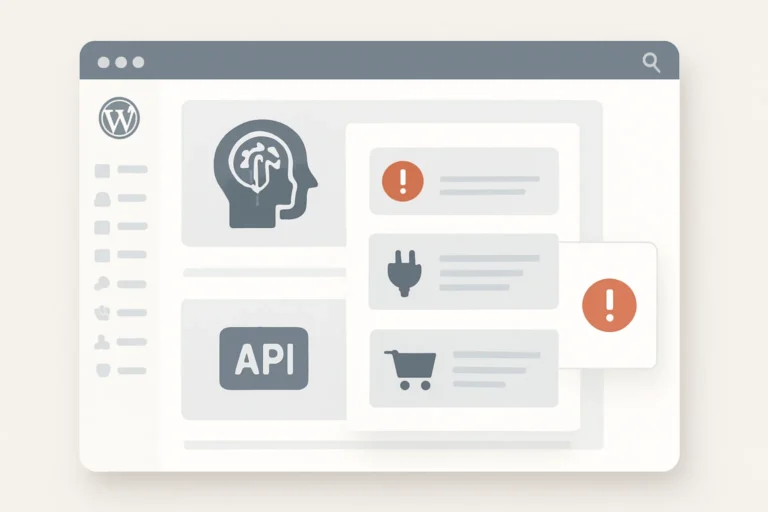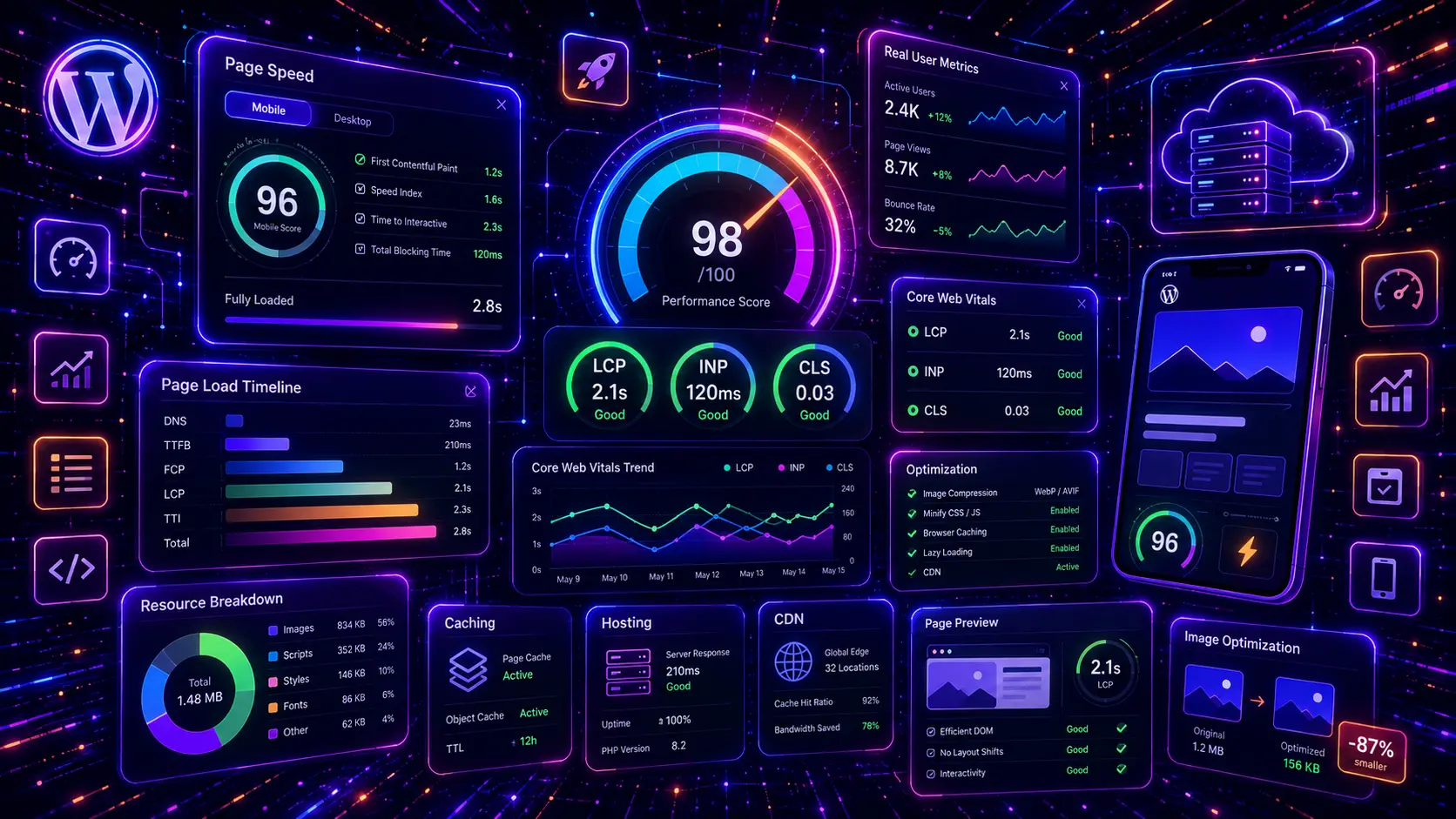
WordPress Core Web Vitals can have a big impact on how fast, stable and usable your website feels to real visitors. A website can have good content and still lose leads if the main content loads slowly, buttons react late, images shift around, or the mobile version feels heavy and frustrating.
For small business websites, Core Web Vitals are not only a technical SEO topic. They affect user experience, mobile performance, contact form usage, product browsing, service page conversions and how confidently visitors interact with your website. A slow WordPress website can make people leave before they read your offer or contact your company.
In this WordPress Core Web Vitals guide, you will learn how to understand and improve LCP, INP, CLS and mobile speed issues in WordPress. We will cover testing tools, hero images, above-the-fold content, JavaScript, plugin bloat, layout shifts, fonts, CSS, caching, hosting, third-party scripts and ongoing monitoring. If you are improving your full SEO setup, start with our WordPress SEO checklist for small business websites. If your slow pages are service pages, also read our WordPress service page SEO guide.
Table of Contents
- What Are Core Web Vitals in WordPress?
- Why Core Web Vitals Matter for WordPress SEO
- WordPress Core Web Vitals Checklist
- 1. Test Your WordPress Core Web Vitals First
- 2. Fix LCP in WordPress
- 3. Optimize Hero Images and Above-the-Fold Content
- 4. Fix INP in WordPress
- 5. Reduce Heavy JavaScript and Plugin Bloat
- 6. Fix CLS in WordPress
- 7. Set Image, Video and Ad Dimensions
- 8. Improve WordPress Mobile Speed
- 9. Use Better Hosting and Caching
- 10. Optimize Fonts and CSS Delivery
- 11. Reduce Third-Party Scripts
- 12. Monitor Core Web Vitals After Changes
- WordPress Core Web Vitals Best Practices
- Common WordPress Speed Optimization Mistakes
- WordPress Core Web Vitals FAQ
- Conclusion
- Related Website Growth Guides
What Are Core Web Vitals in WordPress?
Core Web Vitals are user experience metrics that measure how fast, responsive and visually stable a page feels for real users. In WordPress, these scores are affected by your theme, hosting, plugins, images, fonts, JavaScript, CSS, page builder output, third-party scripts, ads, embeds and mobile layout.
The three Core Web Vitals metrics are LCP, INP and CLS. LCP measures loading performance, INP measures responsiveness, and CLS measures visual stability. A WordPress page can fail one of these metrics even if the design looks good in the editor.
Largest Contentful Paint
Measures how quickly the largest visible content element loads, often a hero image, banner, heading block or large section above the fold.
Interaction to Next Paint
Measures how responsive the page feels when users click, tap or type. Heavy JavaScript and plugin scripts can make INP worse.
Cumulative Layout Shift
Measures unexpected layout movement. Images, ads, fonts, banners and embeds can cause sections to jump while the page loads.
For a good user experience, aim for LCP within 2.5 seconds, INP under 200 milliseconds, and CLS under 0.1. These are not just “developer numbers”. They describe whether visitors see your main content quickly, whether the page responds smoothly, and whether the layout stays stable while loading.
In WordPress, poor Core Web Vitals often come from a combination of small problems. A large hero image can hurt LCP. Too many plugins can hurt INP. Missing image dimensions or late-loading banners can hurt CLS. Slow hosting, unoptimized fonts and third-party scripts can make all three worse.
Why Core Web Vitals Matter for WordPress SEO
Core Web Vitals matter because they are connected to real user experience. A visitor who lands on a slow WordPress page may leave before the main offer appears. A visitor who taps a menu or button and waits too long may lose trust. A visitor who tries to click a CTA while the layout shifts may become frustrated.
For SEO, Core Web Vitals should not be treated as a magic ranking shortcut. Better content, search intent match, useful pages and trust still matter. But performance can support SEO by improving page experience, reducing friction, helping mobile users, and making important commercial pages easier to use.
Loading affects first impression
If the main content loads slowly, visitors may leave before they understand the offer.
Responsiveness affects trust
If menus, buttons or forms react slowly, the website can feel broken or unreliable.
Stability affects usability
If content shifts while loading, visitors may click the wrong element or lose their place.
Mobile speed affects leads
Many small business visitors arrive on mobile, where slow pages can reduce calls, forms and quote requests.
For small business websites, the most important pages to improve first are usually the homepage, service pages, contact page, product pages, category pages, landing pages and pages that already get impressions in Search Console. Do not waste time optimizing low-value pages before fixing the pages that can generate leads or sales.
This is also why Core Web Vitals should be connected to your wider SEO structure. Your WordPress SEO checklist helps you review the full website, while this guide focuses specifically on WordPress speed, LCP, INP, CLS and mobile performance.
WordPress Core Web Vitals Checklist
This WordPress Core Web Vitals checklist is designed for small business websites that need better loading speed, smoother interaction, more stable layouts and stronger mobile performance. Use it when your WordPress website feels slow, fails PageSpeed tests, shows poor URLs in Search Console, or loses visitors before they convert.
The checklist covers the most important areas of WordPress performance SEO: testing, LCP optimization, hero images, above-the-fold content, INP fixes, JavaScript reduction, plugin cleanup, CLS fixes, image dimensions, mobile speed, hosting, caching, fonts, CSS, third-party scripts and monitoring after changes.
12 areas to review on slow WordPress websites
Use this checklist to find loading, responsiveness, layout stability and mobile speed issues that affect important pages.
Start with measurement before making changes. Do not blindly install more optimization plugins. A page may be slow because of one large hero image, a heavy slider, a bad font setup, a bloated page builder, render-blocking CSS, too many tracking scripts, or poor hosting. The right fix depends on the actual bottleneck.
1. Test Your WordPress Core Web Vitals First
Before you fix WordPress Core Web Vitals, you need to test the right pages. Do not only test the homepage. A small business website may have a fast homepage but slow service pages, product pages, blog posts, landing pages or contact pages.
Start with the pages that matter most for SEO and conversions. These usually include the homepage, main service pages, product category pages, product pages, contact page, quote request pages and blog posts that already get impressions or clicks in Google Search Console.
Measure important WordPress pages before changing anything
Performance issues can be different from page to page, so test the pages that actually affect leads, sales and organic traffic.
Often the first impression page and usually one of the most linked internal pages.
Commercial pages where slow loading can reduce quote requests, calls and contact form submissions.
Important for WooCommerce stores because image size, scripts and product widgets can slow pages down.
Useful to test when long posts include ads, images, code blocks, embeds or many design sections.
Forms, maps, scripts and tracking tools can make this page heavier than expected.
Campaign pages should be fast because visitors often arrive from mobile search, ads or social media.
Use testing tools to separate lab data and field data. Lab tests can help you debug specific issues immediately. Field data shows how real users experience the page over time. Both are useful, but they do not always show exactly the same result.
- Test the homepage and the most important commercial pages.
- Check mobile results separately from desktop results.
- Use Search Console to find pages with poor Core Web Vitals.
- Use PageSpeed Insights to inspect LCP, INP and CLS problems.
- Repeat tests after major theme, plugin, design or hosting changes.
- Do not optimize random low-value pages before important lead or sales pages.
2. Fix LCP in WordPress
LCP, or Largest Contentful Paint, measures how quickly the largest visible content element loads. In WordPress, the LCP element is often the hero image, featured image, large heading block, banner, slider, background image, or above-the-fold content section.
If LCP is poor, visitors may wait too long before they see the main content. This can hurt the first impression of service pages, landing pages, product pages and blog posts. Fixing LCP usually starts with identifying the actual LCP element on the page.
Find the largest visible element and make it load faster
LCP is often caused by a hero image, large banner, slider, background image or slow server response.
Resize, compress, preload or replace oversized above-the-fold images.
Improve hosting, caching and backend performance before adding more frontend fixes.
Replace slow sliders with simpler hero sections when performance matters.
Reduce CSS and JavaScript that delays the first visible content.
Use properly sized images and avoid loading huge desktop images on mobile.
Do not lazy load the main hero image if it is the LCP element above the fold.
Do not assume that an optimization plugin will automatically fix LCP. If the actual problem is a 2 MB hero image, slow hosting, a heavy slider or a page builder loading too much CSS, the fix must target that specific issue.
- Find the LCP element in your performance report.
- Optimize the hero image or main above-the-fold visual.
- Do not lazy load the main LCP image.
- Use correctly sized images for mobile and desktop.
- Reduce heavy sliders, animations and large background images.
- Improve server response time with better hosting and caching.
- Reduce render-blocking CSS and JavaScript where possible.
3. Optimize Hero Images and Above-the-Fold Content
The hero section is often the most important area for WordPress LCP. Many WordPress websites use large hero images, background videos, sliders, gradients, animations, page builder widgets and custom fonts above the fold. These can look good, but they can also slow down the first visible content.
For service pages and landing pages, the hero should load quickly and explain the offer clearly. A slow hero section can hurt both Core Web Vitals and conversions because the visitor waits before seeing the main message.
Large background video, oversized desktop image on mobile, heavy slider, multiple fonts, animations and delayed main content.
Compressed responsive hero image, clear H1, short intro, visible CTA, minimal scripts and no unnecessary slider above the fold.
Above-the-fold optimization should not remove the value of the page. The goal is not to make the hero empty. The goal is to load the main message quickly and avoid unnecessary heavy elements before the visitor can understand the page.
- Use a properly sized hero image instead of a huge original upload.
- Use modern image formats where possible.
- Avoid heavy sliders above the fold when one clear hero section works better.
- Do not place too many scripts, animations or embeds in the first screen.
- Make sure the H1 and intro text appear quickly.
- Use responsive images so mobile does not load an oversized desktop asset.
- Check whether your page builder adds unnecessary wrappers, styles or scripts.
4. Fix INP in WordPress
INP, or Interaction to Next Paint, measures how responsive a page feels when users interact with it. In WordPress, poor INP is often caused by heavy JavaScript, too many plugins, large page builder scripts, tracking scripts, chat widgets, sliders, animations, complex menus or slow form scripts.
If INP is poor, the page may feel delayed when visitors click a menu, tap a button, open an accordion, use a filter, submit a form, interact with a slider or type into a field. This can hurt trust and conversions, especially on mobile devices.
Make clicks, taps and form interactions feel faster
INP problems often come from heavy JavaScript, plugin scripts and expensive browser work after user interaction.
Mobile menus can feel slow when they depend on large theme or page builder scripts.
Forms, validation, spam protection and third-party integrations can affect responsiveness.
Interactive visual effects may create extra browser work on slower mobile devices.
Analytics, pixels, heatmaps and chat widgets can add JavaScript work to every page.
Some builders load large global scripts even when a page uses only a few components.
Multiple plugins may load scripts for similar features and increase interaction delay.
To fix INP in WordPress, reduce unnecessary JavaScript and simplify interactive elements. This does not mean removing every feature. It means keeping the features that help visitors and removing scripts that slow down the page without adding enough value.
- Review plugins that load JavaScript on every page.
- Remove unused sliders, animation libraries and interactive widgets.
- Delay non-essential third-party scripts where appropriate.
- Simplify mobile menus, accordions, filters and forms.
- Avoid multiple plugins doing the same job.
- Test interactions on real mobile devices, not only desktop.
Speed helps users, schema helps search engines understand your pages
Core Web Vitals improve the user experience. EntitySchema Pro helps you add entity-based structured data to WordPress, so important pages become easier for search engines and AI systems to understand.
5. Reduce Heavy JavaScript and Plugin Bloat
Plugin bloat is one of the most common causes of slow WordPress websites. A plugin may add useful functionality, but it can also load CSS, JavaScript, fonts, tracking scripts, database queries or frontend widgets on pages where they are not needed.
This becomes a problem when many plugins load assets globally. A contact form plugin may load on every page even if the form appears only on the contact page. A slider plugin may load scripts on blog posts with no sliders. A WooCommerce plugin may load assets on non-shop pages. Over time, the website becomes heavy.
Remove scripts that do not help the current page
WordPress performance improves when each page loads only what it actually needs.
Check which plugins are still needed and which ones duplicate features.
Turn off modules, widgets or integrations that are not used on the website.
Prevent scripts and styles from loading on pages where they are not needed.
Use simpler sections instead of sliders, animations or complex UI elements when possible.
Review whether the builder loads excessive CSS and JavaScript for simple page layouts.
Outdated plugins can hurt performance, security and compatibility.
Be careful with plugin removal on live websites. Some plugins handle important features such as forms, ecommerce, security, redirects or SEO settings. Test changes on a staging site when possible, and make backups before removing plugins that may affect important functions.
- Remove plugins that are no longer used.
- Avoid having multiple plugins for the same feature.
- Disable plugin modules that are not needed.
- Check whether scripts load on pages where the feature is not used.
- Replace heavy sliders and animations with simpler sections.
- Test important forms, checkout pages and menus after plugin changes.
6. Fix CLS in WordPress
CLS, or Cumulative Layout Shift, measures unexpected movement on the page while it loads. In WordPress, layout shifts are often caused by images without dimensions, ads without reserved space, late-loading fonts, cookie banners, sticky bars, embeds, videos, iframes, popups or dynamically inserted content.
CLS is frustrating because it makes the page feel unstable. A visitor may try to click a button, but the button moves. A paragraph may shift down when an image appears. A form may jump when a banner loads. This can hurt usability and trust.
Reserve space before content loads
Most CLS fixes come from preventing images, ads, fonts, banners and embeds from moving existing content.
Add width and height attributes or aspect-ratio rules for important images.
Reserve fixed space for ad slots before the ad content loads.
Optimize font loading and use fallback fonts that do not cause large jumps.
Avoid inserting cookie bars, sticky bars or notices above existing content without reserved space.
Set dimensions for videos, maps, iframes and social embeds.
Avoid injecting large dynamic sections into the top of the page after load.
CLS fixes are often simple once you find the shifting element. Reserve space for images, videos, ads and embeds. Avoid injecting content above existing content. Make sure sticky elements, cookie banners and floating ads do not push the layout unexpectedly.
- Add image dimensions or aspect-ratio styles.
- Reserve space for ads, embeds, videos and iframes.
- Prevent cookie banners and sticky bars from pushing content unexpectedly.
- Optimize font loading to reduce text movement.
- Avoid inserting large content blocks above existing content after load.
- Check CLS separately on mobile and desktop layouts.
7. Set Image, Video and Ad Dimensions
One of the simplest ways to reduce CLS in WordPress is to reserve space for visual elements before they load. Images, videos, iframes, ads, maps, banners and embeds should not suddenly push content down after the page has already started rendering.
This is especially important on blog posts, landing pages and service pages that use large images, affiliate ad cards, embedded videos, Google Maps, cookie banners or floating promotional blocks. If these elements load late without reserved space, the page can shift and feel unstable.
Reserve space before visual elements load
Images, videos, ads and embeds should have predictable space so the layout does not jump while loading.
Add width and height attributes or use CSS aspect-ratio rules for important image blocks.
Wrap videos in responsive containers that keep the correct aspect ratio before the video loads.
Reserve a fixed space for ad units so late-loading ad content does not push text or buttons down.
Give Google Maps and iframe embeds a defined height before they load.
Avoid inserting cookie bars, promo bars or notices above existing content after load.
Do not inject large recommendation blocks, popups or related content into the top of the page unexpectedly.
In WordPress, many image blocks already include image dimensions, but problems can still happen when images are added through custom HTML, sliders, page builders, CSS backgrounds, lazy-loaded widgets or third-party embeds. Always check the final frontend page, not only the editor view.
- Add width and height attributes to important images.
- Use aspect-ratio rules for custom image containers.
- Reserve space for ad blocks before ads load.
- Give videos, maps and iframes a predictable height.
- Avoid loading banners that push existing content down.
- Check layout stability on mobile, not only desktop.
8. Improve WordPress Mobile Speed
Mobile speed is often harder to improve than desktop speed because mobile devices have smaller screens, weaker processors, slower networks and less room for heavy layouts. A WordPress website that feels acceptable on desktop can still feel slow on mobile.
For small business SEO, mobile speed matters because many visitors arrive from Google search, Google Business Profile, social media, ads or email on a phone. If the page is slow, hard to tap or unstable, visitors may leave before they call, submit a form or read the offer.
Fast first screen
Clear H1, compressed hero image, visible CTA and fewer heavy scripts.
Monitor ResultsOptimize for real mobile visitors
- Use smaller responsive images on mobile.
- Remove unnecessary sliders and animations.
- Keep the first screen simple and clear.
- Reduce heavy JavaScript and tracking scripts.
- Make menus, buttons and forms fast to use.
- Test on a real phone, not only desktop tools.
Mobile speed optimization often means simplifying the page. You may need fewer columns, fewer animations, smaller images, less JavaScript, simpler forms, a lighter mobile menu and fewer third-party scripts on mobile visitors.
- Use responsive images and avoid loading desktop-sized images on mobile.
- Simplify above-the-fold sections for mobile users.
- Reduce mobile sliders, background videos and heavy animations.
- Check mobile menus, accordions and forms for interaction delay.
- Use short sections and readable text spacing.
- Make contact buttons and forms easy to tap.
9. Use Better Hosting and Caching
Hosting and caching can affect every Core Web Vitals metric. If the server is slow, WordPress has to work too hard before the page starts loading. This can hurt LCP and make the whole website feel slower, especially during traffic spikes or on heavier pages.
Caching helps by serving pages faster instead of rebuilding every page from scratch for every visitor. But caching cannot fix everything. If the theme is too heavy, images are oversized, plugins load too much JavaScript, or third-party scripts block the page, caching alone will not solve the full problem.
Do not build performance on weak hosting
Good hosting and caching create a stronger base for LCP, mobile speed and overall WordPress performance.
Slow backend response can delay the first visible content and make LCP worse.
Serve cached pages to reduce repeated WordPress processing for normal visitors.
Useful for dynamic WordPress sites, WooCommerce stores and database-heavy pages.
Can help deliver static assets such as images, CSS and JavaScript faster across regions.
Use a modern supported PHP version that is compatible with your theme and plugins.
Clean unnecessary revisions, transients and old data carefully when the site becomes bloated.
- Use reliable hosting with enough resources for your website.
- Enable page caching where it fits the website setup.
- Use object caching for heavier WordPress or WooCommerce sites when appropriate.
- Keep PHP, WordPress, theme and plugins updated carefully.
- Use a CDN when visitors come from multiple regions or static assets are heavy.
- Do not rely on caching alone to hide a bloated website.
10. Optimize Fonts and CSS Delivery
Fonts and CSS can affect loading speed, visual stability and perceived performance. In WordPress, themes and page builders often load multiple font families, font weights, icon fonts, global styles, block styles and plugin CSS files. Some of them may not be needed on every page.
Font loading can also affect CLS when text shifts after the custom font loads. CSS can affect LCP when render-blocking styles delay the first visible content. The goal is to load the styles needed for the first screen quickly and avoid loading unnecessary files everywhere.
Load only what the page needs
Cleaner font and CSS delivery can improve loading speed, visual stability and mobile performance.
Use fewer font families and avoid loading unnecessary decorative fonts.
Do not load many weights if the design only needs a few.
Use font loading settings that reduce invisible text and large layout shifts.
Reduce CSS from unused theme features, plugin modules and page builder components.
Make sure above-the-fold content has the styles it needs early.
Replace heavy icon libraries when only a few icons are needed.
- Use fewer font families and font weights.
- Preload only the most important fonts when needed.
- Use font-display settings that improve perceived loading.
- Remove unused CSS where safe.
- Reduce page builder and plugin CSS bloat.
- Make sure above-the-fold styles are available early.
11. Reduce Third-Party Scripts
Third-party scripts can slow down WordPress pages because they add external JavaScript, network requests and browser work. Analytics, ad scripts, chat widgets, heatmaps, social embeds, review widgets, tracking pixels, cookie tools and marketing tags can all affect Core Web Vitals.
Some third-party scripts are useful, but many websites load too many of them on every page. The best approach is to keep the scripts that are truly needed, delay non-critical scripts where possible, and avoid loading heavy tools on pages where they do not help the visitor.
Every external script should earn its place
Tracking, chat, ads and embeds can be useful, but they can also slow down important WordPress pages.
Keep essential analytics, but avoid duplicate tracking tools measuring the same thing.
Reserve ad space and avoid loading too many heavy ad units above the fold.
Load chat tools only when they support real conversions and do not block the first screen.
Use behavior tools selectively instead of loading them forever on every page.
Replace heavy embeds with screenshots or simple links when the embed is not necessary.
Review whether all pixels are still needed and whether they can be delayed.
- Remove third-party scripts that are no longer needed.
- Avoid duplicate analytics, pixels and tracking tools.
- Delay non-essential scripts where possible.
- Do not load chat, heatmap or ad scripts on pages where they do not help.
- Replace heavy embeds with lighter alternatives when possible.
- Check performance again after adding new marketing tools.
12. Monitor Core Web Vitals After Changes
Core Web Vitals are not a one-time task. WordPress websites change over time. New plugins, new ads, new tracking scripts, new images, theme updates, page builder changes, WooCommerce extensions and content edits can all affect performance.
After optimization, monitor the results. Lab tools can show immediate improvements, but field data may take time to update because it depends on real user experience. Keep checking Search Console, PageSpeed Insights and your most important pages after major website changes.
Performance can change after every website update
Keep checking your most important WordPress pages so new plugins, scripts and content changes do not create new speed problems.
Retest important pages after installing, removing or updating major plugins.
Check pages after adding new hero sections, sliders, animations, images or layout blocks.
Monitor CLS, LCP and mobile speed after adding new ad placements or affiliate boxes.
Retest after adding analytics, pixels, chat widgets, heatmaps or marketing tags.
Large images, embeds and media-heavy sections can change page speed after publishing.
Compare before and after results when moving hosts, changing caching or adding CDN support.
Make performance checks part of your website maintenance process. A website can pass Core Web Vitals today and fail later after new scripts, images, ads or plugins are added. For important commercial pages, performance should be reviewed regularly.
- Track Core Web Vitals in Search Console.
- Retest important pages after design or plugin changes.
- Compare mobile and desktop results separately.
- Check field data and lab data together.
- Monitor homepage, service pages, product pages and landing pages first.
- Keep a record of major performance changes and what caused them.
WordPress Core Web Vitals Best Practices
WordPress Core Web Vitals improve when performance is treated as part of the whole website system. A fast website is not created by one plugin setting only. It depends on hosting, caching, image optimization, theme quality, plugin control, JavaScript, CSS, fonts, mobile layout, third-party scripts and ongoing maintenance.
The best approach is to start with the pages that matter most. Improve the homepage, service pages, landing pages, product pages, category pages and contact pages before spending too much time on low-value pages. These are the pages where better loading, responsiveness and visual stability can directly support leads, calls, quote requests and sales.
Build faster WordPress pages without breaking the website
Use these best practices to improve LCP, INP, CLS and mobile speed on important WordPress pages.
Use real test results before changing themes, plugins, images, scripts or hosting.
Start with pages that generate leads, sales, quote requests, calls or organic traffic.
Improve the main above-the-fold content because it often affects LCP.
Remove heavy scripts, duplicated plugin features and unnecessary interactive widgets.
Reserve space for images, videos, ads, embeds, banners and dynamic content.
Retest after plugin updates, design changes, new ads, tracking scripts or new content.
- Test the homepage, service pages, product pages, landing pages and contact page first.
- Check mobile and desktop performance separately.
- Find the actual LCP element before making changes.
- Optimize hero images and above-the-fold content.
- Remove unnecessary plugins, widgets, sliders and scripts.
- Reserve space for images, videos, ads and embeds to reduce CLS.
- Use reliable hosting and caching as the performance foundation.
- Limit fonts, font weights, unused CSS and heavy icon libraries.
- Reduce third-party scripts that do not support conversions.
- Monitor Core Web Vitals after every major WordPress change.
Common WordPress Speed Optimization Mistakes
Many WordPress speed optimization mistakes happen because people try to fix everything with one plugin. Optimization plugins can help, but they cannot automatically solve bad hosting, oversized images, bloated themes, too many third-party scripts, heavy page builders or poor mobile layout.
Another common mistake is improving a lab score while breaking the actual website. If forms stop working, menus fail, checkout breaks, images disappear or tracking is removed accidentally, the optimization has gone too far. Core Web Vitals should improve user experience, not damage business functionality.
Avoid these WordPress Core Web Vitals problems
These issues can make WordPress performance worse or create new problems while trying to optimize speed.
Multiple optimization plugins can conflict, duplicate features and make debugging harder.
You need to know whether LCP is caused by an image, banner, text block, slider or server issue.
The main above-the-fold image should usually load quickly, not be delayed like below-the-fold images.
Deleting JavaScript without testing can break menus, forms, checkout, filters or tracking.
A page can load quickly but still feel bad if images, ads, fonts or banners shift the layout.
Most serious WordPress performance issues are often more visible on mobile devices.
- Installing multiple optimization plugins that conflict with each other.
- Optimizing only the homepage and ignoring service pages or product pages.
- Testing only desktop speed and ignoring mobile performance.
- Lazy loading the main hero image when it is the LCP element.
- Using huge background images or sliders above the fold.
- Removing JavaScript without checking menus, forms, checkout and tracking.
- Forgetting to reserve space for ads, embeds, videos and images.
- Adding more tracking scripts after optimization without retesting.
- Using caching to hide a bloated theme instead of fixing the root issue.
- Chasing a perfect score instead of improving real user experience and conversions.
WordPress Core Web Vitals FAQ
Here are common questions about WordPress Core Web Vitals, LCP, INP, CLS and mobile speed optimization.
WordPress Core Web Vitals are user experience metrics that measure loading performance, interaction responsiveness and visual stability on WordPress pages. The main metrics are LCP, INP and CLS.
To fix LCP in WordPress, identify the LCP element first. Then optimize the hero image or main content block, improve server response time, reduce render-blocking assets, avoid heavy sliders and do not lazy load the main above-the-fold image.
To fix INP in WordPress, reduce heavy JavaScript, remove unnecessary plugins, simplify interactive widgets, delay non-critical third-party scripts and test menus, forms, filters, accordions and buttons on mobile devices.
To fix CLS in WordPress, reserve space for images, videos, ads, iframes and embeds. Add width and height attributes, use aspect-ratio rules, optimize font loading and avoid inserting banners or dynamic content above existing content after load.
Core Web Vitals support WordPress SEO by improving page experience, mobile usability and conversion flow. They are not a replacement for strong content and search intent, but poor performance can make important pages harder to use.
Poor mobile speed in WordPress is often caused by oversized images, heavy themes, bloated page builders, too many plugins, tracking scripts, sliders, animations, slow hosting, unoptimized fonts and third-party embeds.
No. A speed plugin can help with caching, minification, lazy loading or asset optimization, but it cannot fully fix weak hosting, oversized images, heavy design, bad layout structure, too many scripts or plugin bloat by itself.
Start with the homepage, main service pages, landing pages, product pages, category pages and contact page. These pages usually matter most for SEO, leads, calls, quote requests and sales.
Check Core Web Vitals after major plugin, theme, hosting, design, content, ad or tracking changes. For important business websites, review key pages regularly so new updates do not create new performance problems.
Conclusion
WordPress Core Web Vitals are important because they show how real users experience your website. LCP tells you whether the main content loads quickly. INP tells you whether the page responds smoothly. CLS tells you whether the layout stays stable while loading.
Start with measurement. Test the pages that matter most, identify the actual problem and fix the real bottleneck. Improve hero images, above-the-fold content, JavaScript, plugin bloat, layout shifts, mobile speed, hosting, caching, fonts, CSS and third-party scripts in a controlled way.
The goal is not only to get a better speed score. The goal is to make your WordPress website easier to use, faster to understand and better at turning visitors into leads, calls, quote requests, bookings or sales.
Improve performance and make your pages easier to understand
Core Web Vitals help users experience your website faster. EntitySchema Pro helps search engines and AI systems understand your WordPress pages with entity-based structured data.
Related Website Growth Guides
This Core Web Vitals guide is part of the Website Growth series. The related guides below help you improve WordPress SEO, service pages, internal linking, local visibility, WooCommerce SEO, schema markup, content structure and conversions without making the posts compete for the same keyword.