Introduction
If your AI assistant in WordPress or WooCommerce malfunctions—refusing to answer questions, producing errors, or failing to interact with customers—you’re not alone. The most common root causes are plugin conflicts, misconfigured settings, outdated dependencies, or problems with third-party APIs such as OpenAI. For small businesses, these issues disrupt customer service and impact sales, so fast and accurate troubleshooting is essential. Even a brief outage or repeated technical hiccup can negatively affect customer trust and conversion rates, making it vital to resolve these issues promptly to maintain a seamless online experience.
This guide is designed for business owners and decision-makers who need to quickly diagnose and resolve technical, integration, and operational problems with AI customer service or shopping assistants on WordPress and WooCommerce. We’ll walk you through identifying plugin conflicts, interpreting system status and REST API reports, and recognizing when API authentication, rate limits, or unsupported endpoints are the culprit. You’ll also learn how to distinguish between plugin-level, API-level, and user experience issues, so you can apply the right solution the first time. This approach helps you avoid unnecessary downtime and ensures you address the root problem rather than just the symptoms.
By following the practical frameworks and step-by-step checklists in this article, you’ll be able to pinpoint the source of your AI assistant issues, avoid common mistakes like running overlapping plugins or neglecting updates, and make informed decisions about integration and support. Whether you manage a single store or multiple WordPress sites, you’ll come away with actionable troubleshooting skills tailored to your technical environment and business priorities. Effective troubleshooting not only restores functionality but also strengthens your site’s reliability and supports long-term growth by minimizing future disruptions.
Frequent AI Assistant Issues in WordPress & WooCommerce
Main Categories of AI Assistant Problems
- Plugin Conflicts: Overlapping or incompatible plugins often disrupt AI assistant functionality, especially after updates or new installations.
- API Errors: Authentication failures, endpoint mismatches, and exceeding rate limits are leading causes of breakdowns in AI integrations.
- Misconfiguration: Incorrect settings, missing API keys, or unsupported options often prevent AI assistants from working as intended.
- Rate Limits: Hitting provider-imposed quotas or request thresholds can cause the AI to become unavailable or slow to respond.
- Customer Experience Problems: Failures in the AI workflow, such as unhandled errors or lost chat sessions, directly affect user satisfaction.
Plugin Conflicts and Outdated Dependencies
AI assistants in WordPress and WooCommerce rely on multiple plugins and libraries. When a core plugin or dependency is outdated, or when two plugins attempt to control similar features (like chat widgets or REST API access), conflicts can disable key functions. Routine plugin updates may change APIs or file structures, causing an AI assistant to fail unless it is also updated. The WordPress Plugin Handbook stresses the importance of monitoring plugin compatibility and using the system status report to pinpoint incompatibilities. For WooCommerce sites, the WooCommerce System Status Report provides a detailed snapshot of plugin versions and potential conflicts, supporting rapid diagnosis.
In practice, plugin conflicts can arise when two solutions attempt to modify or override the same hooks, scripts, or database entries. For example, if an AI assistant and a security plugin both modify REST API permissions, one may inadvertently block requests needed by the assistant. Outdated dependencies—such as an unmaintained JavaScript library or an old version of a PHP package—may also cause compatibility issues, particularly when core WordPress or WooCommerce updates introduce breaking changes. Proactive compatibility checks and regular review of plugin changelogs are recommended to reduce the risk of these issues. Many developers advise testing updates in a staging environment before applying them to a live store, minimizing the impact of unexpected conflicts on business operations.
API Authentication, Endpoint, and Rate Limit Failures
API integration issues are a primary source of AI assistant downtime. Common mistakes include using expired or incorrect API keys, or configuring endpoints that do not match the provider’s current specifications. If the AI assistant relies on OpenAI or another third-party API, exceeding rate limits may lead to connection errors or delayed responses. The OpenAI API documentation details specific quota limits and error codes; exceeding these will cause requests to fail until usage drops below the threshold. Similarly, WooCommerce’s REST API requires correct authentication and versioning to avoid endpoint mismatches, as described in its REST API documentation.
These problems often manifest as generic error messages or silent failures in the chat interface, making diagnosis challenging. Troubleshooting typically involves verifying that API credentials are valid, checking endpoint URLs against current documentation, and reviewing provider dashboards for usage spikes or rate limit alerts. In some cases, the AI assistant plugin may need to be reauthorized or updated to accommodate changes in the third-party API. For sites with high traffic or frequent API calls, monitoring usage patterns and planning for quota increases can help prevent service interruptions. Keeping documentation on API settings and recent changes streamlines recovery if issues recur.
Illustrative Scenario: Chatbot Down After Plugin Update
Illustrative: A small WooCommerce store updates several plugins, including its AI customer service assistant. Immediately after, customers report that the chatbot is offline. The site owner investigates the WooCommerce System Status Report and finds that the AI assistant plugin is now incompatible with the latest WooCommerce version. Reverting the update or seeking a plugin patch restores chatbot functionality, highlighting the impact of untested updates and the importance of a staging environment for plugin changes.
This scenario underlines the cascading effect a single update can have on dependent systems. In many small businesses, plugin updates may be scheduled automatically or applied without full review, increasing the risk of incompatibility. Regular backups, use of staging sites, and clear rollback procedures are recommended to limit business disruption. Documentation from plugin developers, changelogs, and community forums are key resources for identifying known issues and obtaining fixes when incompatibilities are discovered.
Checklist: Identifying and Fixing Common Issues
- Check the WordPress and WooCommerce System Status Reports for plugin and API errors.
- Confirm all related plugins, including the AI assistant and dependencies, are up-to-date and compatible with your current WordPress and WooCommerce versions.
- Ensure API keys are valid and not expired; verify endpoint URLs match provider documentation.
- Monitor API usage to avoid exceeding provider rate limits; if needed, request a quota increase from your provider.
- Test all updates in a staging environment before deploying to your live site to prevent unexpected downtime.
- Limit the number of overlapping AI or chat plugins to reduce the risk of conflicts.
- Document any custom settings or integration steps to streamline troubleshooting and support.
- Schedule regular reviews of plugin changelogs and compatibility notes prior to major updates.
- Establish a backup and rollback plan for rapid recovery in case of critical failures.
- Leverage community forums and official documentation to stay informed about known issues and best practices.
Comparing AI Assistant Problems: Symptoms, Causes, and Solutions
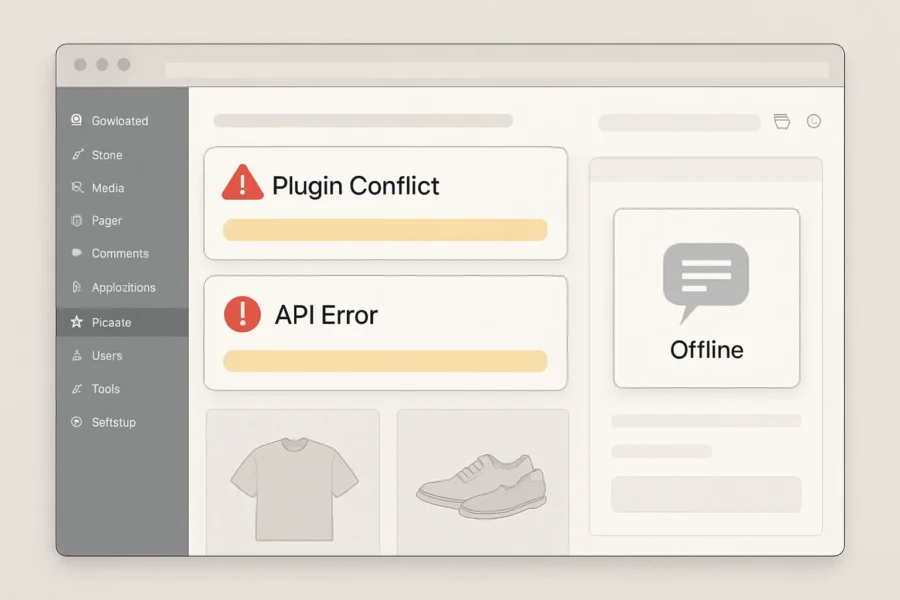
AI assistants in WordPress and WooCommerce can fail for a variety of reasons, but efficient troubleshooting requires mapping visible symptoms to their most likely causes and targeted solutions. The following table provides a clear reference for common AI assistant issues, explains how to distinguish between plugin, API, server, and user experience (UX) problems, and details the best initial steps for resolution. Understanding these distinctions is essential because similar symptoms can stem from very different sources, such as a misconfigured plugin versus an expired API key. By systematically evaluating the nature of each symptom, site owners can avoid unnecessary guesswork and reduce the time spent resolving issues. This approach also minimizes the risk of disrupting other site features during troubleshooting, especially when dealing with complex integrations like WooCommerce and third-party AI APIs. For developers and non-technical users alike, the ability to quickly pinpoint whether a problem is rooted in server performance, configuration errors, or external service dependencies helps maintain a stable and responsive user experience. The table below is designed as a practical, at-a-glance guide to streamline this process and assist both IT staff and business owners in addressing AI assistant challenges efficiently.
| Symptom | Likely Cause | Issue Type | Initial Troubleshooting Step |
|---|---|---|---|
| AI chatbot not responding | API key missing, invalid, or expired; plugin deactivated; server connectivity issue | API / Plugin / Server | Check plugin activation status, confirm API key validity in plugin settings, and inspect server error logs |
| Unexpected error messages (e.g., 401, 429, 500) | Authentication failure, API rate limit exceeded, server misconfiguration | API / Server | Review the error code in detail; for 401, re-authenticate API; for 429, check API quota; for 500, review server logs |
| Slow performance or delayed responses | Server overload, network latency, inefficient plugin code, excessive concurrent requests | Server / Plugin | Monitor server resource usage, update plugins, and test response times on a staging site |
| Incorrect or irrelevant responses | Poor AI training data, misconfigured context settings, incorrect plugin setup | UX / Plugin | Review AI assistant configuration, update or retrain assistant with relevant content, and check plugin documentation |
| Assistant disappears from site | Theme or plugin conflict, JavaScript error, recent update incompatibility | Plugin / UX | Check browser console for errors, disable other plugins/themes one by one, and test in default theme |
| Duplicate or overlapping responses | Multiple AI plugins installed or shortcodes used simultaneously | Plugin | Deactivate redundant AI plugins and remove duplicate shortcodes |
| Product data not recognized | WooCommerce REST API integration missing or permissions error | API / Plugin | Verify REST API keys, review system status, and confirm correct permissions |
| Plugin update causes assistant failure | Version incompatibility, deprecated API endpoints, new dependencies | Plugin / API | Test updates on a staging environment and consult plugin changelog and compatibility notes |
| No response for specific user queries | Assistant context configuration too narrow or missing data source mapping | UX / Plugin | Expand context settings, re-index content, and ensure product/content mapping is complete |
| Frequent disconnects or session drops | Server timeout, unstable hosting environment, conflicting caching settings | Server / Plugin | Review hosting performance, adjust session settings, and exclude assistant endpoints from caching plugins |
How to Use This Table for Targeted Troubleshooting
When an issue arises with your AI assistant, begin by identifying the symptom as it appears to users or admins. Match the symptom to the table to trace the most probable root cause and determine whether the issue is best addressed in plugin settings, API configuration, your server environment, or by adjusting user experience elements. This focused approach is more efficient than trial-and-error and limits site downtime.
Distinguishing Plugin, API, Server, and UX Issues
Understanding the source of a problem prevents wasted effort. Plugin issues often manifest after updates, conflicts, or when multiple AI tools overlap. API errors are usually linked to authentication failures, quota limits, or endpoint deprecation. Server issues appear as slow loading, disconnects, or errors in logs. UX problems are typically related to configuration of the assistant’s context, display, or data mapping.
Practical Recommendations for Small Business Sites
- Test all major changes in a staging environment before deploying to your live site.
- Use the WooCommerce System Status report and REST API logs to diagnose integration and permission issues.
- Keep plugins, themes, and dependencies updated, but review changelogs for compatibility notes before updating.
- Avoid installing multiple AI plugins that perform overlapping functions to reduce conflicts.
- Monitor API usage and rate limits, especially with third-party providers such as OpenAI, to avoid service disruptions.
This structured approach enables faster, more confident troubleshooting of AI assistant issues in WordPress and WooCommerce environments, reducing customer friction and support overhead for small business teams.
Actionable Troubleshooting Steps for Common AI Assistant Problems
If in-house troubleshooting does not resolve persistent issues, professional Website Updates, Improvements and New Feature Development services can assist in deeper diagnostics and custom fixes.
Unified Troubleshooting Workflow
AI assistant issues in WordPress and WooCommerce often manifest as unresponsive chatbots, error messages, or broken integrations. Tackling these challenges requires a systematic, stepwise approach that distinguishes between plugin, API, and system-level problems. Applying a consistent troubleshooting workflow can prevent wasted time and minimize business disruption. Effective troubleshooting also involves clear communication with stakeholders and, when relevant, support teams—providing them with detailed logs and observations to expedite issue resolution. In addition to the steps below, consider the timing of updates and any recent changes to your environment, as issues may correlate with new deployments or configuration adjustments. Keeping your team informed and documenting procedures fosters knowledge sharing and reduces duplicated effort during future incidents.
-
Confirm Plugin and Extension Compatibility
Review your current AI assistant, WordPress, WooCommerce, and related plugins for compatibility. Incompatible or outdated extensions frequently cause failures. Use the WooCommerce System Status Report to identify version mismatches, unsupported PHP versions, and incomplete installations. Note any flagged issues or warnings as these may pinpoint the source of AI assistant errors. Pay special attention to minimum version requirements listed in plugin documentation, and verify that all required dependencies are installed and enabled. -
Test API Credentials and Authentication
Verify all API keys and credentials for your AI provider (e.g., OpenAI). Invalid, expired, or misconfigured API settings are a primary reason for AI features failing to load or respond. Consult your provider’s integration documentation—such as the OpenAI API documentation—to confirm requirements for authentication, scopes, and supported endpoints. When troubleshooting, always check for specific error codes returned by the API, as these indicate whether the issue is with credentials, rate limits, or endpoint support. Ensure that API keys are stored securely, and avoid sharing them in logs or public channels. -
Check for API Rate Limits and Quota Errors
Even if authentication succeeds, hitting rate limits or exceeding quotas can silently break AI chatbots or support tools. Identify whether your AI provider has imposed temporary limits by reviewing their quota dashboards and any returned error messages. OpenAI and similar providers supply quota and rate limit documentation; compare your site’s request volume to your current allowance. If you suspect throttling, temporarily reduce traffic or usage and retest. Also, consider setting up alerting or automated notifications for quota thresholds to proactively address usage spikes before they impact users. -
Isolate Plugin Conflicts in a Staging Environment
Multiple overlapping AI plugins or extensions can interfere with each other and with WooCommerce. To isolate conflicts, deactivate all plugins except for WordPress, WooCommerce, and your chosen AI assistant in a staging environment. Gradually re-enable other plugins one by one, monitoring for the return of errors or broken functionality. This process helps pinpoint the exact plugin or theme conflict without risking your live storefront. Testing on staging allows safe experimentation with different configurations and helps ensure a smooth rollout of any fixes to production. -
Update Plugins, WordPress Core, and API Keys
Outdated software is a frequent cause of technical issues. Update your AI assistant plugin, WooCommerce, WordPress core, and all associated extensions to their latest supported versions. Replace any deprecated API keys or endpoints following your provider’s migration guides. After updates, re-check all AI assistant features for stability and responsiveness. Regularly reviewing release notes can help anticipate upcoming changes that may affect your integrations. -
Monitor Error Logs and Use REST API Debugging Tools
Examine your server, plugin, and WooCommerce error logs for detailed technical messages. Use REST API tools—such as those documented in the WordPress REST API Handbook—to simulate and analyze requests between your site and the AI provider. Look for patterns, such as repeated 401 (unauthorized) or 429 (rate limited) errors, which indicate persistent misconfiguration or quota issues. Logging and API trace tools can surface hidden integration problems not visible through the site’s frontend. For deeper diagnostics, enable debug mode and review network traffic to identify failed requests and their payloads. -
Document All Changes and Establish a Rollback Plan
Maintain a detailed log of every change made during troubleshooting, including plugin activations, updates, and API key replacements. Documenting each step allows swift reversal if new issues arise. Before making major changes on your production site, create a full backup and test all modifications in a staging environment. For ongoing improvement and to avoid repeated downtime, establish a documented rollback and recovery procedure. For tailored update and improvement services, see the Website Updates, Improvements and New Feature Development page. Establishing a habit of thorough documentation not only aids recovery but also supports onboarding new team members and ensures compliance with organizational policies.
Key Decision Points and Prevention Tips
- Always verify plugin and extension versions before troubleshooting API or server-level issues, as incompatibility is a common root cause.
- Isolate plugin conflicts in a non-production environment to avoid disrupting live customer interactions or order processing.
- Monitor usage and error logs continuously to catch rate limiting and authentication failures early, especially after major updates or integrations.
- Establish written policies for plugin updates and API key management to reduce risk from human error or overlooked changes.
- Schedule periodic reviews of your site’s integrations and dependencies to identify potential risks, and encourage proactive communication between technical and business teams to surface issues sooner.
Decision Framework: Choosing, Updating, or Replacing AI Assistants
For businesses considering a robust AI assistant integration, NextlerAI Assistant can be evaluated as a solution specifically designed for WordPress and WooCommerce.
Establishing Evaluation Criteria for AI Assistant Decisions
When troubleshooting does not resolve persistent issues with an AI assistant on WordPress or WooCommerce, an objective decision framework is essential. The following criteria help clarify when to update, escalate, or replace your AI solution to minimize business disruption and protect customer experience:
- Issue Frequency and Severity: Track how often and how critically your AI assistant malfunctions. Repeated failures—such as weekly plugin conflicts, recurring API errors, or frequent downtime—signal systemic problems that quick fixes may not resolve. Documenting error logs and identifying whether issues are isolated or widespread can provide a clearer picture of root causes and urgency.
- Support Quality and Responsiveness: Assess how promptly and effectively your current AI provider or plugin developer responds to support requests. Delayed or generic support increases operational risk, especially during peak business periods. Consider not only response times but also the depth of expertise shown in troubleshooting and resolution, as inadequate support often leads to prolonged outages and lost productivity.
- Compatibility with Current Tech Stack: Review whether the AI assistant integrates smoothly with your current WordPress, WooCommerce, and core plugins. Persistent incompatibility after updates or reliance on unsupported API endpoints indicates a risk of future failures or security gaps. Regularly verify compatibility with major platform updates and check documentation for deprecated features or incompatibilities flagged by the developer.
- Total Cost of Ownership (TCO): Calculate ongoing costs, including paid support, required third-party API usage, and time spent troubleshooting. If maintenance and update costs outweigh the benefits, replacement or consolidation may be justified. Include hidden costs such as downtime, lost sales, and staff retraining when comparing alternatives.
Expanding on these points, it is also important to establish clear performance benchmarks and success metrics for your AI assistant, such as average response time, customer satisfaction scores, and task completion rates. Setting up automated monitoring and periodic performance reviews can help you detect decline in service quality early. Additionally, keep detailed records of all incidents and resolutions to inform future decision-making and provide evidence when seeking vendor support or considering a switch.
Checklist: When to Escalate to Professional Support
- Repeated plugin or API errors after all recommended updates and configuration checks.
- Security warnings, unauthorized access attempts, or signs of data leakage involving your AI assistant, as flagged by WordPress plugin security standards.
- Critical business functions (e.g., checkout, customer messaging) impacted or blocked by AI plugin conflicts.
- API rate limit errors persist after adjusting usage or upgrading plan, especially with OpenAI or similar providers.
- System Status Report or REST API diagnostics reveal unresolved integration failures or deprecated endpoints.
If any of these conditions are met, escalate to your plugin vendor, managed hosting provider, or a specialist with WordPress and AI API expertise before further on-site changes.
In addition, document all troubleshooting steps taken and collect relevant logs or screenshots. This will streamline communication with support teams and accelerate resolution. For security-related incidents, consider temporarily disabling the AI assistant or restricting access until the risk is assessed and mitigated, following best practices outlined in WordPress plugin security documentation.
Assessing Business-Critical Functionality and Customer Impact
Consider which customer interactions depend on your AI assistant. If the assistant manages key sales, support, or onboarding flows, unresolved failures can cause lost revenue or negative brand impact. Integrate regular user testing and error monitoring to detect issues before they reach customers. In cases where AI errors affect high-value customer journeys, prioritize rapid escalation or interim rollback to a stable version.
It is advisable to map out all touchpoints where the AI assistant interacts with customers, such as live chat, product recommendations, or automated order updates. Quantify the potential impact of outages—both in terms of immediate revenue loss and long-term reputation. Gathering customer feedback after incidents can help identify pain points and inform future improvements. For mission-critical operations, establish fallback procedures, such as manual support escalation or reverting to a previous plugin version, to maintain continuity while resolving AI issues.
Choosing to Update, Consolidate, or Replace
If troubleshooting and professional support do not restore reliable performance, analyze whether your current AI solution is sustainable. Multiple overlapping AI plugins often increase the chance of conflicts and higher maintenance costs. Consolidate features where possible. When selecting a replacement, prioritize:
- Proven compatibility with your current WordPress and WooCommerce versions
- Clear update and security policies
- Transparent API usage, billing, and support commitments
Test any new solution in a staging environment, using real customer journeys and load scenarios, before deploying to production.
When reviewing replacement options, involve key stakeholders—such as customer support, sales, and IT—to ensure the new solution aligns with organizational needs. Compare available plugins by reviewing user feedback, update history, and public security disclosures. Consider the scalability of each solution, especially if your business is growing or expects increased traffic. Before finalizing your choice, create a rollback plan and back up your site to prevent data loss during migration.
Reference: Purpose-Built AI Assistants for WordPress and WooCommerce
For businesses that require a streamlined, compatible, and low-maintenance AI solution, purpose-built plugins such as NextlerAI Assistant can reduce integration risk. Such assistants are designed specifically for WordPress and WooCommerce and typically offer:
- Direct integration with both content and product data
- Support for leading AI providers and multilingual conversations
- One-time licensing with ongoing update support
Switching to a solution aligned with your business platform and operational needs can help avoid recurring technical problems and improve customer satisfaction in the long term. Additionally, purpose-built assistants may simplify compliance with data privacy regulations and reduce the risk of plugin conflicts, as they are maintained with platform updates in mind. Always review the plugin’s roadmap and support commitments to ensure long-term viability.
Myth Versus Fact: AI Assistant Troubleshooting in WordPress
Myth 1: AI Assistants Always Work Seamlessly with Any Plugin Setup
Myth: “Once installed, an AI assistant automatically integrates with all WordPress or WooCommerce plugins.”
Fact: Real-world deployments frequently encounter compatibility problems, especially when multiple plugins interact with the same user data or site features. Plugin hooks, custom database tables, and REST API endpoints can clash unless each integration is deliberately configured and tested. According to the official WordPress Plugin Handbook, even experienced developers must account for unique site environments and plugin combinations when deploying advanced features like AI assistants. Careful attention to dependencies, update lifecycles, and explicit configuration is essential for reliable operation.
Furthermore, AI assistants may rely on specific versions of plugins or WordPress core functions, making conflicts more likely when plugins modify default behaviors. Sometimes, plugins override or filter data in unexpected ways, affecting how AI-powered features interpret or display content. For example, custom checkout fields or third-party user management extensions can disrupt AI-driven chatbots or recommendation engines. Proactive troubleshooting often includes mapping out which plugins alter key workflows and confirming that the AI assistant’s integration points remain stable after updates. Consulting plugin documentation and community forums also helps identify known issues and recommended workarounds before complex problems arise.
Myth 2: AI Provider Outages Cause Most Errors
Myth: “If my AI assistant malfunctions, the problem is probably with the AI service itself.”
Fact: The majority of AI assistant failures on WordPress and WooCommerce sites are triggered locally. The most frequent causes are plugin conflicts, outdated extensions, or server misconfiguration—not provider downtime. For example, a WooCommerce plugin update may change an endpoint or alter the data structure, breaking the AI assistant’s access to product information. Similarly, local security plugins or firewalls might inadvertently block API requests. The Plugin Handbook underscores the importance of reviewing both update logs and server error reports before attributing issues to an external AI provider.
Myth 3: Troubleshooting Always Requires a Developer
Myth: “Non-technical users cannot diagnose or resolve AI assistant errors and must hire a developer.”
Fact: Many common issues can be identified—and even fixed—using built-in tools. WooCommerce’s System Status Report and WordPress’s Site Health diagnostics surface plugin conflicts, REST API failures, and outdated dependencies in a readable format. These tools provide actionable error messages and highlight misconfigurations in plugin settings or API credentials. By following a structured workflow—such as disabling plugins one by one, reviewing log files, and testing in a staging environment—site managers can resolve many issues without custom coding or external support. The official documentation provides clear guidance for interpreting these diagnostic tools and acting on their recommendations.
Myth 4: Any Plugin Update Will Fix Integration Issues
Myth: “Updating all plugins guarantees that my AI assistant will work properly.”
Fact: While keeping plugins up to date helps prevent known vulnerabilities and incompatibilities, updates can also introduce new issues if dependencies change or deprecated functions are removed. Successful troubleshooting means testing each update in a staging environment and verifying compatibility between the AI assistant, WooCommerce, and other critical plugins. It is also important to review change logs and plugin documentation to anticipate required configuration adjustments after an update.
Myth 5: Plugin Conflicts Are Always Obvious
Myth: “If a plugin is causing a problem, the error will clearly indicate which one.”
Fact: Symptoms of plugin conflicts—such as slow response times, incomplete chatbot conversations, or missing product recommendations—are often indirect. Detailed error messages may not appear in the dashboard. Effective troubleshooting involves using the System Status Report, examining server logs, and systematically isolating plugins to identify the root cause. This process is rarely automatic, but it is structured and can be managed in-house with the right workflow.
Site owners should also be aware that certain issues, like intermittent AI assistant failures or degraded performance during peak traffic, may only manifest under specific conditions. Monitoring tools that track server resource usage, API response times, and user interaction logs can help detect subtle patterns linked to plugin incompatibilities. Establishing a baseline for expected AI assistant behavior and regularly reviewing deviations can make it easier to pinpoint and address hidden conflicts before they escalate.
Best Practices Moving Forward
- Document all plugin updates and changes to the AI assistant’s configuration.
- Test AI assistant features on a staging site before deploying changes to live environments.
- Regularly use system status and health check tools to detect early signs of integration issues.
- Avoid running multiple overlapping AI plugins unless they are explicitly designed to work together.
- Review API rate limit documentation for each integrated provider to understand quota impacts and error patterns.
- Establish a routine for backing up your site before making major plugin or AI assistant updates, enabling quick recovery from unintended conflicts.
- Engage with plugin developer communities and support channels to stay informed about compatibility updates and known issues.
By replacing myths with operational facts, small business teams can troubleshoot AI assistant issues more quickly, reduce reliance on external developers, and maintain reliable WordPress and WooCommerce customer experiences. Developing a proactive approach to monitoring, documentation, and staged testing helps future-proof sites as new plugins and AI features are introduced.
Pros and Cons of AI Assistant Integration Approaches
Integrated Plugin-Based AI Assistants
WordPress and WooCommerce users can deploy AI assistants via pre-built plugins, which are designed for rapid installation and compatibility with the existing site ecosystem. These plugins leverage the WordPress plugin architecture, making them accessible for non-developers and small teams. They typically include built-in settings panels, update mechanisms, and vendor support channels.
- Pros: Plugin-based AI assistants allow for fast deployment with minimal configuration. Regular updates from the plugin vendor can address compatibility with new WordPress or WooCommerce versions and resolve security issues. Vendor support means troubleshooting help is often available without in-house technical expertise. These plugins may also include user-friendly interfaces, making them suitable for teams without coding resources. Additionally, installation and removal are generally straightforward, minimizing risk to existing site functionality. Many plugins are designed to follow WordPress coding standards, which can improve stability across different site setups (WordPress Plugin Handbook).
- Cons: Relying on multiple plugins can increase the risk of conflicts, especially when AI assistants interact with other plugins managing customer data, checkout, or chat functionality. According to the WordPress Plugin Handbook, plugin conflicts are a leading cause of functionality breakdowns and can be time-consuming to diagnose. Additionally, plugins may introduce security vulnerabilities if not regularly updated or if sourced from unverified vendors. Customization is often limited to the options exposed in the plugin interface, restricting advanced integrations or unique business logic. Over time, plugin bloat can slow down website performance, as each plugin may add scripts or database queries, potentially impacting user experience and SEO.
Custom API-Based AI Assistant Solutions
Some businesses opt to integrate AI assistants by directly connecting to external AI APIs, such as the OpenAI API, using custom code or middleware. This approach allows direct control over how the assistant interacts with site data, user sessions, and custom workflows.
- Pros: Custom API integration enables high flexibility, allowing businesses to design unique conversational logic, access advanced AI features, and scale as needed. With direct API access, it is possible to embed the assistant into non-standard locations (e.g., custom checkout flows or support dashboards) and to orchestrate data between multiple systems. This method is favored when business requirements exceed the capabilities of off-the-shelf plugins or when strict control over data handling is needed. Custom integrations also allow for more granular security and compliance measures, which may be essential for regulated industries or organizations with specific privacy requirements (OpenAI API Platform Documentation).
- Cons: API-based solutions require ongoing development and maintenance. Troubleshooting OpenAI API errors, handling rate limits, and ensuring compatibility with evolving platform APIs (per OpenAI API Platform Documentation) all demand technical expertise. Updates to WordPress or WooCommerce may necessitate custom code changes to maintain integration. Small businesses without dedicated technical staff may find the overhead prohibitive, both in terms of time and cost. Documentation and support are typically limited to the third-party API provider, rather than tailored to WordPress environments. In addition, robust monitoring and error handling systems are needed to ensure reliability, which can further increase resource requirements.
Small Business Implications: Matching Approach to Resources
For small businesses or teams with limited technical resources, the choice between plugin-based and custom API-based integration hinges on ongoing support, cost, and risk tolerance. Plugin-based solutions are generally more manageable for non-technical users, offering a lower barrier to entry and easier troubleshooting with vendor assistance. However, businesses must remain vigilant about plugin updates and compatibility, as unresolved conflicts can disrupt AI assistant functionality. Regular review of the plugin’s update history, compatibility notices, and support forums can help anticipate potential issues before they affect site performance. Backing up the website prior to major updates is also recommended to facilitate recovery from unforeseen problems.
Custom API-based integrations may deliver a competitive edge through tailored experiences, but they demand a sustained commitment to monitoring, maintenance, and troubleshooting. For many small operations, this level of investment is only justified if existing plugins cannot meet specific business requirements or if there are regulatory or data privacy demands that necessitate custom development. For organizations choosing this route, it’s important to budget for ongoing technical support, frequent testing in staging environments, and regular reviews of API documentation to stay ahead of breaking changes.
Decision Guidance
- If fast deployment, minimal coding, and vendor support are priorities, plugin-based AI assistants are the practical choice—provided the plugin comes from a reputable source and is actively maintained.
- If your business requires advanced customization, integration with proprietary systems, or precise control over data and workflows, and you have technical capacity, a custom API-based solution may be appropriate.
- Regardless of approach, always test changes in a staging environment and monitor WooCommerce System Status and REST API logs for early detection of integration or compatibility issues.
Limitations of Current AI Assistant Troubleshooting Methods
When troubleshooting exceeds internal expertise, you can Contact us for technical support and custom troubleshooting solutions.
Recognizing Boundaries: When Troubleshooting Isn’t Enough
While structured troubleshooting workflows enable small business teams to address many routine AI assistant problems in WordPress and WooCommerce, some issues inherently exceed what end users and site administrators can resolve directly. Troubleshooting is effective for identifying plugin conflicts, API misconfigurations, and outdated dependencies, but it cannot repair problems rooted in vendor-side outages, undocumented API changes, or deep security flaws in commercial plugins.
Additionally, the complexity of modern AI integrations means that even experienced administrators may encounter scenarios where error messages are vague, logs are incomplete, or root causes are obscured by multiple interdependent systems. This lack of transparency can make diagnosis challenging and sometimes impossible without deeper access to vendor infrastructure or proprietary code. As AI technologies evolve, their reliance on external APIs and rapidly changing dependencies increases the chance that issues will fall outside the scope of user-level troubleshooting, further highlighting the need to recognize these boundaries early to avoid unnecessary downtime or disruption.
Vendor and API Support: A Necessary Escalation
Certain failures—such as persistent OpenAI API errors, unexpected rate limits that do not match dashboard settings, or broken integrations after provider updates—require escalation to plugin developers or API vendors. These scenarios typically result from changes or incidents outside your WordPress environment. Attempting to fix such problems independently can lead to wasted time or unintended data loss. Instead, focus on documenting error logs, system status outputs, and reproduction steps, then submit them to the relevant vendor’s official support channel for investigation.
Proactive communication with vendors can also expedite resolution. When submitting a support ticket, include precise timestamps, affected endpoints, and any recent system changes. Often, vendors maintain status pages or public incident logs; reviewing these resources may reveal active outages or known issues, saving time and avoiding duplicate reports. Remember that vendors may apply global fixes or require updated authentication tokens following an incident, so monitoring official updates is essential for timely recovery.
Security and Performance: Professional Assessment Required
Some of the most critical AI assistant problems relate to plugin security and site performance. According to official guidelines, plugin and API vulnerabilities, insecure credential storage, excessive permissions, and unoptimized AI queries can expose your site to attacks or degrade user experience. Addressing these risks often involves reviewing plugin code, configuring server-level protections, or updating authentication methods—tasks that should be performed by experienced WordPress professionals or security consultants. For a technical overview of common security practices and assessment criteria, refer to recognized WordPress plugin security resources.
Inadequate attention to security not only risks immediate breaches but may also result in compliance violations or reputational harm. For performance, AI-powered features may introduce significant server load, especially if queries are inefficient or not properly cached. Routine troubleshooting cannot substitute for in-depth audits of code efficiency, permission scopes, or authentication workflows. Consulting security professionals familiar with WordPress and AI integrations ensures that vulnerabilities are identified and remediated according to industry best practices. See the WordPress Plugin Security Handbook for authoritative guidance.
Advanced Data Handling and Structured Content
AI assistants that interpret business data, product catalogs, or customer queries may fail to deliver accurate results if structured content is missing or schema markup is incomplete. In such cases, troubleshooting plugin settings will not resolve the underlying data limitations. Instead, consider implementing specialized tools designed for structured data management. For example, EntitySchema Pro can help ensure consistent schema markup for products, services, and business information, improving both AI and search engine understanding. Evaluate whether your current AI assistant supports structured data or if an additional solution is needed to bridge the gap.
Lack of structured data can hinder both AI processing and search engine optimization, leading to missed opportunities for automation and discoverability. If your AI assistant routinely misinterprets catalog items or customer intents, review the underlying data structures and ensure they align with recognized schema standards. Upgrading to tools that automate schema markup or facilitate custom data modeling may provide long-term improvements that routine troubleshooting cannot achieve.
Criteria for Escalation or Alternative Solutions
- Persistent, Unexplained Failures: If an AI assistant repeatedly malfunctions despite following documented troubleshooting and no updates are available, escalate to plugin or API support.
- Security Incidents: Immediately consult a WordPress security specialist if you detect unauthorized access, data leakage, or plugin vulnerabilities affecting AI features.
- Performance Degradation: If AI processing causes server slowdowns, increased memory usage, or downtime, schedule a professional site audit to identify and remediate resource bottlenecks.
- Unsupported Business Needs: When current plugins cannot handle complex data structures or advanced content requirements, explore purpose-built tools or consider developing a custom AI integration.
Additional triggers for escalation include recurring API credential issues, plugin abandonment, or incompatibility with critical site updates. Monitoring plugin support forums and changelogs can provide early warning of emerging problems that may warrant migration to more actively maintained solutions.
Making Informed Decisions About Next Steps
Effective troubleshooting means knowing when to switch from internal problem-solving to expert intervention. Weigh the business impact, technical complexity, and available support resources before deciding to escalate or replace your AI solution. Document all troubleshooting steps and outcomes to streamline future support requests and reduce downtime. If recurring limitations are encountered, it may be more cost-effective to invest in a robust, dedicated AI assistant or consult with a WordPress development partner specializing in AI integrations.
Ultimately, balancing in-house efforts with professional support ensures business continuity and maximizes the value of your AI investments. Establishing clear escalation criteria and maintaining thorough documentation not only minimizes disruption but also accelerates resolution when outside expertise is required.
Engaging WordPress website development specialists can help remediate structural plugin issues and ensure AI assistant compatibility.
For a deeper understanding of how structured data influences AI assistant performance and search visibility, refer to the WordPress Schema Markup Guide.
To avoid common SEO mistakes that may impact both AI assistants and store visibility, consult the Ecommerce SEO for WooCommerce guide.
For those integrating AI assistants with WordPress or WooCommerce, the Microsoft Foundry documentation provides comprehensive guidance on common troubleshooting scenarios.
FAQ
What are the most common technical problems with AI assistants on WordPress and WooCommerce?
Typical technical problems include plugin conflicts—where multiple plugins attempt to use the same resources or hooks—API authentication failures, outdated plugin dependencies, and issues with unsupported or deprecated API endpoints. AI assistants also encounter errors when WordPress or WooCommerce core files are out of sync with plugin requirements, or when server configurations restrict outbound API connections essential for real-time AI responses.
How can I identify if a plugin conflict is causing AI assistant failures?
Plugin conflicts often show up as sudden loss of AI assistant functionality after updates or new plugin installations. Use the WooCommerce System Status Report to check for error messages, missing dependencies, or critical warnings. Temporarily deactivating non-essential plugins in a staging environment and re-testing the AI assistant helps pinpoint which plugin is at fault. Systematic reactivation, one at a time, can confirm the specific conflict without disrupting live site operations.
What steps should I take when my AI assistant stops responding or produces errors?
First, review error logs and system status reports for clues about failed API calls, permissions, or rate limits. Verify that your API keys are valid and have not expired. Check for recent plugin or theme changes and, if possible, roll back to a previous working configuration on a staging site. If the root cause remains unclear, enable debug mode in WordPress to capture more detailed error information before contacting the plugin or AI provider’s support team.
How do API rate limits affect AI assistant reliability?
API rate limits restrict the number of requests your AI assistant can make within a set period, which, if exceeded, leads to temporary service interruptions or delayed responses. Exceeding limits with providers like OpenAI triggers error messages or throttling. Monitor your usage dashboard provided by the API service to anticipate and adjust for peak loads, and configure your AI assistant to handle rate limit errors gracefully—such as by displaying a helpful message to users during periods of high demand.
What are the best practices to prevent future issues with AI assistants?
Maintain a regular update schedule for WordPress, WooCommerce, and all plugins, prioritizing security and compatibility fixes. Avoid using multiple AI plugins that may overlap in functionality. Always test major updates or new integrations in a staging environment to catch conflicts early. Document your configuration and dependencies, and set up monitoring for API quota usage and system health. Reviewing the WooCommerce System Status and REST API logs periodically helps spot emerging issues before they cause visible failures.
How can I minimize disruption when troubleshooting AI assistant problems?
Use a staging environment for all troubleshooting to avoid impacting live customer interactions. Implement rollback procedures so you can quickly restore a previous, stable version if new issues arise. Communicate planned maintenance or outages to your users in advance. If critical business operations rely on your AI assistant, consider redundancy—such as a fallback manual support channel—during extended troubleshooting or migration.
When should I escalate AI assistant issues to professional support?
Escalate when you encounter unresolved API errors, persistent plugin conflicts that cannot be isolated, or security warnings flagged by WooCommerce or WordPress. If troubleshooting in staging does not restore full functionality, or if the AI assistant is business-critical and downtime persists beyond your tolerance threshold, seek specialized help from your AI provider or a WordPress development expert. Provide detailed logs and a summary of steps already taken to speed up resolution.

Conclusion
Addressing AI assistant issues in WordPress and WooCommerce requires more than quick fixes—it demands a systematic approach aligned with your business’s operational priorities. Once you have identified the technical root cause, the next step is to create a repeatable incident response plan tailored to your environment. Document the diagnostic steps that led to resolution, including plugin versions, API credentials, and any system status anomalies, so future issues can be resolved faster and with less disruption.
For ongoing reliability, assign responsibility for regular plugin and API reviews to a team member or service provider, and schedule routine staging environment tests before deploying changes to your live site. This not only prevents recurrence of plugin conflicts and API quota errors, but also ensures business continuity during updates and integrations. By maintaining a clear change log and periodic system status exports, you create an audit trail that simplifies future troubleshooting and supports informed decision-making if you need to escalate to vendors or consider replacement solutions.
Beyond these technical measures, fostering a culture of continuous improvement around your AI integration is crucial. Encourage your team to stay informed about the latest updates and best practices in both WordPress and AI technologies. Regularly review user feedback and analytics to identify recurring pain points or opportunities for enhancement. This ongoing evaluation can reveal subtle issues that automated monitoring might miss, such as shifts in customer behavior or evolving plugin compatibility requirements. Proactively updating your documentation and training materials ensures all stakeholders understand the AI assistant’s capabilities and limitations, which helps manage expectations and reduces the learning curve for new team members.
Finally, if your team lacks the technical capacity to implement and maintain these workflows internally, consider partnering with a WordPress development provider experienced in AI support and troubleshooting. You can request a tailored support or troubleshooting quote to address your specific requirements and minimize disruption to your online store’s customer experience. This proactive approach not only resolves immediate problems but also lays the groundwork for scalable, future-proof AI assistant integration in your WordPress and WooCommerce environment.