

NextlerAI Assistant – AI Assistant for WordPress & WooCommerce
Turn your WordPress website into an intelligent, 24/7 customer assistant.
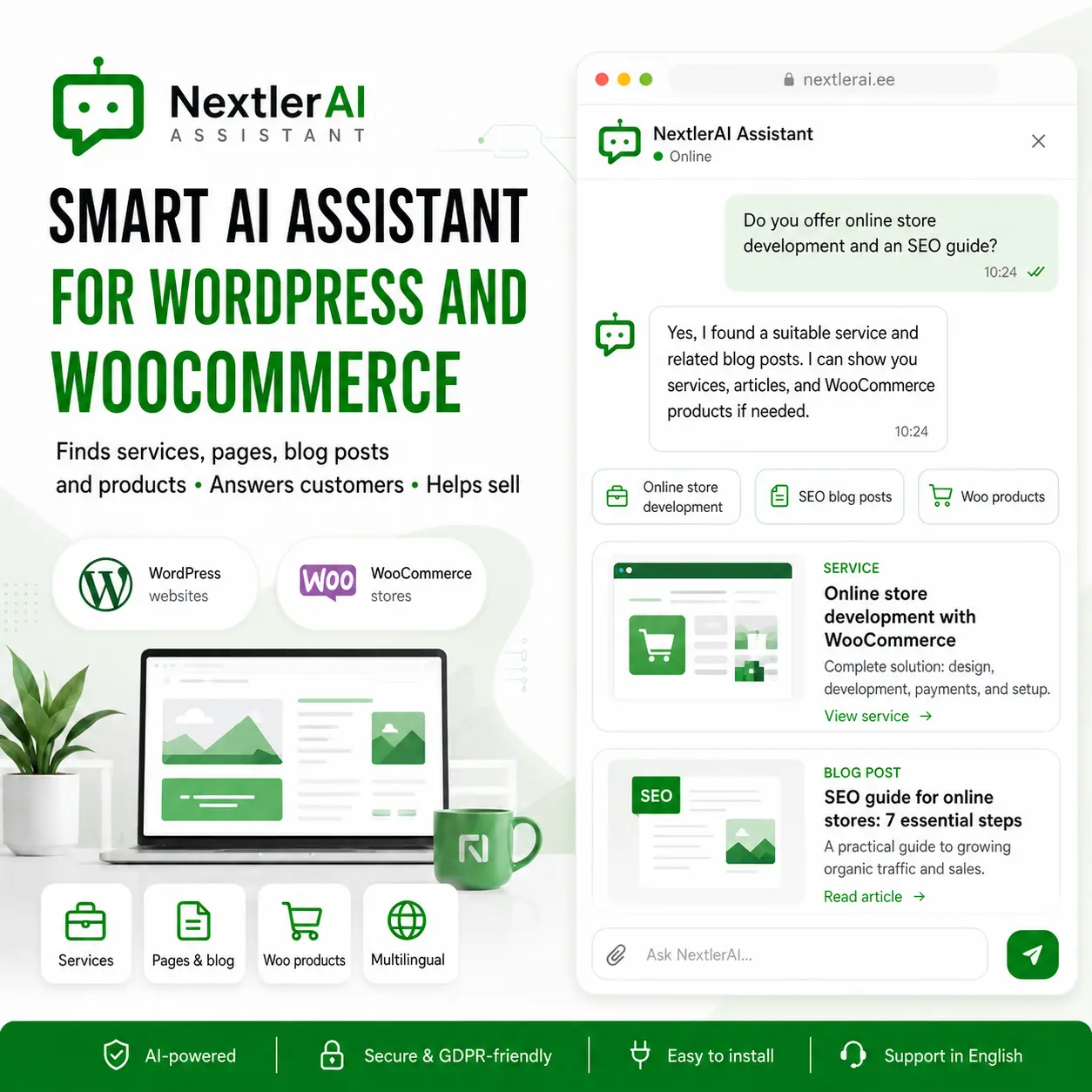
NextlerAI Assistant uses your website content and WooCommerce product data to answer questions, recommend relevant services and products, and guide visitors towards their next step.
- Works with WordPress and WooCommerce
- Searches pages, posts, services and products
- Supports natural, multilingual conversations
- Includes a lifetime licence for one website
- No monthly plugin subscription
- Supports OpenAI, Google Gemini, Anthropic Claude and xAI Grok
An API key from a supported AI provider is required. AI usage fees are paid separately to the selected provider.
Original price was: 399,00 €.49,00 €Current price is: 49,00 €.
- Lifetime licence for one domain/website
- 6 months of plugin updates included
Turn Your Website into an Intelligent Customer Assistant
NextlerAI Assistant is a powerful WordPress plugin that transforms your website into an AI-powered customer assistant available around the clock.
It uses your website’s actual content—including pages, blog posts, services, FAQs and knowledge-base entries—to answer visitor questions and help them find the right information. When WooCommerce is installed, it can also search products, compare options, check availability and assist customers throughout their shopping journey.
Unlike a traditional chatbot with predefined answers, NextlerAI Assistant understands natural language, conversation context and the visitor’s intent.
AI That Understands Your Website
NextlerAI Assistant can use your WordPress website as its knowledge base. It indexes your content and retrieves the most relevant information for each customer question.
The assistant can work with:
- Service pages
- Standard WordPress pages
- Blog posts and articles
- Guides and tutorials
- Frequently asked questions
- Price lists
- Delivery information
- Returns and warranty terms
- Contact information
- Company information
- Manually added and verified questions and answers
Semantic search and the built-in Content Graph help the assistant understand the meaning, structure and relationships within your content—not just match individual keywords.
Help Visitors Find the Right Information
Visitors can ask questions in their own words, just as they would when speaking to a real customer service representative.
For example:
- “What services do you offer?”
- “Do you build online stores?”
- “Do you provide installation?”
- “What are your warranty terms?”
- “How does delivery work?”
- “Do you have a guide about this topic?”
The assistant searches your website and can direct the visitor to the most relevant page, service or article.
Intelligent Blog and Article Search
NextlerAI Assistant searches your WordPress posts and articles for content related to the visitor’s question.
If your website already contains a detailed guide or helpful blog post, the assistant can use it as the basis for its answer and provide a direct link to the relevant article.
Your website’s own content is prioritised whenever it contains information relevant to the customer’s request.
Natural, Context-Aware Conversations
Visitors do not need to know the exact name of a page, service or product. They can describe what they need naturally.
The assistant remembers the context of the current conversation, so customers can ask follow-up questions without repeating everything.
For example:
- “I need a new online store for my business.”
- “Which service would suit me?”
- “Is there a more affordable option?”
- “Is this currently available?”
- “Show me only the brown options.”
Multilingual AI Assistant
NextlerAI Assistant can detect and follow the active language of your WordPress website and respond to visitors in the appropriate language.
It is designed to work with common multilingual WordPress configurations, filtering content according to the active website language.
Customisable Chat Interface
Adapt the assistant to match your website and brand.
You can customise:
- Assistant name
- Welcome message
- Primary colours
- Chat button
- Light or dark appearance
- Language-specific interface text
The floating chat window can be displayed across different pages of your website.
Proactive Customer Assistance
The assistant does not have to wait for the visitor to open the chat.
It can be configured to:
- Offer help after a period of inactivity
- Respond to exit intent
- Assist customers on cart and checkout pages
- Display a discount code when appropriate
- Recommend complementary WooCommerce products based on cart contents
WooCommerce AI Shopping Assistant
WooCommerce is not required for the standard website-assistant features. When WooCommerce is available, additional shopping functionality can be enabled.
Natural-Language Product Search
Customers can search for products using everyday language instead of exact product names.
For example:
- “Show me black products below my budget.”
- “Which option is suitable for outdoor use?”
- “Show me the least expensive option.”
- “Is this available in brown?”
- “Show me the 100 mm version.”
The assistant can use product information such as:
- Categories and product families
- Brands and models
- Colours
- Sizes and dimensions
- WooCommerce attributes
- Intended use
- Prices
- Stock availability
Products Displayed Inside the Conversation
Relevant products can be shown directly in the chat window with:
- Product image
- Product name
- Price
- Stock status
- Link to the product page
- Quantity selector
- Add-to-cart button
Product Comparison
The assistant can compare suitable products and help customers choose an option based on price, size, specifications or intended use.
Quantity Calculations
If verified coverage, package, quantity or measurement information is available in the product data or knowledge base, the assistant can calculate the required product quantity.
Calculations use verified information. Missing values or formulas are not invented.
Visual Product Search
Customers can upload a JPG, PNG or WebP image. With a vision-capable AI model, the assistant can identify the type of product shown and search the WooCommerce catalogue for similar items.
Cart and Related Products
Customers can add products to their cart directly from the conversation. The assistant can also recommend compatible or complementary products based on the current cart contents.
Back-in-Stock Notifications
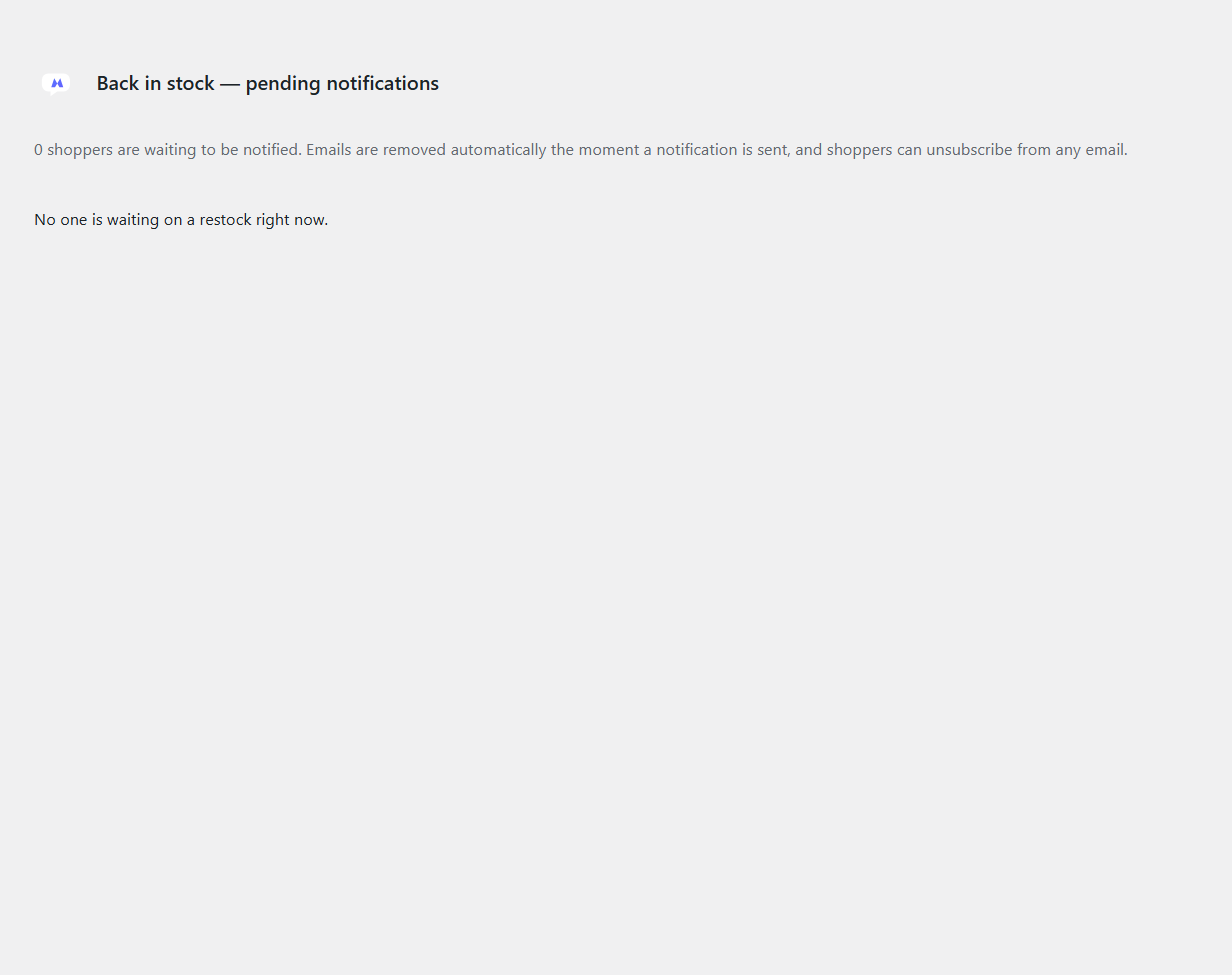
If a product is unavailable, the customer can register their email address for a one-time notification. An automatic message can be sent when the product becomes available again.
Order Status
Customers can check the status of a WooCommerce order using their order number and billing email address. Logged-in users can access information associated with their account.
Checkout Inside the Assistant
Optional WooCommerce checkout functionality can be enabled inside the chat interface.
Customers can:
- Review their cart
- Enter contact and delivery information
- Select a delivery method
- Choose a payment method
- Create a WooCommerce order
If the selected payment method requires a bank link or another secure payment page, the customer is redirected to the appropriate WooCommerce payment page.
Analytics and Diagnostics
The WordPress administrator can monitor how visitors use the assistant and what information they are looking for.
Available insights can include:
- Conversations and customer requests
- Popular questions
- Searches with no results
- Questions without a sufficiently reliable answer
- Product searches
- Assistant-related actions
- WooCommerce sales attributed to assistant sessions
These insights help you identify missing information and improve your website, product catalogue and customer experience.
Efficient Background Indexing
Website content and WooCommerce products are indexed for semantic search.
The system detects changes, so content that has not been modified does not need to be processed repeatedly. Indexing runs in the background and can continue gradually on larger websites.
Supported AI Providers
NextlerAI Assistant supports:
- Google Gemini
- OpenAI
- Anthropic Claude
- xAI Grok
The conversational model and semantic-search model can be configured separately.
Google Gemini and OpenAI support chat, embeddings and image analysis. Claude and Grok can be used for chat and vision features, while semantic indexing requires OpenAI or Google Gemini embeddings.
Privacy and Data Handling
AI API keys are used server-side and are not exposed in the visitor’s browser.
The semantic-search index is stored in your own WordPress database. Only the information required to perform a requested AI function is sent to the selected AI provider, subject to that provider’s terms and privacy policy.
What Is Included
Your purchase includes:
- NextlerAI Assistant WordPress plugin
- Downloadable plugin ZIP file
- Lifetime licence for one WordPress website
- Six months of free plugin updates
- WordPress website assistant functionality
- Website content search and knowledge base
- Page, service and blog-post search
- Multilingual AI conversations
- Customisable chat interface
- Analytics and diagnostics
- WooCommerce shopping-assistant features when WooCommerce is installed
The lifetime licence allows continued use of the installed plugin on one website. After the included update period ends, the existing plugin and licence remain active.
System Requirements
Before purchasing, make sure you have:
- A WordPress website
- WordPress 6.0 or newer
- PHP 7.4 or newer
- An API key from at least one supported AI provider
- Sufficient, accurate website content if you want answers based on your own content
WooCommerce is only required for online-store features such as product search, stock information, cart actions, product comparison and checkout.
Important Information
- The licence is valid for one website.
- WooCommerce is optional.
- An API key from a supported AI provider is required.
- AI API usage is not included with the plugin.
- You pay AI usage fees directly to your selected provider.
- OpenAI or Google Gemini embeddings are required for semantic indexing when Claude or Grok is used as the chat provider.
- Custom development and individually commissioned features are not included.
- Free plugin updates are included for six months from the purchase date.
Frequently Asked Questions
Do I receive the actual WordPress plugin?
Yes. You receive the downloadable NextlerAI Assistant plugin ZIP file and a lifetime licence for one WordPress website. This is a plugin purchase, not merely an installation service or subscription-based access.
Is WooCommerce required?
No. The plugin works on a standard WordPress business website. WooCommerce is only required for product, cart, stock and order-related functionality.
Is there a monthly plugin fee?
No monthly plugin or licence subscription is charged. You only pay the usage costs of your chosen AI provider separately.
How long is the licence valid?
The licence provides lifetime use on one WordPress website.
How long are updates included?
Plugin updates are included for six months from the purchase date. After that period, your existing plugin installation and lifetime licence remain active.
Does the assistant use my website’s content?
Yes. It can index WordPress pages, posts, knowledge-base content and—when WooCommerce is installed—product information.
Can the AI answer questions not covered by my website?
The AI can use general knowledge when appropriate. For company-specific information such as services, products, prices, availability and policies, the assistant prioritises verified data from your website and WooCommerce store.
Features
AI-Powered Website Assistant
Transform your WordPress website into an intelligent customer assistant that works around the clock. NextlerAI Assistant understands natural language, follows conversation context and helps visitors find relevant information.
Uses Your Website’s Actual Content
The assistant can search and use your published WordPress content, including:
- Pages and service descriptions
- Blog posts and articles
- Guides and tutorials
- Frequently asked questions
- Shipping and returns information
- Warranty terms
- Contact and company information
- Custom verified questions and answers
Website content is prioritised when answering business-specific questions.
Semantic Search and Content Graph
NextlerAI Assistant understands the meaning and relationships within your content—not just individual keywords. This helps it find the most relevant page, service, guide or answer even when the customer uses different wording.
Natural, Context-Aware Conversations
Customers can write naturally without knowing exact page, service or product names. The assistant remembers the current conversation, allowing visitors to ask follow-up questions without repeating the full request.
Multilingual Support
The assistant can follow the active language of your WordPress website and respond in the visitor’s language. Language-specific interface text and greetings can be customised from the administration area.
Customisable Chat Interface
Match the assistant to your website and brand by customising:
- Assistant name and welcome message
- Accent and chat-bubble colours
- Light or dark appearance
- Chat and header icons
- Floating chat button
- Greeting preview and animation
- Language-specific interface text
Proactive Customer Assistance
The assistant can offer help before the visitor opens the chat.
Available options include:
- Delayed greeting messages
- Exit-intent assistance
- Cart and checkout reminders
- Idle-visitor re-engagement
- Optional coupon-code display
- Cart-based complementary product suggestions
WooCommerce Product Search
When WooCommerce is active, customers can search the catalogue using everyday language.
The assistant can understand filters based on:
- Product category
- Product type
- Brand and model
- Colour
- Size and dimensions
- WooCommerce attributes
- Intended use
- Price
- Stock availability
Product Cards Inside the Chat
Relevant WooCommerce products can be displayed directly in the conversation with:
- Product image
- Product name
- Price
- Stock status
- Product-page link
- Quantity selector
- Add-to-cart button
Grounded Product Answers
The assistant can use complete WooCommerce product records to answer product-specific questions.
Supported information can include:
- Short and full descriptions
- Categories and tags
- Product attributes
- Dimensions and weight
- Prices
- Stock information
- Variable-product options
- Selected public custom fields
Strict answer protection helps prevent unsupported technical specifications, stock claims or product details.
Product Comparison
NextlerAI Assistant can compare real products using verified catalogue data and help customers choose based on factors such as:
- Price
- Size
- Capacity
- Dimensions
- Weight
- Product attributes
- Availability
Missing values are not invented.
Product Recommendations
The assistant can recommend products based on customer needs, use cases, recipient, occasion or existing cart contents.
Product recommendations are limited to real, published WooCommerce products.
Visual Product Search
Customers can upload a JPG, PNG or WebP image. A vision-capable AI model can identify the product type and search the WooCommerce catalogue for similar products.
Quantity Calculations
When verified coverage, package, measurement or quantity data is available, the assistant can calculate how much product the customer needs.
Calculations use controlled product data and deterministic formulas. Missing coverage values or formulas are not generated automatically.
Cart and Complementary Products
Customers can add products to the real WooCommerce cart directly from the chat. The assistant can also suggest compatible or complementary products based on the cart’s contents.
Optional In-Chat Checkout
Customers can complete key checkout steps inside the assistant:
- Review the cart
- Enter billing and delivery information
- Select a shipping method
- Choose a payment method
- Create a WooCommerce order
WooCommerce continues to handle prices, taxes, shipping, payments and order creation. Secure or redirect-based payment methods are handed off to the appropriate WooCommerce payment page.
Back-in-Stock Notifications
Customers can request a one-time email notification for an unavailable product. Their notification record is removed after the product returns to stock and the email has been sent.
Order Status Checks
Customers can check their WooCommerce order status using their order number and billing email address. Logged-in customers can use order information associated with their account.
Size and Fit Advisor
For stores with verified size-chart data, the assistant can guide customers through a short size recommendation process based on product attributes and configured measurements.
Contact and Lead Collection
The assistant can display an in-chat contact form and help customers request additional information or a quotation.
Business contact details and location information can also be used to provide accurate contact and directions answers.
Analytics and Diagnostics
Monitor how customers use the assistant and identify opportunities to improve your website or store.
Available insights include:
- Conversations and customer questions
- Popular searches
- Searches with no product matches
- Questions without a confident answer
- Product-search activity
- Resolved and dismissed queries
- Trending search terms
- Assistant-attributed WooCommerce orders
- API usage and estimated cost
Background Indexing
Product and knowledge-base indexing runs in the background. The plugin detects content changes and avoids unnecessarily processing unchanged products.
This makes it suitable for both smaller websites and larger WooCommerce catalogues.
Multiple AI Providers
Choose the AI services that best suit your website:
- Google Gemini
- OpenAI
- Anthropic Claude
- xAI Grok
The chat provider and semantic-search provider can be configured separately.
Privacy-Focused Architecture
- AI API keys are used server-side
- Keys are not exposed in the visitor’s browser
- Product embeddings are stored in your WordPress database
- Only information required for the selected AI function is sent to the configured provider
- Rate limits help protect public assistant endpoints
Elementor Integration
Use the included Elementor widgets to add AI-powered chat, search or product recommendations to selected pages.
Lifetime Licence for One Website
The product includes a lifetime licence for one WordPress website and six months of plugin updates. No monthly plugin or licence subscription is required.
AI-provider usage fees are separate and are paid directly to the selected provider.
Installation & Setup Guide
Follow these steps to install, activate and configure NextlerAI Assistant on your WordPress website.
Before You Begin
Make sure you have:
- A WordPress website running WordPress 6.0 or newer
- PHP 7.4 or newer
- Administrator access to WordPress
- Your NextlerAI Assistant licence key
- An API key from at least one supported AI provider
- WooCommerce installed and activated if you want to use product, cart and checkout features
NextlerAI Assistant supports Google Gemini, OpenAI, Anthropic Claude and xAI Grok.
For semantic search and content indexing, the embedding provider must be either Google Gemini or OpenAI. If you use Claude or Grok for conversations, you will also need a Gemini or OpenAI API key for embeddings.
Step 1: Install the Plugin
- Sign in to your WordPress administration area.
- Go to Plugins → Add New Plugin.
- Click Upload Plugin.
- Select the NextlerAI Assistant ZIP file supplied with your purchase.
- Click Install Now.
- When the installation is complete, click Activate Plugin.
A new NextlerAI Assistant section will appear in the WordPress administration menu.
Do not extract the ZIP file before uploading it to WordPress.
Step 2: Activate Your Licence
A valid licence is required before the assistant can operate on your website.
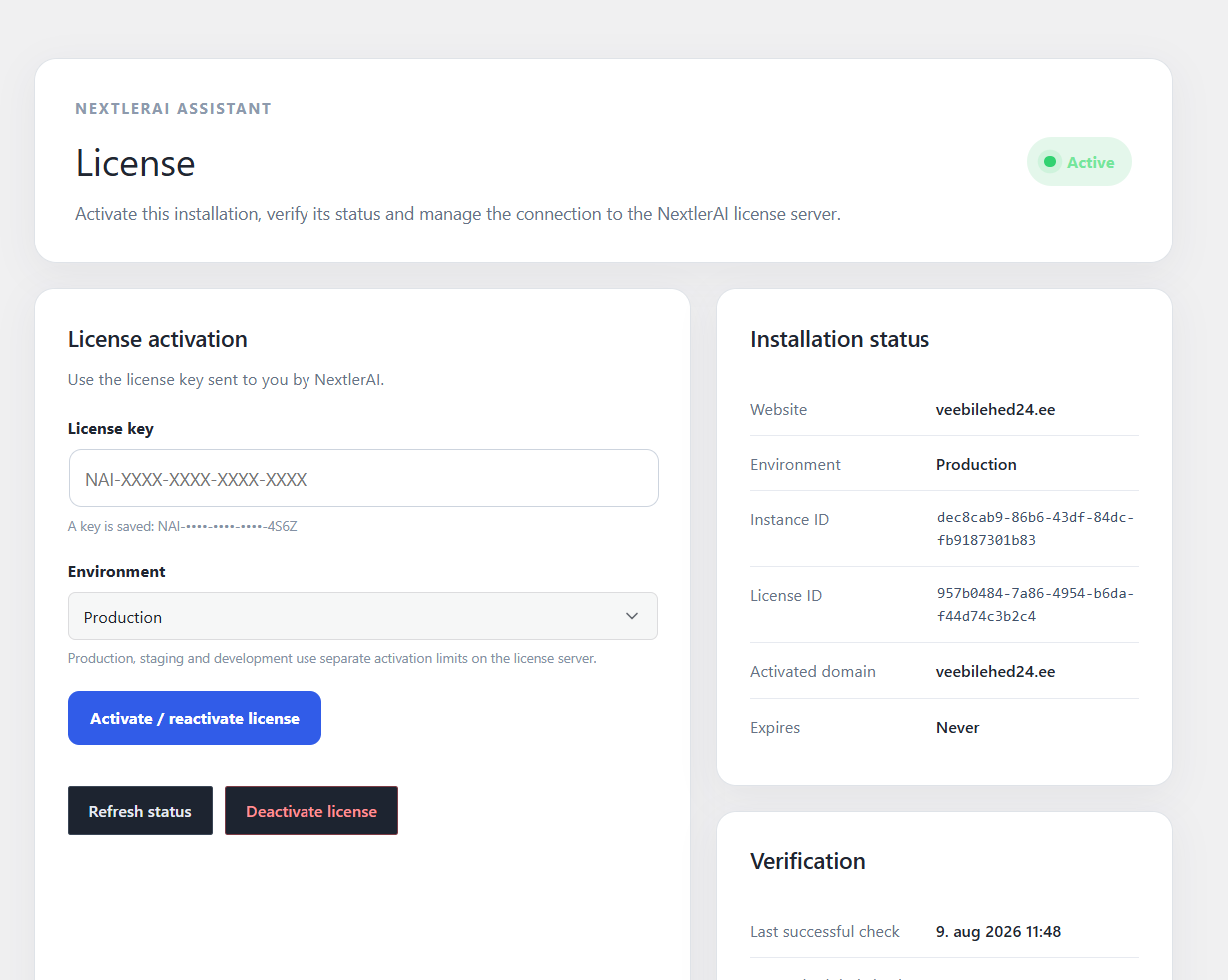
- Go to NextlerAI Assistant → License.
- Enter your licence key in the License key field.
- Select the correct environment:
- Production for a live website
- Staging for a staging or testing copy
- Development for a local development website
- Click Activate license.
- Confirm that the licence status is shown as active and that Runtime access is enabled.
Production, staging and development installations may use separate activation limits.
Without an active licence, the assistant remains hidden from visitors and the plugin’s administration area is read-only. Existing settings and indexed data are preserved.
If the website domain changes, open the Licence page and use Activate / reactivate license. You can also use Refresh status to request a new licence verification.
Before permanently moving the licence to another live website, use Deactivate license on the current website.
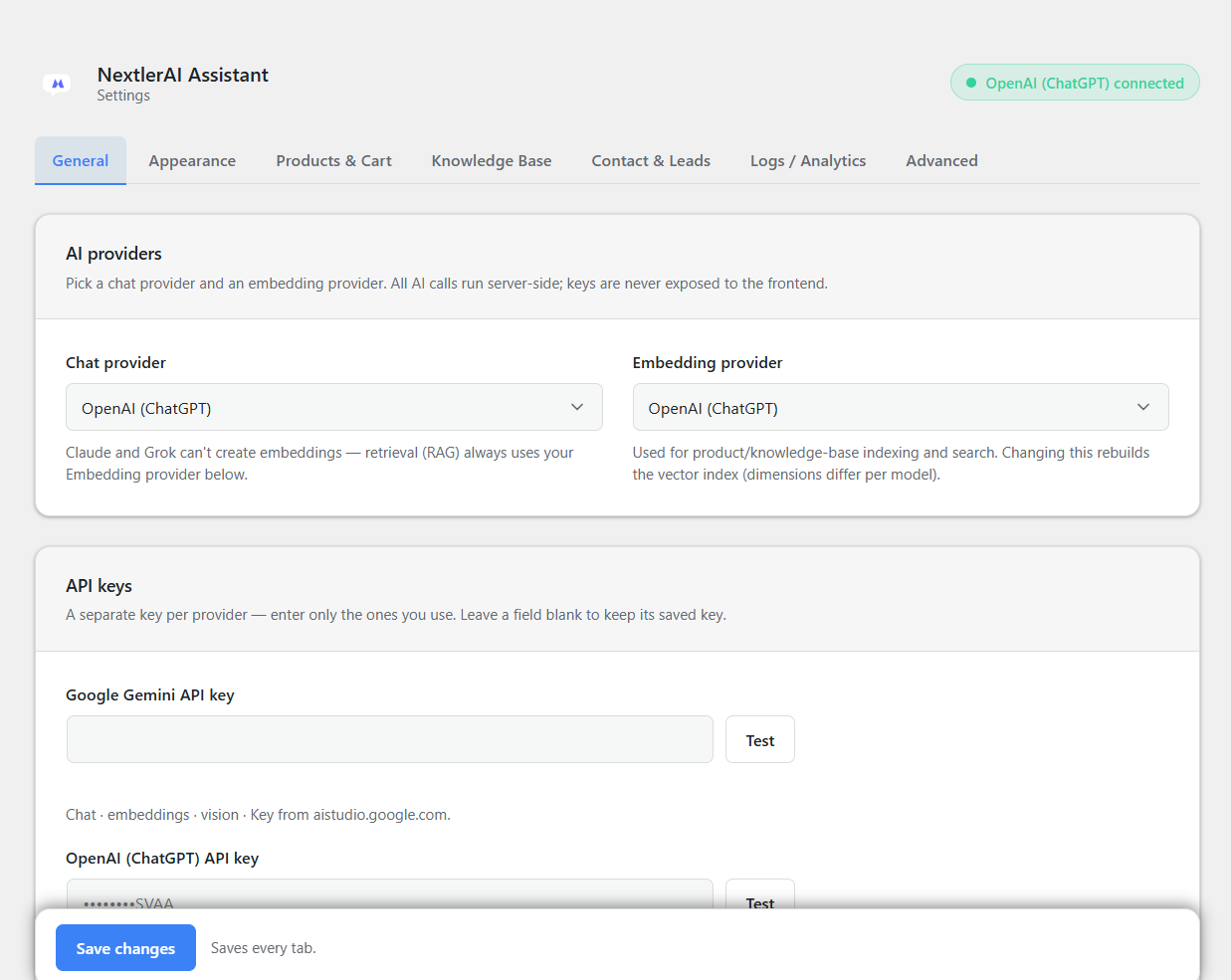
Step 3: Choose Your AI Providers
Go to NextlerAI Assistant → Settings → General.
NextlerAI Assistant lets you choose the conversational AI and the semantic-search provider separately.
Chat provider
The chat provider generates the assistant’s conversational responses.
Choose one of the following:
- Google Gemini
- OpenAI
- Anthropic Claude
- xAI Grok
Embedding provider
The embedding provider powers semantic product search and knowledge-base retrieval.
Choose:
- Google Gemini, or
- OpenAI
Claude and Grok do not provide embeddings. If either is selected as the chat provider, choose Gemini or OpenAI as the embedding provider.
Step 4: Add and Test Your API Keys
In NextlerAI Assistant → Settings → General, find the API keys section.
- Enter the API key for each provider you intend to use.
- Click Test next to each entered key.
- Wait for the successful connection message.
- Click Save changes.
You only need to enter keys for the providers you use.
API keys are stored on your WordPress installation and are used server-side. They are not exposed in the visitor’s browser.
AI API usage is not included with the plugin. Usage fees are charged separately by your selected AI provider.
Step 5: Select the AI Models
In the Models section, select:
- The chat model for your chosen chat provider
- The embedding model for your chosen embedding provider
For most websites, the default models provide a good starting point.
Changing the embedding provider or embedding model makes the existing vector index incompatible. If you change either setting later, save your changes and reindex both your products and knowledge base.
Do not mix indexes created with different embedding models.
Step 6: Enable the Storefront Assistant
Under Settings → General → Chatbot:
- Enable Show a floating chat bubble on the storefront.
- Click Save changes.
The floating assistant will appear on the public website once the licence and AI provider connection are active.
You can also add the assistant to selected pages with the included Elementor widgets when Elementor is installed.
Step 7: Customise the Assistant’s Appearance
Open NextlerAI Assistant → Settings → Appearance.
You can configure:
- Default accent colour
- Light or dark colour scheme
- Floating chat-button icon
- Chat-header icon
- Chat-bubble background colour
- Chat-bubble movement
- Greeting preview
- Greeting display delay
- Greeting visibility duration
- Greeting animation
- Greeting display frequency
- Close button behaviour
Use the live preview to confirm that the selected icon remains clearly visible against the chat-bubble colour.
Click Save changes when finished.
Step 8: Configure Languages and Interface Text
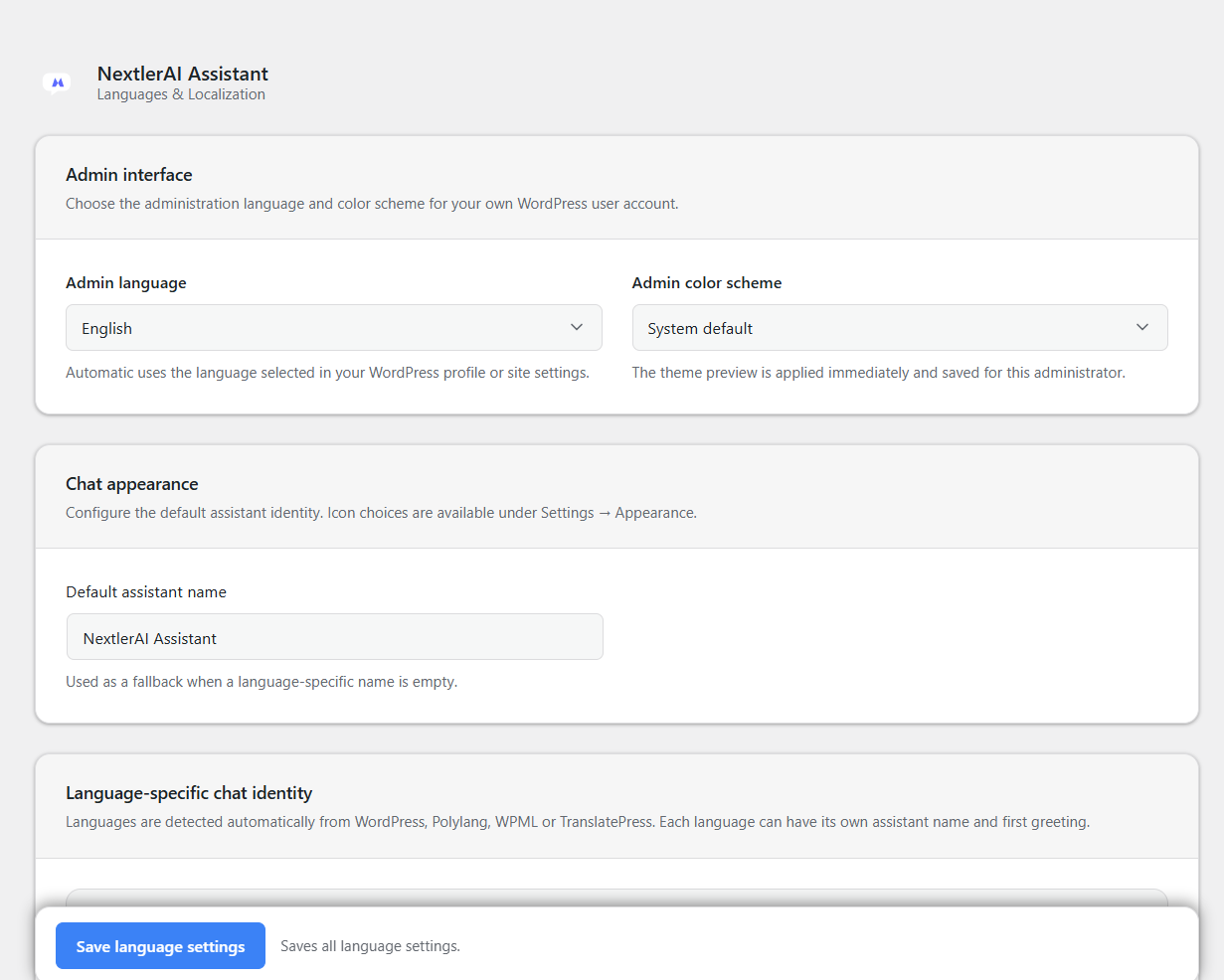
Go to NextlerAI Assistant → Languages & Localization.
Review the text shown to visitors in each active website language, including:
- Assistant name
- Welcome message
- Input placeholder
- Buttons and actions
- Product and cart messages
- Empty-price replacement text
- Contact and checkout messages
Save the language settings after making changes.
If your website uses multiple languages, make sure the corresponding WordPress content is published in each active language before indexing the knowledge base.
Step 9: Enable WooCommerce Features
If WooCommerce is installed, go to:
NextlerAI Assistant → Settings → Products & Cart
Enable:
Enable WooCommerce products and cart in chat
This allows the assistant to:
- Search WooCommerce products
- Display product cards
- Apply product filters
- Show prices and stock status
- Display quantity controls
- Add products to the cart
- Recommend related products
- Use optional in-chat checkout features
When this option is disabled, the assistant can still answer questions about pages, posts, services, FAQs, contact details and website content.
Step 10: Configure Product Search
Under Product search & browsing, review the following options:
Natural-language filters
Enable:
Apply natural-language filters (price, colour, brand, stock) as real product queries
This allows customers to search using phrases such as:
- “Show me black products that are in stock.”
- “Which products are suitable for outdoor use?”
- “Show me the least expensive option.”
- “Do you have this in a larger size?”
Products shown at once
Choose how many product cards are displayed initially and after each Show more action.
The default value is suitable for most stores.
Maximum products shown in chat
Set the maximum number of products that can be loaded into one chat result. When this limit is reached, the assistant displays a link to view the complete product list.
Step 11: Enable Full Product Knowledge
Under Products & Cart → Product knowledge, enable:
- Use full product content for AI answers
- Include variation data in product knowledge, if your store uses variable products
Full product knowledge can include:
- Product title
- Short description
- Full description
- Categories
- Tags
- Attributes
- Dimensions
- Price
- Stock status
- Variation attributes
- Variation prices and availability
This helps the assistant answer technical and product-specific questions using verified WooCommerce data.
If your store uses public custom fields for important customer-facing specifications, enter their field keys under Additional product custom fields.
Only add fields containing information that may safely be shown to customers.
Step 12: Configure Product Accuracy
Under Product result accuracy, the recommended starting configuration is:
- Set Unsupported answer protection to Strict – verified facts only
- Enable clarification questions for ambiguous searches
- Enable accessory exclusion if accessories should not appear in main-product searches
- Configure category or product rules for important product groups when necessary
Strict protection prevents the assistant from inventing technical specifications, prices, stock information or unsupported product claims.
If your catalogue uses specialised terminology, add relevant terms under Assistant rules, Synonyms or Query-to-product rules.
Example synonym groups:
sofa = couch, settee
sneakers = trainers, sports shoes
mobile phone = smartphone, phone
Use terminology that already exists in your catalogue.
Step 13: Configure Optional WooCommerce Features
The following features are optional and can be enabled under Products & Cart:
Complementary products
Enable cart-aware product recommendations to suggest relevant additional products.
In-chat checkout
Allows customers to review their cart, enter address information, choose delivery and payment methods, and create a real WooCommerce order inside the chat.
WooCommerce remains responsible for pricing, taxes, shipping, payment and order creation.
Offline payment methods can complete inside the chat. Redirect-based and card-payment gateways may transfer the customer to the appropriate secure WooCommerce payment page.
Test the complete checkout process before enabling it on a live store.
Back-in-stock alerts
Allows customers to request a one-time email notification when an unavailable product returns to stock.
Review the notification email subject and body before enabling this feature. Keep the {unsubscribe_url} placeholder in the email message.
Size and fit advisor
Use this feature if your products have consistent size attributes and verified size-chart data.
Enter the correct WooCommerce size attribute and add accurate size ranges for each relevant category. Missing measurements are not invented.
Step 14: Configure the Knowledge Base
Go to:
NextlerAI Assistant → Settings → Knowledge Base
Enable:
Answer policy / FAQ questions
The knowledge base allows the assistant to answer questions using your website’s published content.
Choose content types
Under Content post types, select the published content types the assistant should index, such as:
- Pages
- Posts
- Services
- Guides
- FAQs
- Other public custom post types
Only select content that contains useful, accurate and customer-facing information.
Add extra source pages
Under Extra source pages, select important pages such as:
- Shipping information
- Returns policy
- Warranty terms
- Frequently asked questions
- Contact information
- Installation instructions
- Service descriptions
- Terms and conditions
WooCommerce policy pages can also be included automatically.
Add custom questions and answers
Use Add Q&A to enter verified answers that may not exist on a dedicated website page.
For example:
Question
Do you provide installation?Answer
Yes. Installation can be ordered separately. Please contact us with your website details for an individual quotation.Links can be added using Markdown:
[Read our delivery terms](https://example.com/delivery)After adding or changing knowledge-base sources, click Save changes before starting the index.
Step 15: Index the Knowledge Base
After saving the Knowledge Base settings:
- Remain in Settings → Knowledge Base.
- Click Reindex knowledge base.
- Allow the background indexing process to finish.
- Check the Entries indexed count.
The plugin processes selected pages, posts and custom Q&A entries through the configured embedding provider. The resulting semantic index is stored in your WordPress database.
If indexing fails, check the embedding-provider API key and use the Test button under Settings → General.
Reindex the knowledge base whenever you:
- Change the embedding provider or model
- Add important website content
- Change the selected content types
- Add or remove source pages
- Add or edit custom Q&A entries
- Make significant changes to policies, services or guides
Step 16: Index WooCommerce Products
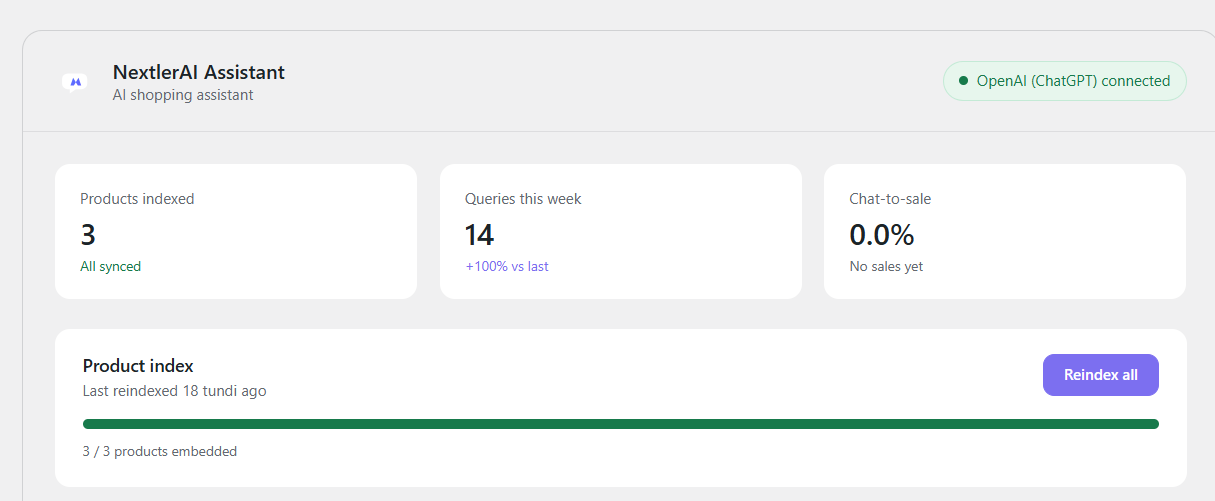
Go to:
NextlerAI Assistant → Dashboard
Find the Product index section and click:
Reindex all
Confirm the action when prompted. Product indexing runs in the background.
The dashboard displays:
- Number of embedded products
- Total number of products
- Indexing progress
- Last indexing status
Keep the website’s background tasks and WP-Cron functioning while the index is being created. You may leave the page while background processing continues.
The plugin only indexes published WooCommerce products. Changed products can be reprocessed without unnecessarily rebuilding unchanged product data.
Reindex all products whenever you:
- Change the embedding provider
- Change the embedding model
- Enable full product knowledge
- Enable variation knowledge
- Add important custom product fields
- Make extensive catalogue changes
- See a notice that the current index is incompatible
Step 17: Test Product Search
After product indexing is complete, go to:
NextlerAI Assistant → Settings → Advanced → Search test
Enter a realistic customer request, for example:
Show me waterproof products suitable for outdoor use.Click Search and review the ranking.
Also test the public assistant with:
- An exact product name
- A product category
- A colour or size request
- A price-related request
- An availability question
- A comparison request
- A vague request that should trigger a clarification question
If irrelevant products appear, review your product titles, categories, attributes, descriptions, synonyms and query-to-product rules before lowering the relevance threshold.
Step 18: Test Knowledge-Base Retrieval
Go to Settings → General → Knowledge overview & diagnostics.
- Enter a real customer question in Test query.
- Select the correct language.
- Click Run diagnostic.
- Review the sources retrieved by the knowledge layer.
Example questions:
What is your returns policy?Do you provide installation?How long does delivery take?Which service is suitable for a new online store?If the correct page is not retrieved:
- Confirm that the page is published
- Confirm that its post type is selected
- Add it under Extra source pages
- Check that the page contains clear and relevant text
- Save the settings
- Reindex the knowledge base
For an important phrase that should always prioritise a specific page, use Page & service training to connect the customer phrase with the preferred page or service.
Step 19: Complete a Final Storefront Test
Before making the assistant available to customers, test it in a private or incognito browser window.
Confirm that:
- The chat bubble is visible
- The welcome message uses the correct language
- General website questions return accurate answers
- Source links open the correct pages
- Product searches return relevant products
- Product prices and stock information are correct
- Variable-product options work correctly
- Add-to-cart actions update the real WooCommerce cart
- Contact forms reach the intended recipient
- Checkout works with your delivery and payment methods
- Mobile layout works correctly
- No private or administrator-only information appears in responses
Recommended Setup Order
For the smoothest installation, complete the configuration in this order:
- Install and activate the plugin
- Activate the licence
- Select the chat and embedding providers
- Add and test the API keys
- Select the AI models
- Save the general settings
- Configure the chat appearance and languages
- Enable WooCommerce features
- Configure product knowledge and accuracy
- Configure knowledge-base sources
- Save all changes
- Reindex the knowledge base
- Reindex all WooCommerce products
- Test product search
- Test knowledge-base retrieval
- Test the assistant on the storefront
Important Notes
- AI API usage fees are not included with the plugin.
- API keys are used server-side and are not exposed in frontend code.
- Product and knowledge-base text is sent to the selected embedding provider when indexing is performed.
- The generated indexes are stored in your own WordPress database.
- Changing the embedding provider or model requires reindexing.
- WooCommerce is optional but required for product, cart, stock and checkout features.
- Keep verified and up-to-date information on your website and product pages.
- Always test cart and checkout functionality before enabling it for customers.
Customer Reviews
No reviews yet. Be the first to leave one.
Reviews
There are no reviews yet.